
Menu
Everything you sell: dishes, prices, photos, dietary information, and whether an item is available right now. What you set here is what customers see when they order.
How to get here
Click Menu in the sidebar.
Who can see it
Admins only. Staff don't see this item in their sidebar. It also needs the Kitchen Dashboard add-on.
The screen at a glance
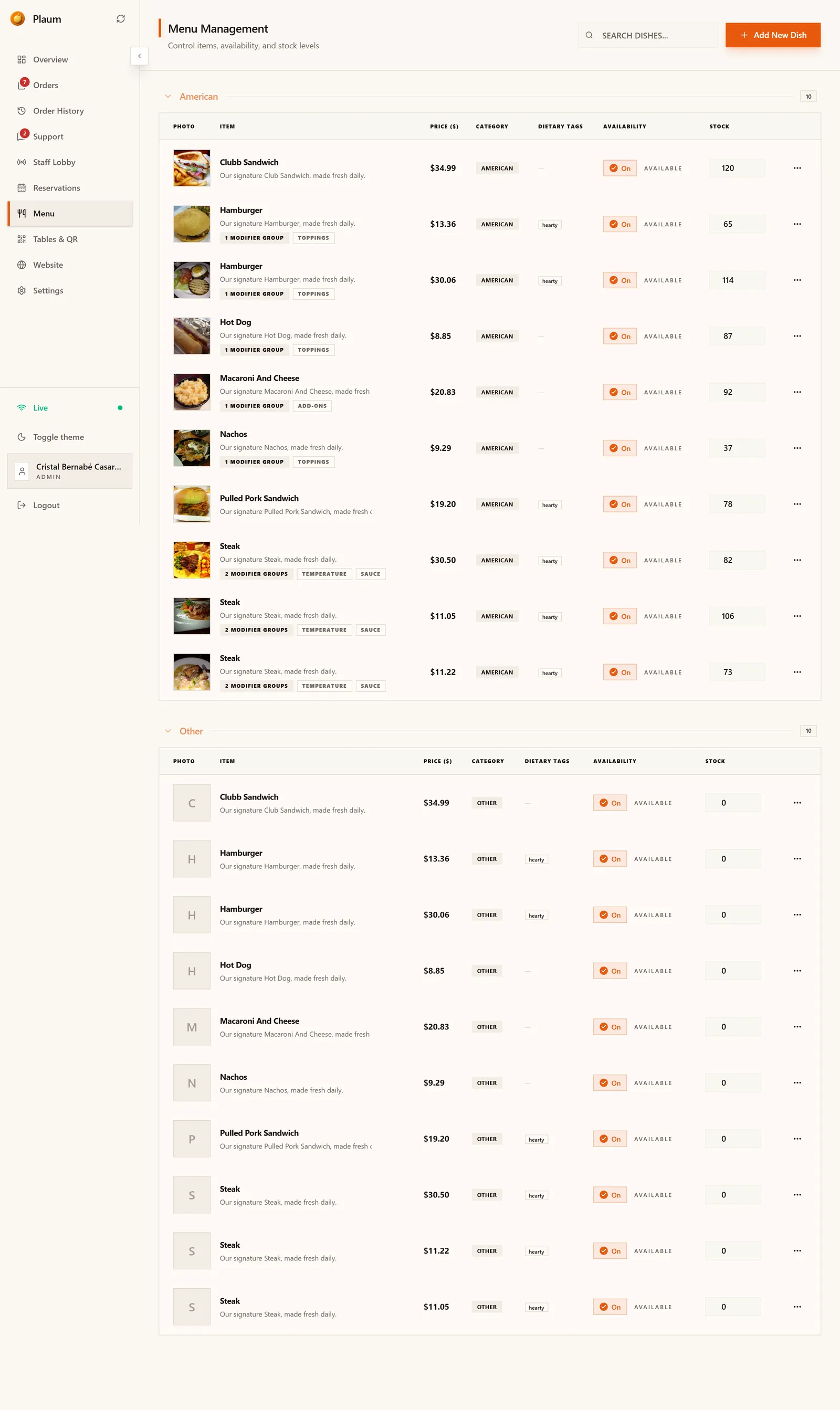
Menu Management — Control items, availability, and stock levels.
Dishes are grouped into collapsible categories — American, Other, and so on — with a count on each. Click a category heading to fold it away.
Each row is one dish:
| Column | Means |
|---|---|
| Photo | The dish image. Dishes without one show a letter tile. |
| Item | Name and description, plus badges for any modifier groups (Toppings, Temperature, Sauce) |
| Price ($) | What you charge |
| Category | Which section of the menu it sits in |
| Dietary tags | hearty, vegan and so on — a dash means none set |
| Availability | An On/Off switch and its current state |
| Stock | How many you have left |
| ⋯ | Row actions — edit, and other options |
Two controls sit in the header: Search dishes… and Add New Dish.
Adding a dish
Click Add New Dish. A panel slides in from the right.
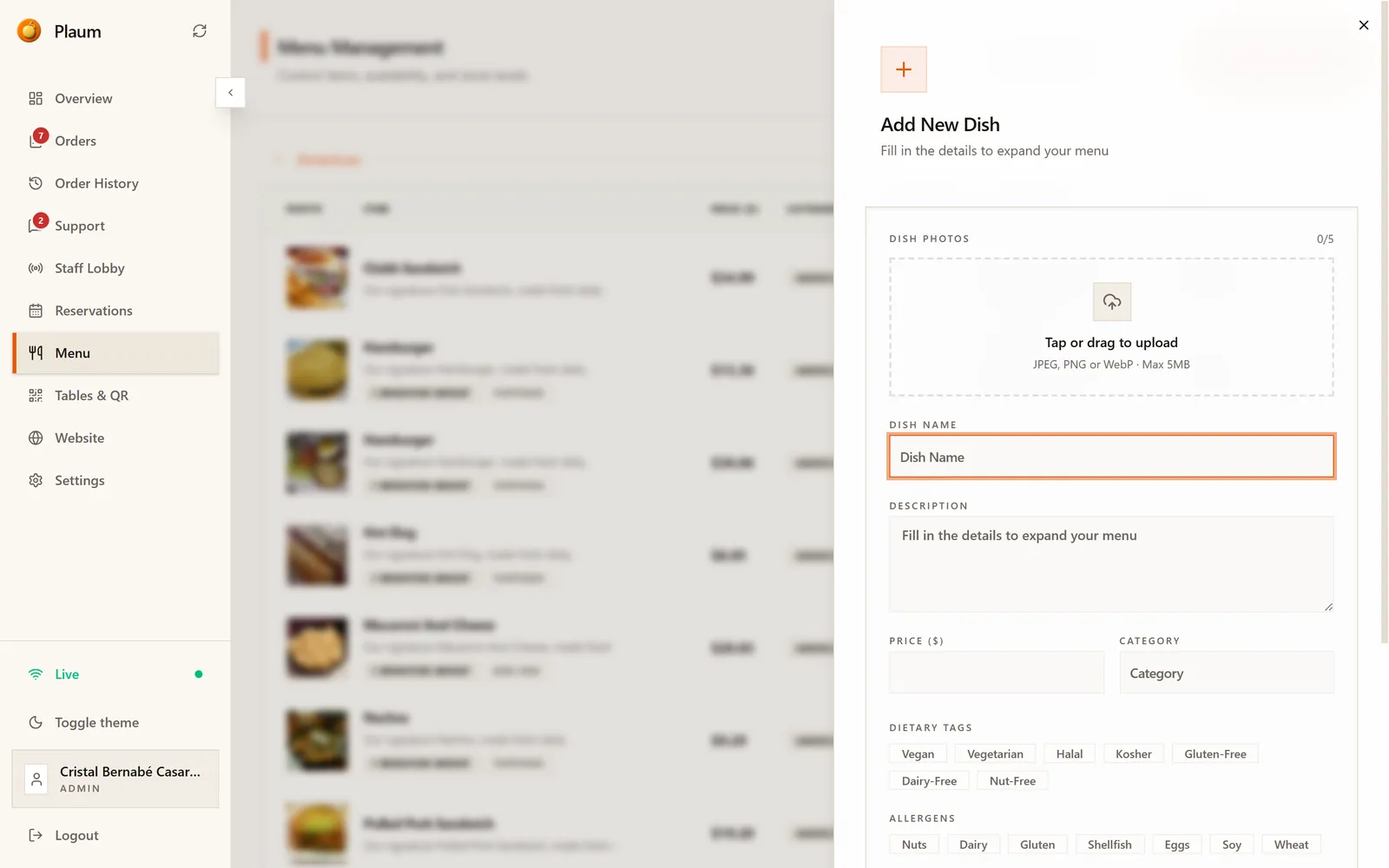
Create Dish stays greyed out until the three required fields — name, price and category — are filled in. That's your cue that something's still missing.
Fill in:
- Dish photos — tap or drag to upload. Up to 5 images, JPEG, PNG or WebP, max 5MB each. Optional, but dishes with photos sell better.
- Dish name — required.
- Description — what the customer reads.
- Price — required.
- Category — required. This decides which group it appears under.
- Dietary tags — tick any that apply: Vegan, Vegetarian, Halal, Kosher, Gluten-Free, Dairy-Free, Nut-Free.
- Allergens — scroll down for these. Worth getting right.
- Stock count — how many you have, if you track stock.
Save when done. The dish appears in its category immediately.
Editing a dish
Click the ⋯ button at the end of a dish's row and choose Edit. The same panel reopens with the dish's details filled in. Change what you need and save.
Taking a dish off the menu
You have two options, and they mean different things.
Sold out for now
Flick the Availability switch to Off. Plaum then asks you why, and the reason is shown to customers:
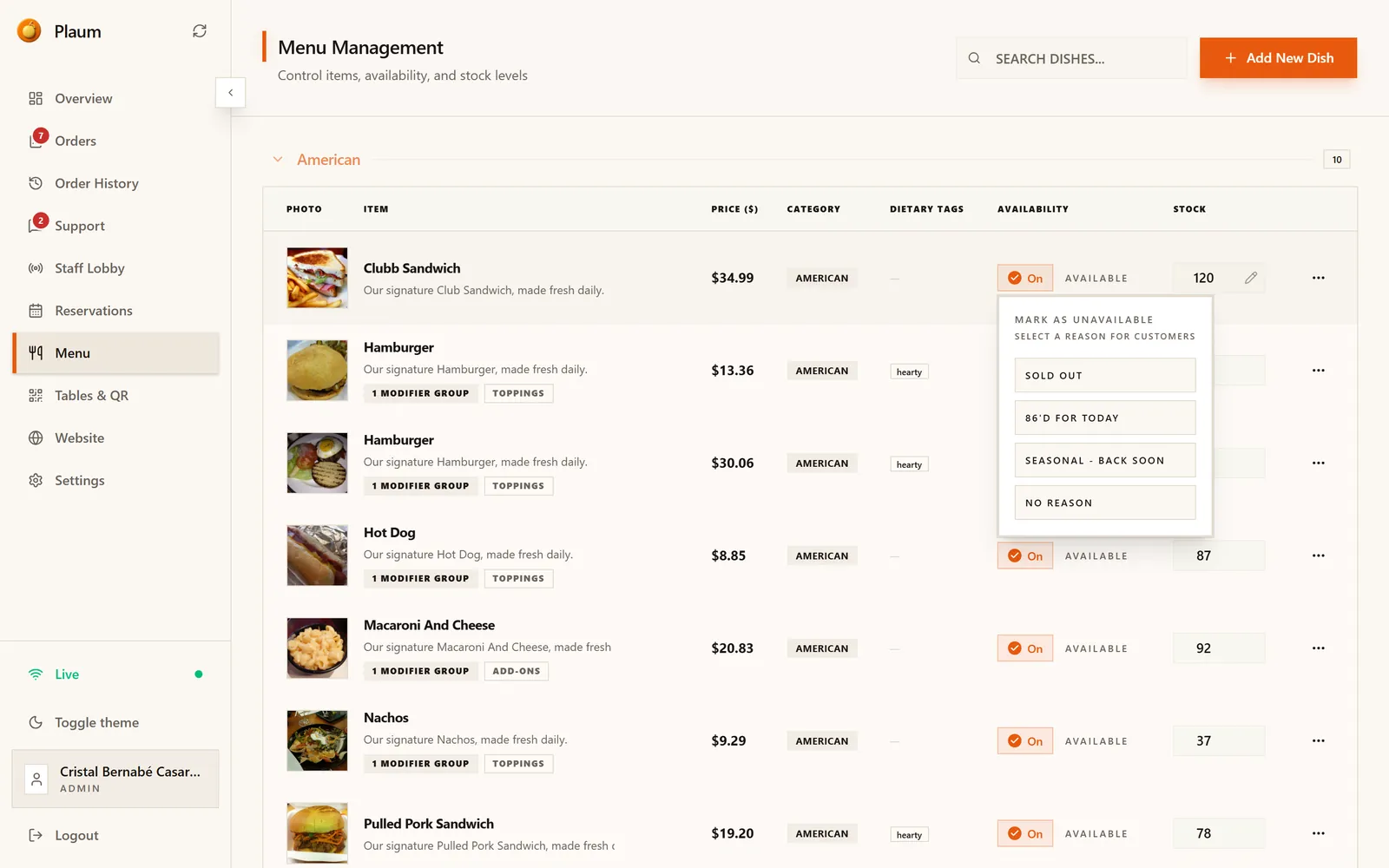
| Reason | Best for |
|---|---|
| Sold out | You've run out today |
| 86'd for today | Off for the rest of service |
| Seasonal — back soon | Temporarily out of season, returning later |
| No reason | Hidden with no explanation given |
Pick the one that matches. "Seasonal — back soon" reads far better to a customer than a dish that silently disappears.
The dish stays on your menu but can't be ordered. Switch availability back on when you have it again. This is what you want mid-service when the kitchen runs out.
Gone for good
Delete the dish from the ⋯ menu. Use this only for items you're genuinely retiring — bringing one back means rebuilding it from scratch.
Stock levels
The Stock column holds a number, with a small pencil icon to edit it in place — no need to open the dish. When stock reaches zero the dish stops being orderable even if availability is on.
If you don't track stock, leave it alone — availability by itself controls whether a dish can be ordered.
Finding a dish
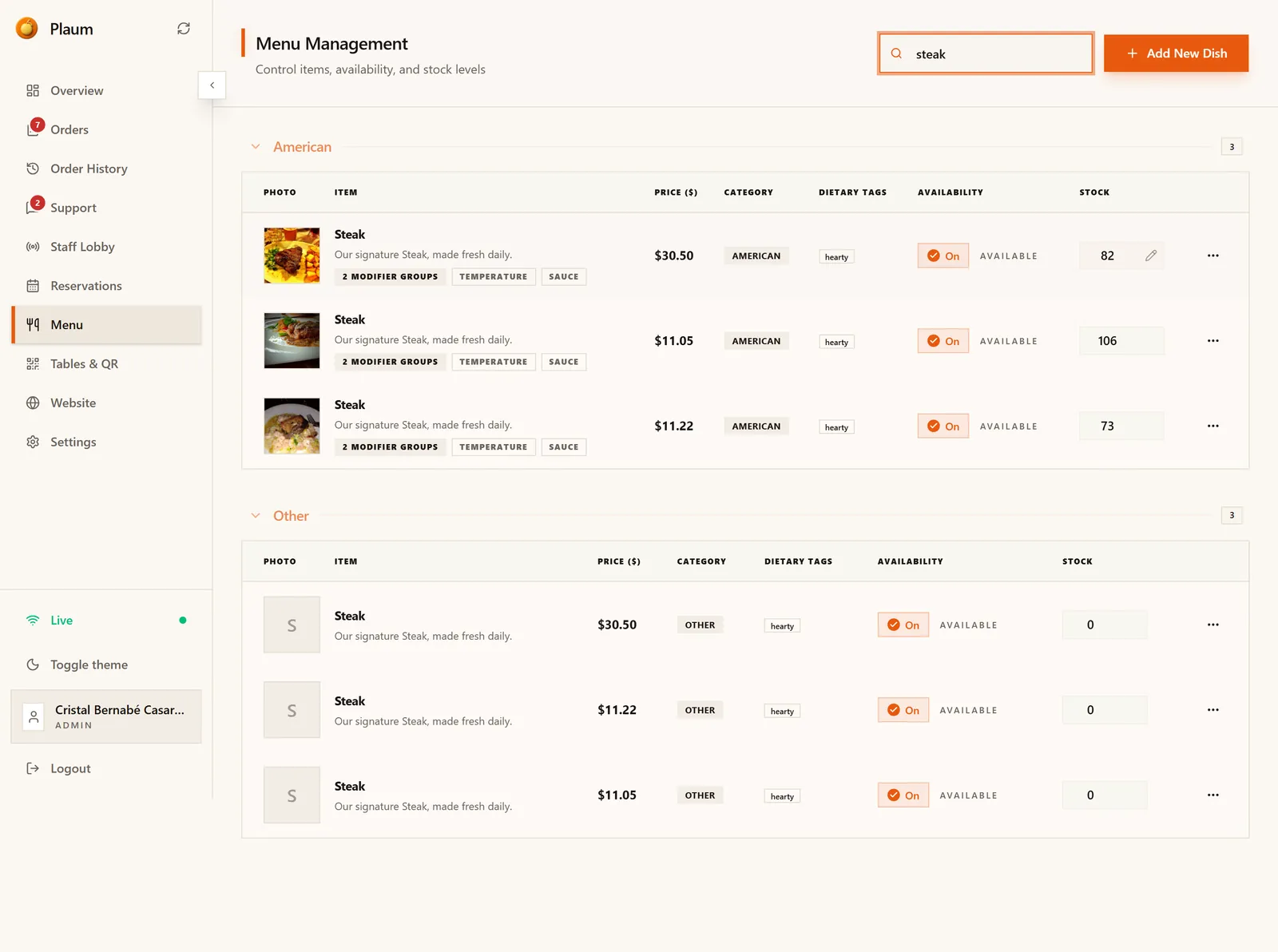
Type into Search dishes… in the header. The list filters as you type, across all categories. Clear the box to get the full menu back.
Useful when your menu is long and the dish you need is three categories down.
Common tasks
Mark something sold out mid-service
- Search for the dish by name.
- Flick its Availability switch to Off.
- Pick a reason — Sold out or 86'd for today.
No save button, and it takes effect for customers immediately.
Put prices up
- Find the dish.
- Click ⋯ → Edit.
- Change the Price and save.
Existing orders keep the price they were placed at. Only new orders use the new one.
Add a seasonal special
- Click Add New Dish.
- Fill in name, price and category, and add a photo.
- Set a stock count if it's genuinely limited.
- Save. When the season ends, switch availability off rather than deleting it — then you can bring it back next year without retyping everything.
Gotchas
- Create Dish stays greyed out until name, price and category are all filled. If the button won't light up, one of those three is empty.
- Availability off is not the same as deleted. Off is reversible in one click; deleted means rebuilding the dish from scratch.
- Stock zero blocks ordering regardless of the availability switch.
- The reason you pick is customer-facing. Choose it deliberately — "86'd for today" is kitchen shorthand that some diners won't recognise.
- The same dish name can exist in more than one category. The demo menu has several — check the category column before editing, or you'll change the wrong one.
- Photos are capped at 5MB. Straight-off-a-phone photos are often larger; resize before uploading if it's rejected.