
Scanning a table QR
How you get here: the QR icon in the Discover header, when QR ordering is enabled. Requires an account? No — guest table ordering is supported.
What this is
The entry point to dine-in ordering. You sit down, scan the code on the table, and the app opens that restaurant's menu already bound to your table number.
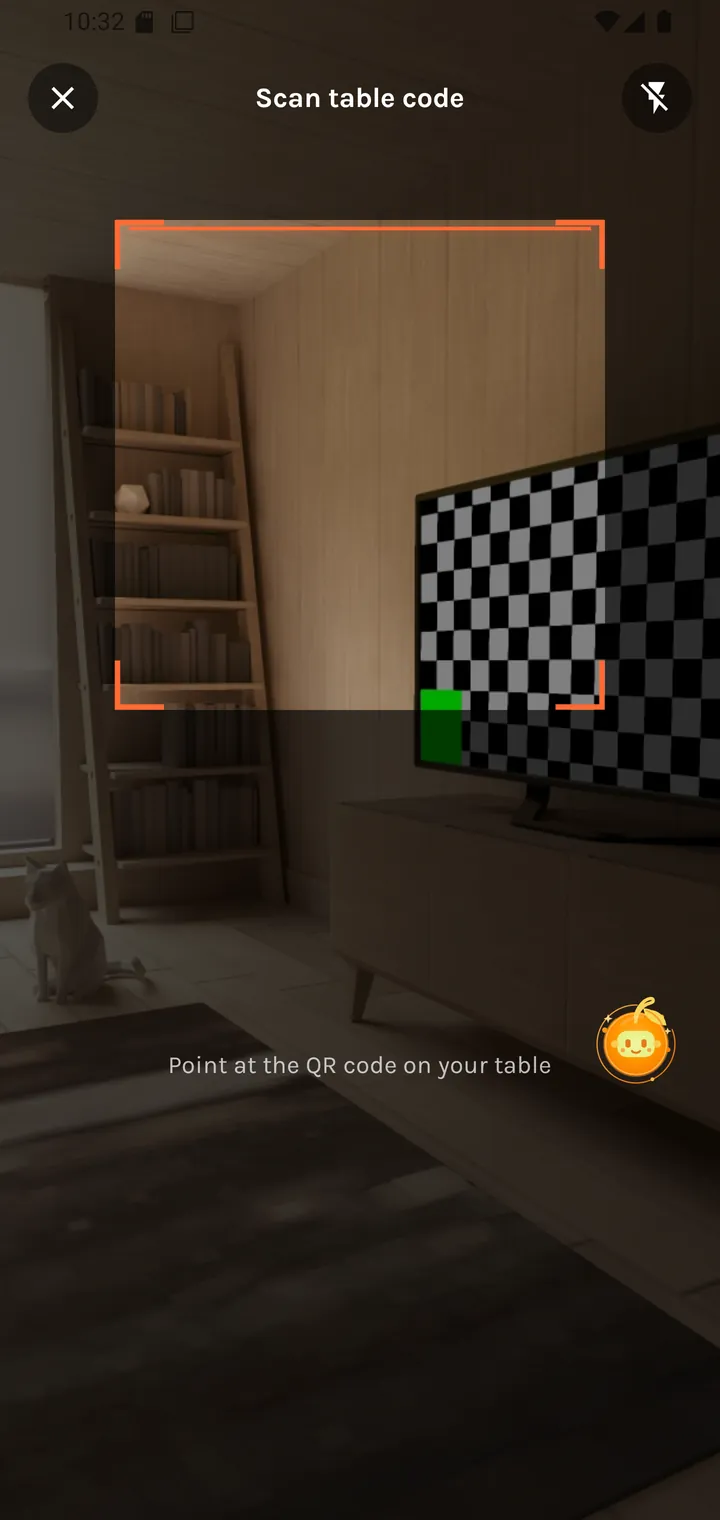
Scan table code Point at the QR code on your table
A framing rectangle, a flash toggle top-right, and a close button top-left.
What happens after a successful scan
The link carries a restaurant ID and a table ID. Before opening the menu the app runs several checks, each with its own message rather than one generic failure:
| Check | If it fails |
|---|---|
| Are you a diner account? | Restaurant accounts are told a foodie account is required. |
| Is location enabled? | Location required — Turn on location so we can verify you are at the restaurant. |
| Is this restaurant accepting QR orders? | QR ordering unavailable — This restaurant is not accepting QR orders right now. |
| Are you actually there? | Not at the restaurant — Move closer to the table QR and scan again. |
| Could the table be verified? | Could not verify table — Please scan the code again. |
Any failure returns you to the feed rather than stranding you on the scanner.
Why the location check
The proximity check is what stops someone ordering to a table they aren't sitting at.
On success the app remembers the restaurant and table, starts a dine-in session, and opens the dine-in menu.