The menu page
Your full menu, public and browsable. It's the most visited page on most restaurant websites.
Getting there
Menu in your site's navigation, or the View Menu buttons on the home page.
What customers see
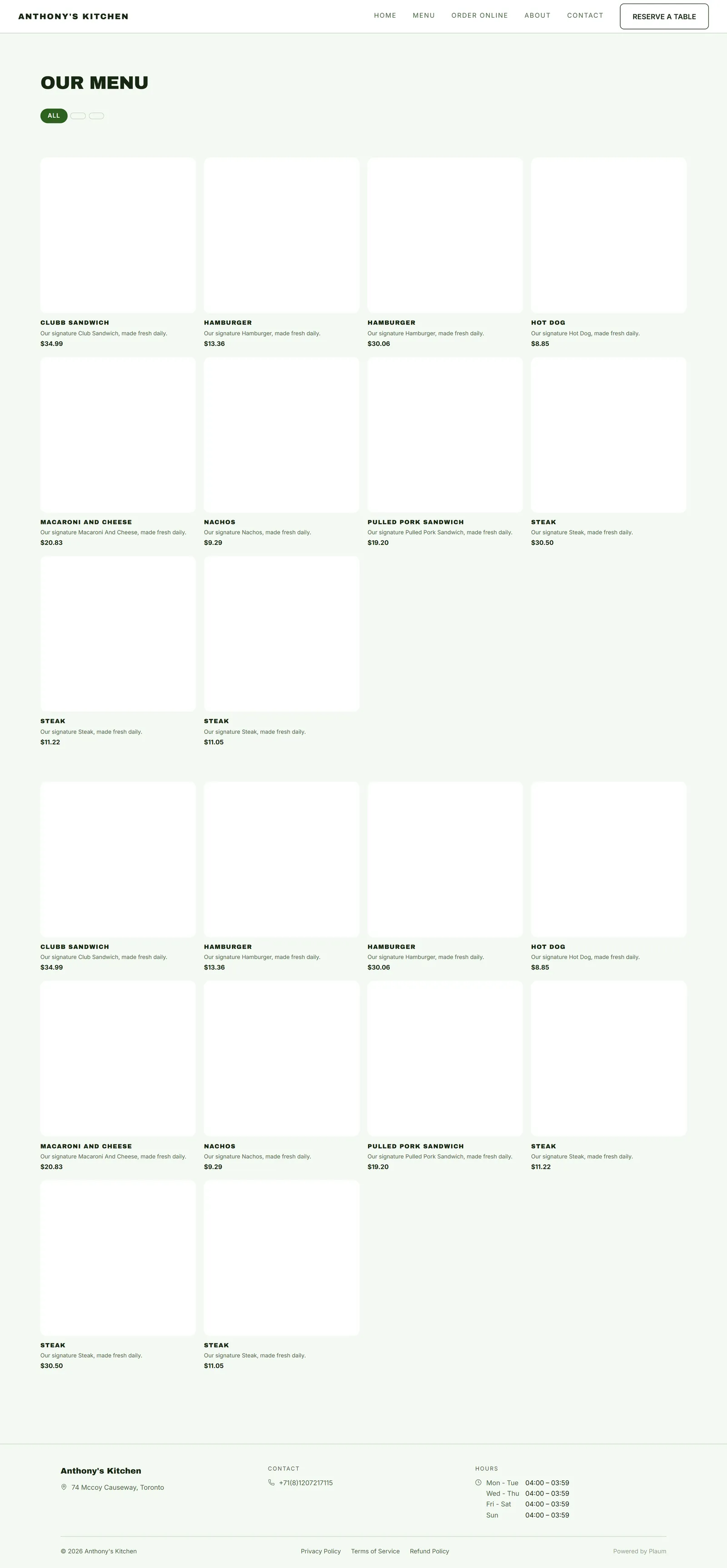
Headed Our Menu, with a category filter along the top — All, then each of your menu categories. Under it, every dish with:
- Its name
- Its description
- Its price
- Its photo, where you've added one
Choosing a category filters the list to that section.
Where it comes from
Entirely from your Menu screen in the dashboard. There is no separate website menu to maintain — one menu, shown in the app, at the table, and here.
That means:
- Change a price on the Menu screen and the website shows it. No publishing.
- Mark a dish unavailable and it stops being orderable.
- Add a photo and it appears here.
Making it look good
The menu page is your data rendered plainly, so quality in the dashboard is quality on the page:
- Photos matter most. A dish with a photo outsells one without. Dishes with no image fall back to a plain tile.
- Descriptions are read. "Our signature Hamburger, made fresh daily" is filler — it tells a customer nothing. Say what's in it.
- Categories are the navigation. Sensible groups make a long menu browsable; everything in one category makes it a wall.
- Check for duplicates. The same dish in two categories appears twice publicly.
Menu versus ordering
Two different things:
- Menu shows what you serve. Always available.
- Order Online takes an order. Only available when your kitchen is open in Plaum — see Online ordering.
Customers can always read your menu, even when you're closed.
Gotchas
- No publishing needed. Menu changes go live on their own. Some owners look for a publish button and worry when there isn't one.
- Unavailable dishes still show on the menu page — customers can read them but not order them. That's intended: your menu is your menu even when the kitchen runs out.
- Prices shown are your menu prices. Ordering fees, if any, appear at checkout.