
Settings
Everything about how your restaurant is configured in Plaum: your details, who has access, how you take payment, what you subscribe to, how you're alerted, and how the kitchen screen behaves.
How to get here
Click Settings in the sidebar.
Who can see it
Admins get all six tabs. Staff see only Notifications — they can control alerts on their own device but nothing about the business.
Settings needs the Kitchen Dashboard add-on.
The screen at a glance
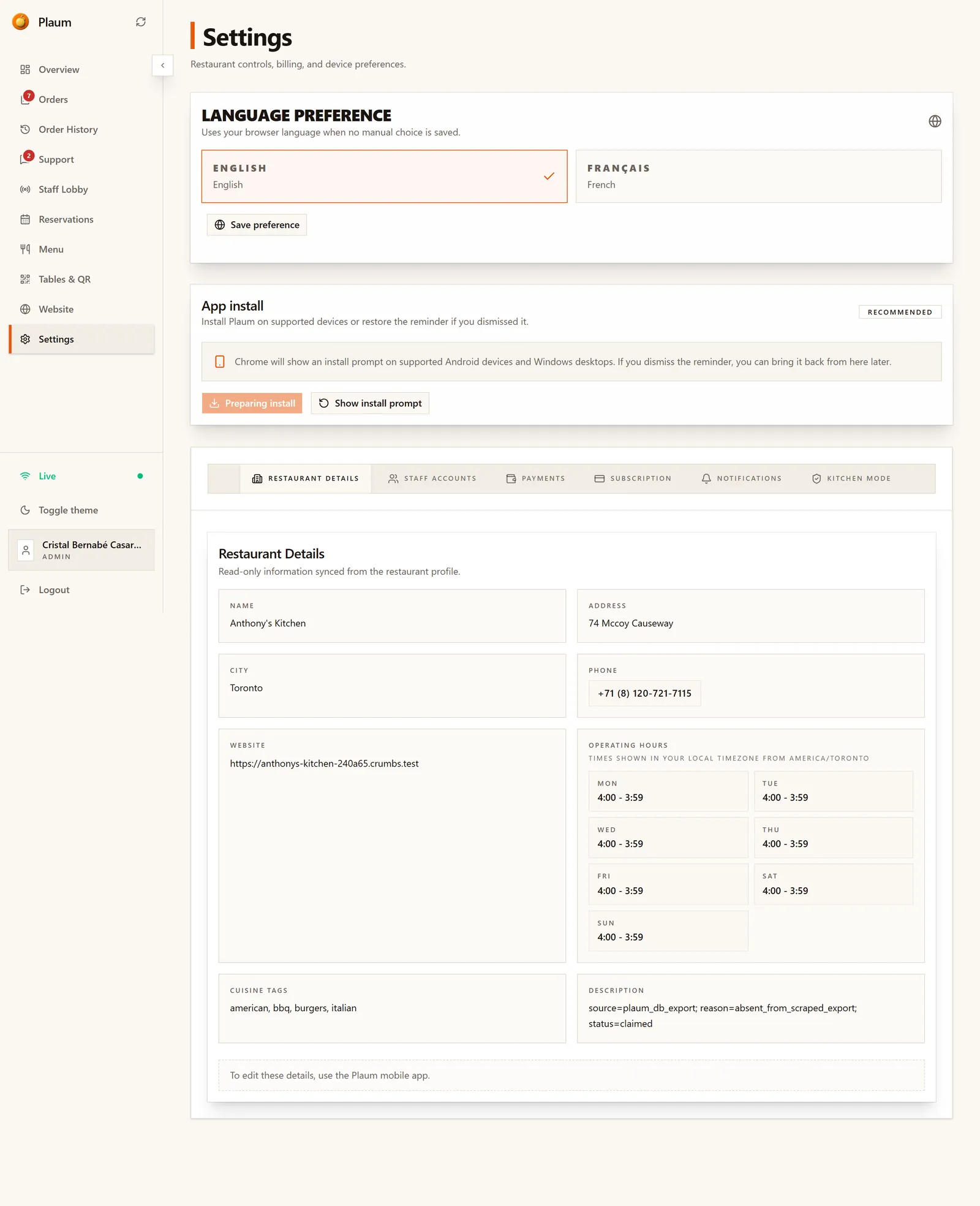
Two cards sit above the tabs and apply to this device, not the restaurant:
Language preference
Choose English or Français, then click Save preference. Without a manual choice, Plaum follows your browser's language.
App install
Installs Plaum as an app on Android tablets and Windows desktops, so it opens in its own window instead of a browser tab. Worth doing on any device that lives in the kitchen. Show install prompt brings back the reminder if someone dismissed it.
Below these sit six tabs.
Restaurant Details
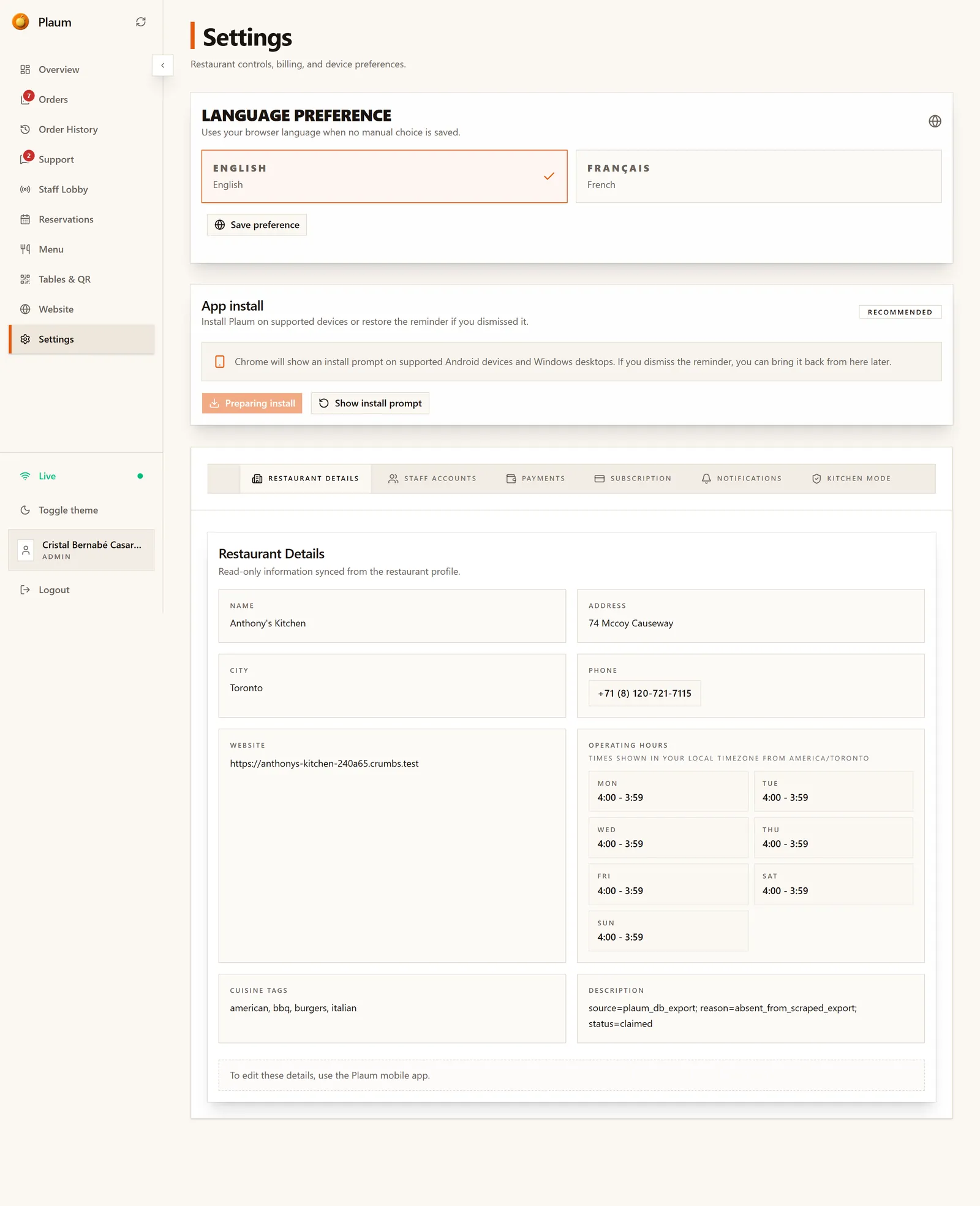
Your restaurant's public information: name, address, city, phone, website, operating hours, cuisine tags and description.
This tab is read-only. A note at the bottom says: "To edit these details, use the Plaum mobile app." Change them there and they sync here. Operating hours are shown in your restaurant's own timezone.
Staff Accounts
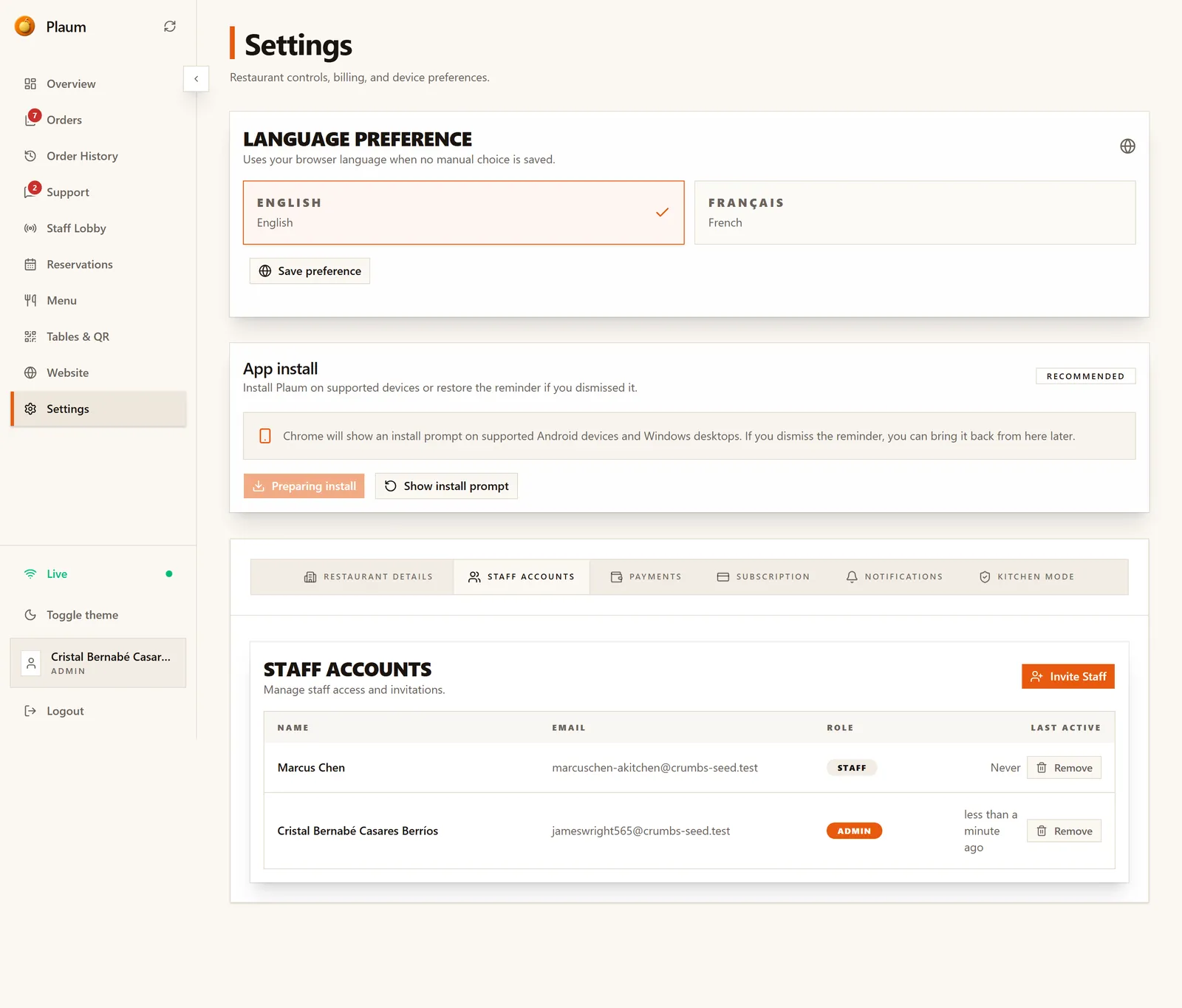
Who can sign in, and as what.
The table lists each person's name, email, role and last active time, with a Remove button on each row.
Inviting a staff member
- Click Invite Staff.
- Enter their details.
- They receive an email with a personal link, and complete their own account from it — see Signing in.
Removing someone
Click Remove on their row. Do this the day someone leaves — an old account is a live key to your orders and menu.
Last active is the column to audit. An account nobody has used in months is usually one that should be removed.
Payments
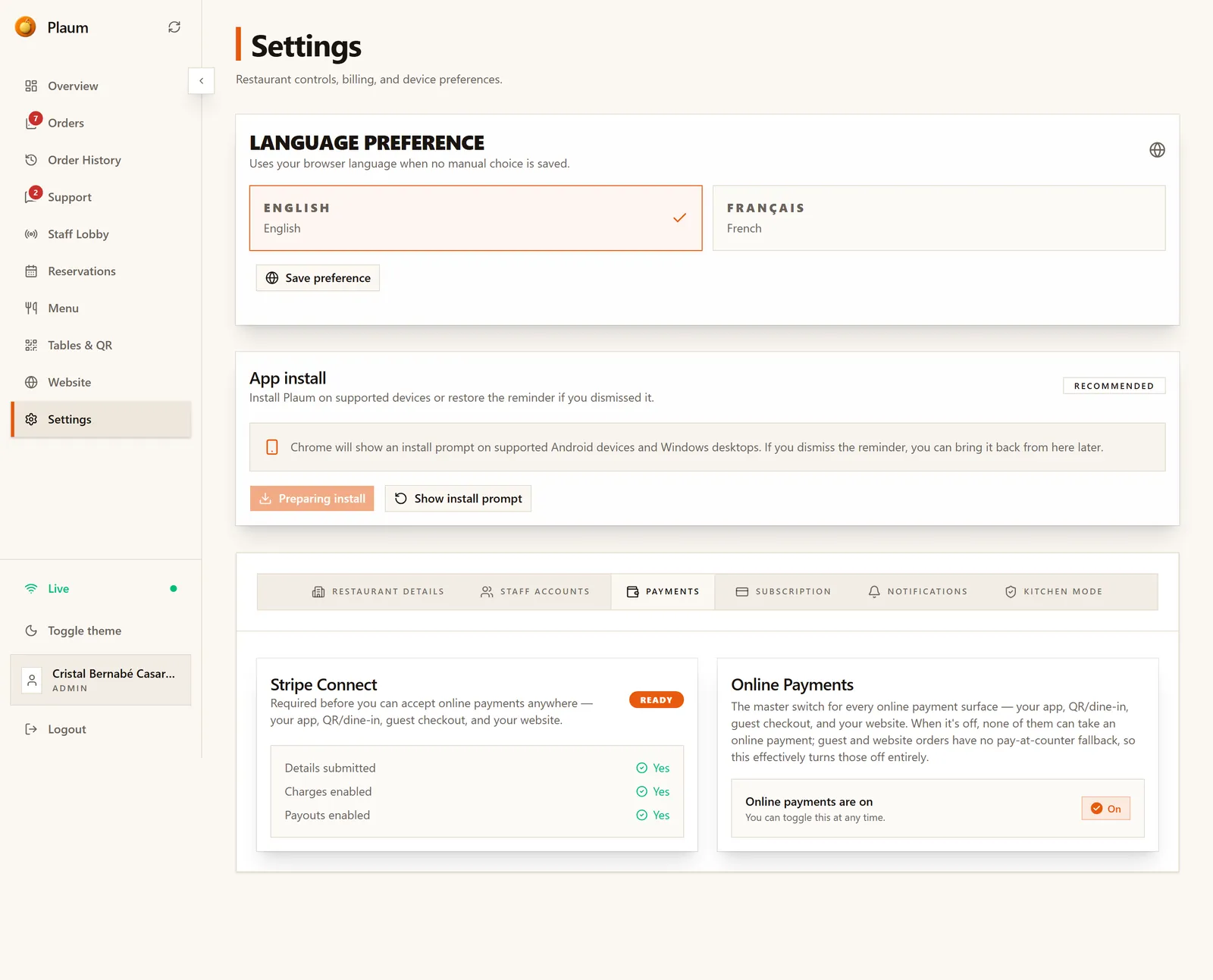
How money reaches you. Reachable directly at Settings → Billing, which Stripe returns you to after onboarding.
Stripe Connect
Required before you can take online payments anywhere — the app, QR/dine-in, guest checkout, or your website. Three checks tell you where you stand:
| Check | Means |
|---|---|
| Details submitted | You've completed Stripe's onboarding form |
| Charges enabled | You can take money |
| Payouts enabled | Money can reach your bank account |
All three Yes, and the badge reads Ready.
Online Payments
The master switch across every surface — app, QR/dine-in, guest checkout and your website.
Be careful here. Turning it off stops all online payment everywhere. Guest and website orders have no pay-at-counter fallback, so switching this off effectively turns those channels off entirely.
Subscription
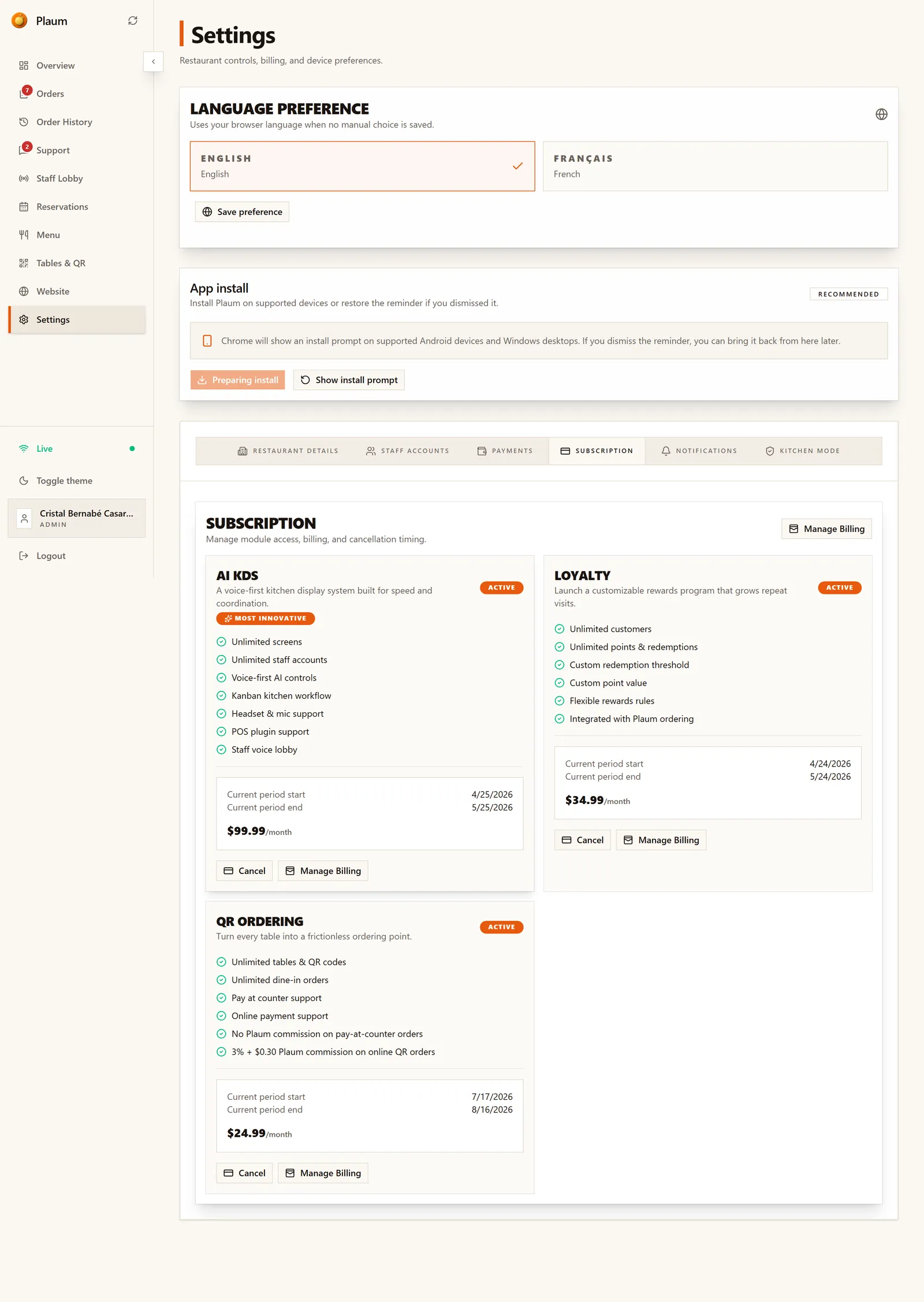
What you pay for, one card per module, each showing what's included, the current billing period and the monthly price.
The demo restaurant has three active:
| Module | Price | Includes |
|---|---|---|
| AI KDS | $99.99/month | Unlimited screens and staff accounts, voice-first AI controls, kanban kitchen workflow, headset and mic support, POS plugin support, staff voice lobby |
| Loyalty | $34.99/month | Unlimited customers, unlimited points and redemptions, custom redemption threshold and point value, flexible rules, integrated with Plaum ordering |
| QR Ordering | $24.99/month | Unlimited tables and QR codes, unlimited dine-in orders, pay-at-counter and online payment support, no Plaum commission on pay-at-counter orders, 3% + $0.30 on online QR orders |
Each card has Cancel and Manage Billing. Cancelling runs to the end of the current period rather than cutting off immediately.
These are the same products as on the Upgrade screen under different names: AI KDS is Kitchen Dashboard, QR Ordering is QR Dine-In.
Notifications
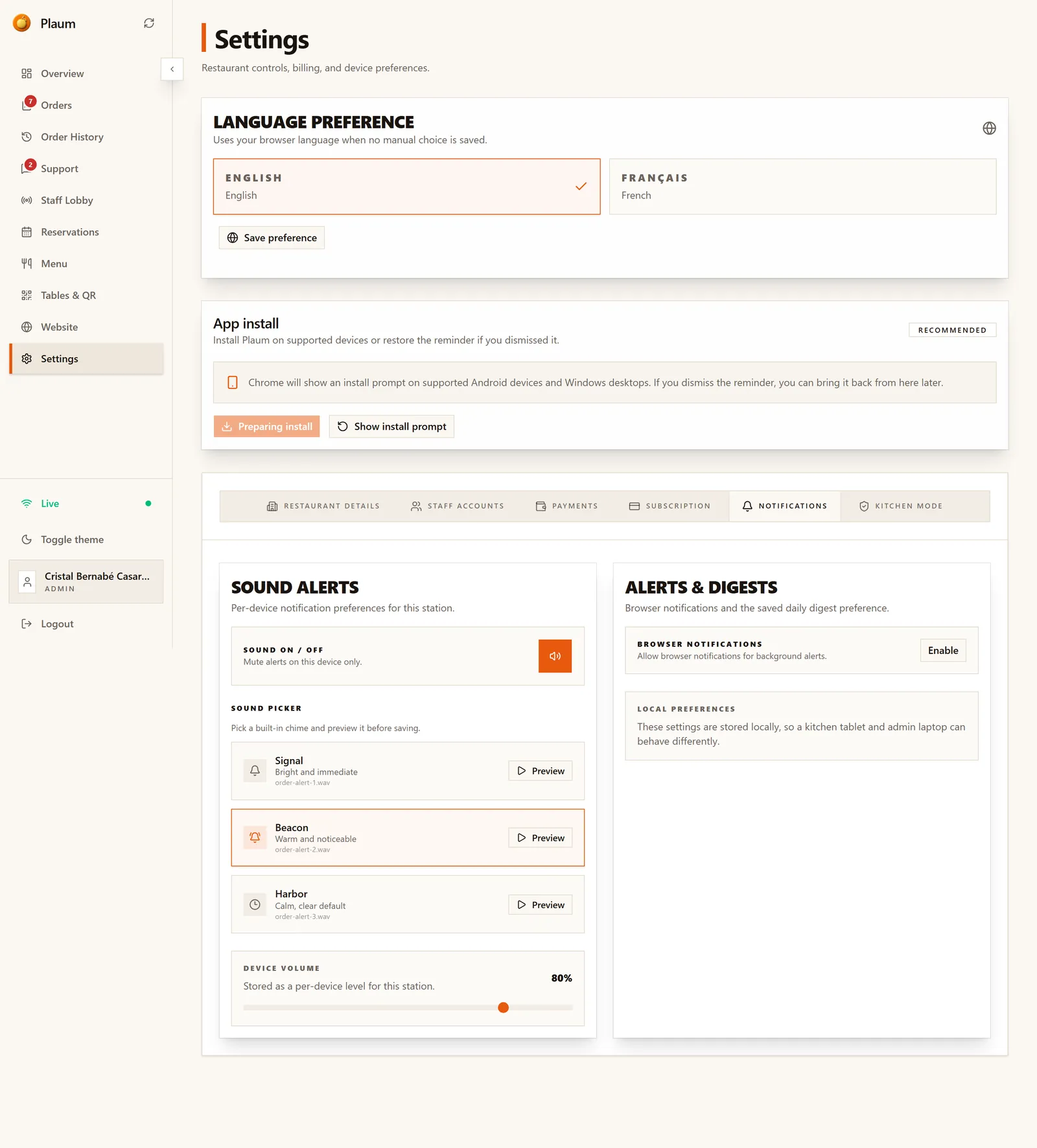
Alerts, set per device. A kitchen tablet and an office laptop can behave completely differently — that's deliberate.
Sound alerts
- Sound on/off — mutes alerts on this device only
- Sound picker — three chimes, each with a Preview button:
- Signal — bright and immediate
- Beacon — warm and noticeable
- Harbor — calm, the default
- Device volume — a per-device level
Pick something that cuts through kitchen noise on the kitchen tablet, and something calmer in the office.
Alerts & digests
- Browser notifications — click Enable to get alerts when Plaum isn't the window you're looking at. Your browser will ask permission.
These settings are stored on the device itself, so they don't follow you to another screen.
Kitchen Mode
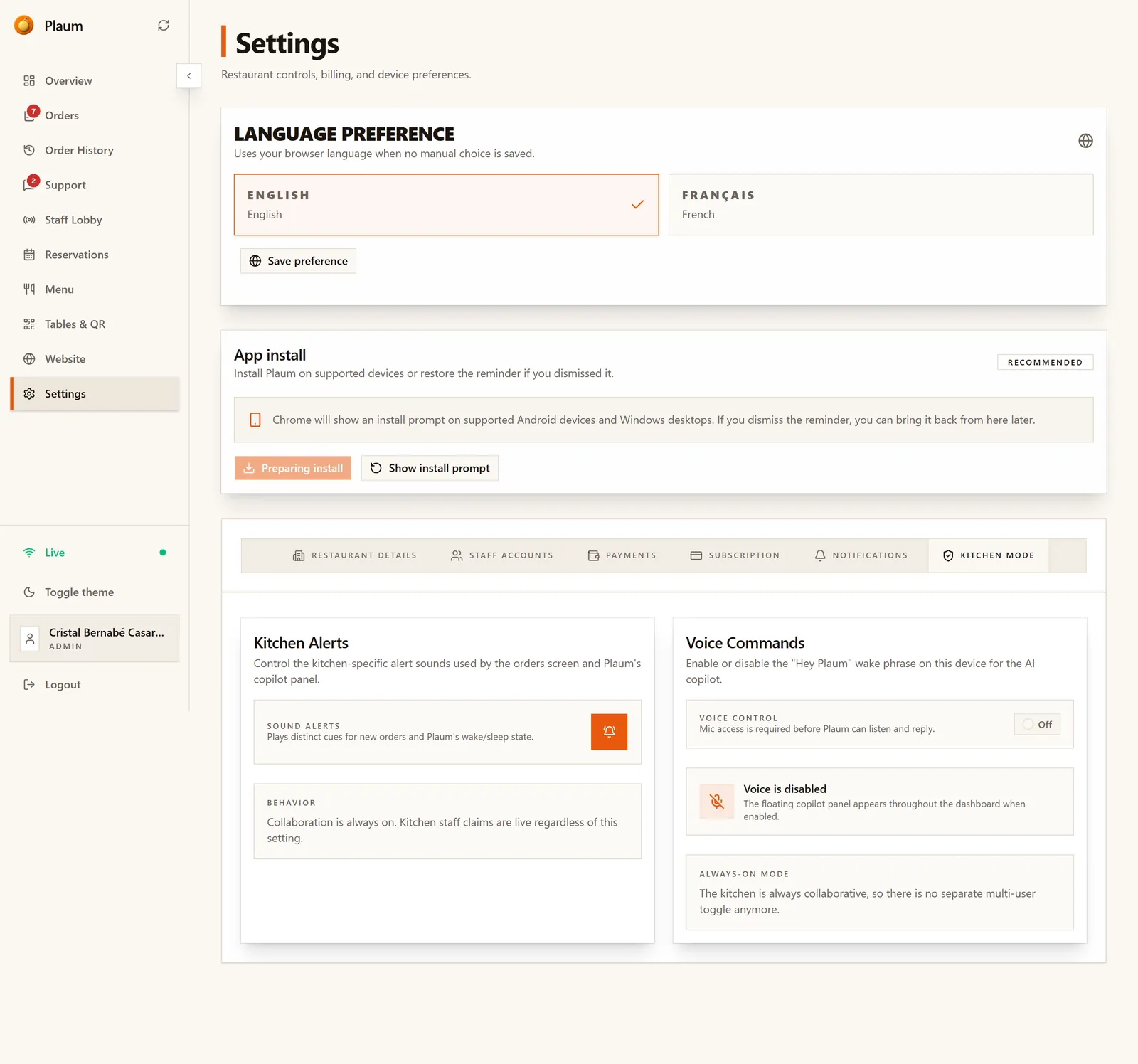
How the kitchen screen behaves during service.
Kitchen alerts
- Sound alerts — distinct cues for new orders and for Plaum waking or sleeping
- Behavior — a note confirming collaboration is always on: staff claims work regardless of this setting
Voice commands
Controls the "Hey Plaum" wake phrase for the AI assistant on this device.
- Voice control — off by default. Microphone access is required before Plaum can listen and reply.
- When enabled, a floating assistant panel appears throughout the dashboard.
- Always-on mode — the kitchen is always collaborative, so there's no separate multi-user toggle.
Common tasks
Get ready to take online payments
- Open Payments.
- Complete Stripe Connect until all three checks read Yes.
- Confirm Online Payments is On.
Onboard a new chef
- Staff Accounts → Invite Staff.
- Send the invitation.
- On their first shift, have them open Notifications on the kitchen tablet and set a chime and volume that works for them.
Quieten a device without muting the kitchen
Open Notifications on that device and turn Sound on/off off. Other devices are unaffected.
Gotchas
- Restaurant details can't be edited here. Name, address, phone and hours are mobile-app only. People hunt for an edit button that doesn't exist.
- Notification settings are per device, not per person. Changing them on your laptop does nothing to the kitchen tablet.
- Turning off Online Payments is a bigger action than it looks — it silently closes your guest and website ordering channels.
- Staff only ever see Notifications. If a staff member reports "missing" tabs, that's by design.
- Cancelling a module runs to the end of the period. You keep access until then; it doesn't stop that day.