
Upgrade
Where you turn Plaum modules on. If a screen you need is missing from the sidebar or shows a locked message, this is where you fix it.
How to get here
You usually arrive automatically: try to open a screen your restaurant doesn't have the add-on for, and Plaum sends you here instead of showing an error.
Who can see it
Anyone can land on it, but only an admin can actually subscribe.
The screen at a glance
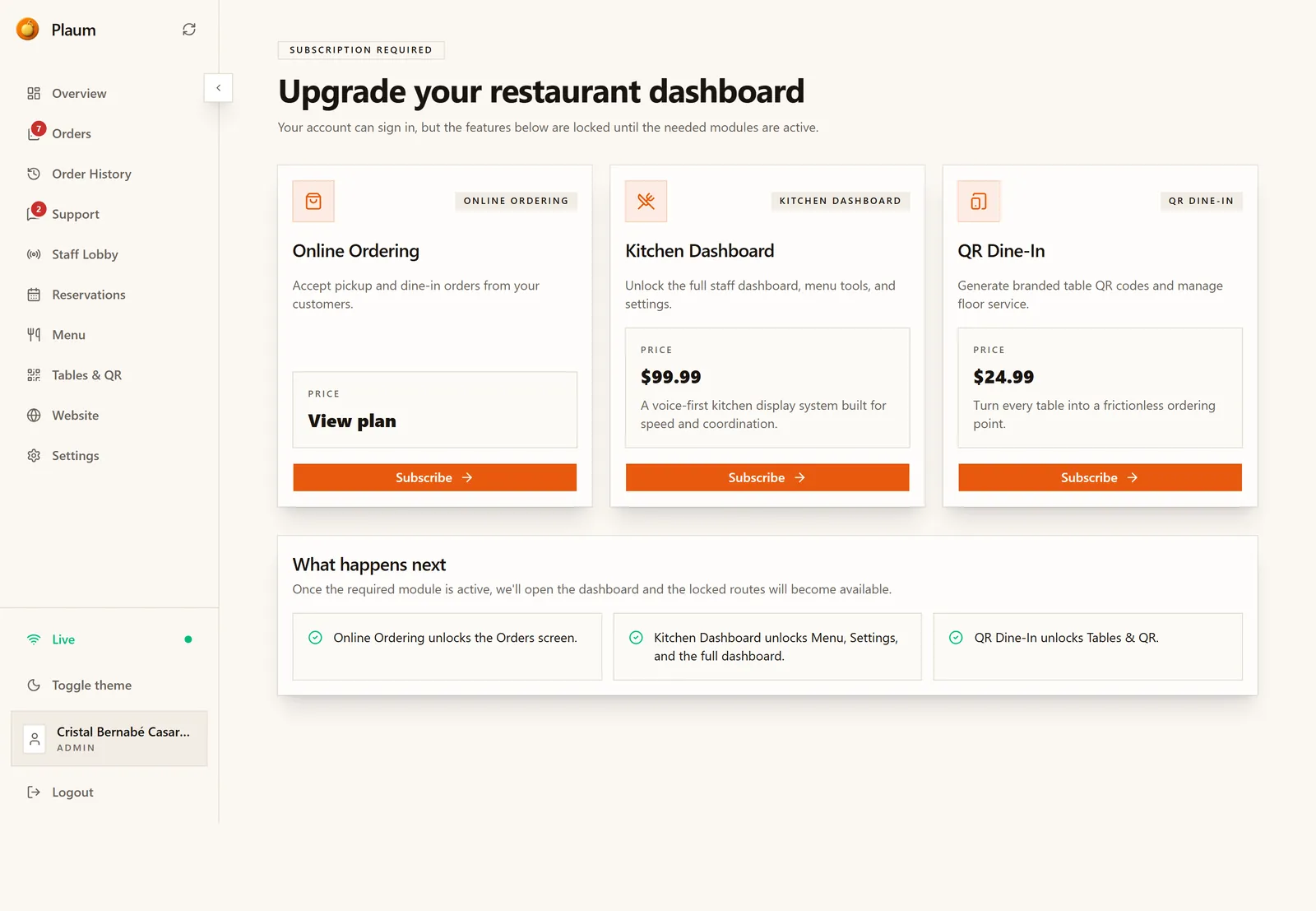
Subscription required — Upgrade your restaurant dashboard. The subtitle explains the situation precisely: "Your account can sign in, but the features below are locked until the needed modules are active."
Your sign-in works. It's the individual modules that are locked.
The three modules
| Module | Price | What it does |
|---|---|---|
| Online Ordering | See plan | Accept pickup and dine-in orders from your customers |
| Kitchen Dashboard | $99.99/month | The full staff dashboard, menu tools and settings. A voice-first kitchen display system built for speed and coordination. |
| QR Dine-In | $24.99/month | Branded table QR codes and floor service. Turns every table into an ordering point. |
Each card has a Subscribe button.
What each one unlocks
The What happens next panel spells this out:
- Online Ordering unlocks the Orders screen
- Kitchen Dashboard unlocks Menu, Settings and the full dashboard
- QR Dine-In unlocks Tables & QR
Once the module is active, Plaum opens the dashboard and the locked screens become available. You don't need to sign out and back in.
Which one do you actually need?
Work backwards from what you're trying to do:
| You want to… | You need |
|---|---|
| Take orders at all | Online Ordering |
| Run a kitchen screen, edit your menu, reach Settings | Kitchen Dashboard |
| Let guests order by scanning a table code | QR Dine-In |
| Use the staff voice lobby | Kitchen Dashboard |
| Take bookings | Reservations — not on this screen, see Reservations |
| Run a rewards programme | Loyalty — managed from Settings → Subscription |
QR Dine-In on its own isn't much use without Online Ordering: guests can scan, but there's nothing to place an order into.
Subscribing
- Click Subscribe on the module you need.
- Complete checkout.
- You're returned to the dashboard with the screens unlocked.
If you're subscribing so you can take online payments, also finish Stripe Connect in Settings → Payments — an active module doesn't by itself mean you can take money.
Managing what you already have
This screen is for turning things on. To see current subscriptions, check billing periods, change payment details or cancel, go to Settings → Subscription.
Note the naming difference between the two screens — same products, different labels:
| Upgrade screen | Settings → Subscription |
|---|---|
| Kitchen Dashboard | AI KDS |
| QR Dine-In | QR Ordering |
Gotchas
- Being sent here doesn't mean anything is wrong with your account. It means one module isn't active. Your sign-in is fine.
- Reservations isn't here. It's activated on its own screen, and needs a second enable step — see Reservations.
- Loyalty isn't here either. It appears under Settings → Subscription.
- Only admins can subscribe. A staff member who lands here can't resolve it — they'll need an admin.
- Prices shown are per month, per restaurant, and are what the demo account sees. Confirm current pricing at checkout.