
Log in
Deep link: plaum://login
How you get here: after onboarding; from Sign in on the sign-up screen; whenever
a session expires; from the sign-up prompt shown to guests.
Requires an account? This is the account screen.
What this is
The front door. Three ways in — Apple, Google, or email and password — plus a fourth door that isn't a sign-in at all: guest browsing.
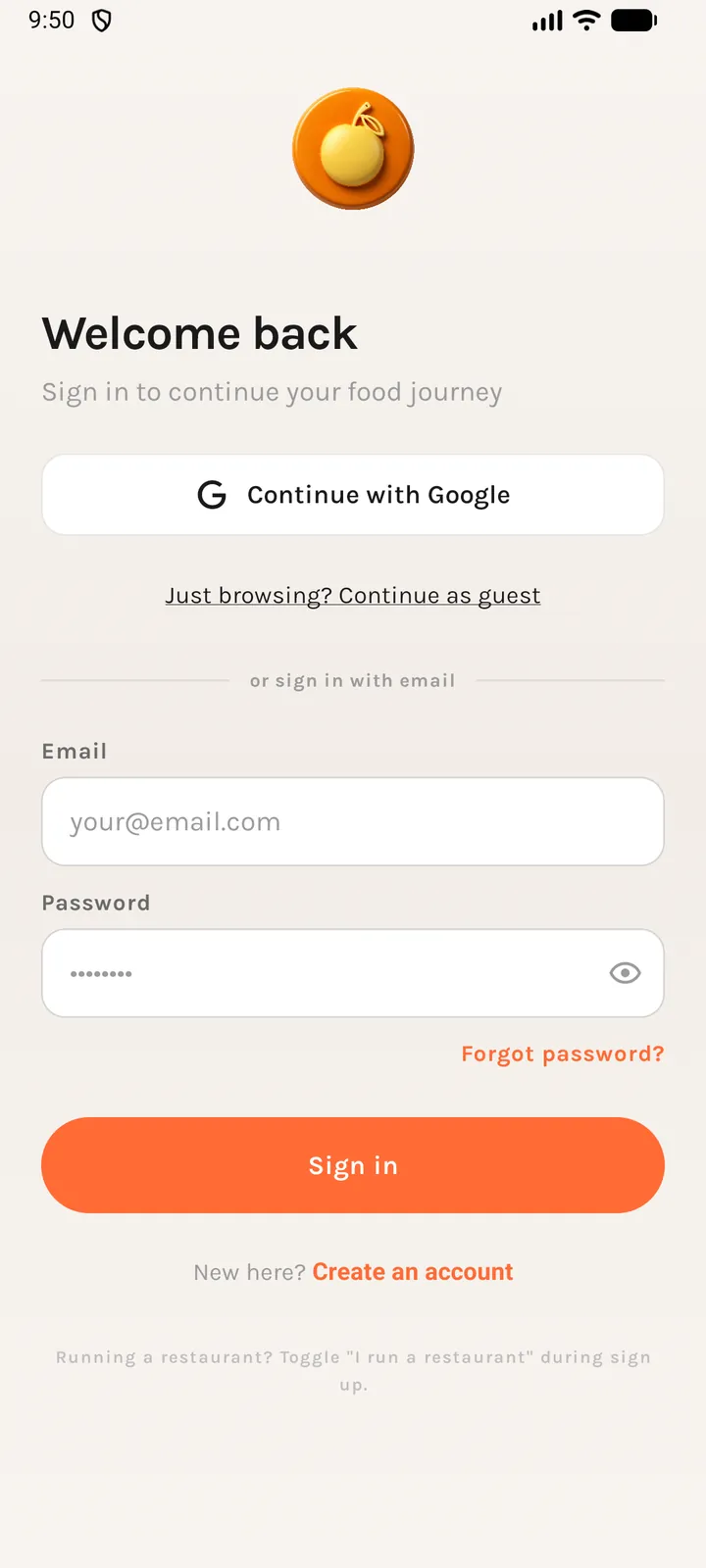
The screen, top to bottom
- Plaum logo, animated in with a fade and a small upward slide.
- "Welcome back" and the subtitle "Sign in to continue your food journey".
- Sign in with Apple — iOS only, and only when the device reports Apple Authentication is available.
- Continue with Google — shown when a Google client ID is configured for the platform.
- "Just browsing? Continue as guest" — an underlined text link, not a button.
- Divider: "or sign in with email".
- Email field —
your@email.com. - Password field — masked, with an eye icon to reveal it.
- Forgot password? — right-aligned.
- Sign in — the primary button.
- New here? Create an account.
- A footnote: "Running a restaurant? Toggle 'I run a restaurant' during sign up."
Signing in with email
Your email is trimmed and lower-cased before it is sent, so capitalisation and stray spaces never cause a failure.
What can go wrong:
| Situation | What you see | What happens |
|---|---|---|
| Empty email or password | "Please enter your email and password." | Nothing is sent. |
| Wrong credentials (401/400) | "Incorrect email or password." | Stay on the screen. |
| Email not yet verified | The server's message, or "Please verify your email before signing in." | You are moved to Email verification. |
| Anything else | The error's own message, or "Login failed. Please try again." | Stay on the screen. |
The email-not-verified case is the one worth knowing: it is not a dead end. The app
reads the EMAIL_NOT_VERIFIED code and routes you straight to the resend screen with
your address already filled in.
Signing in with Apple
Requests your full name and email, and uses a nonce so the token can't be replayed. The app also captures Apple's authorization code — that is not optional politeness: it is what lets the backend revoke your Apple token if you later delete your account, which Apple requires (App Store Guideline 5.1.1(v)).
If you cancel the Apple sheet, nothing happens — cancellation is not treated as an error.
Signing in with Google
Uses the native Google sign-in flow. If Google sign-in isn't available for your device, the button tells you so instead of failing silently.
Continuing as a guest
Tapping "Just browsing? Continue as guest" mints an anonymous session and drops you straight into the app — no email, no password. While it is working the link reads "Starting guest browsing…".
The link appears instantly. If guest browsing has been switched off on Plaum's side it disappears for the rest of the session, while a timeout or a dead network is treated as temporary — the option stays and you can try again.
See Browsing as a guest for what you can and can't do afterwards.
Good to know
- The screen is a gradient — a warm off-white in light mode, near-black in dark mode.
- The guest link uses the primary text colour rather than a hardcoded black, because on
the dark-mode
#0D0D0Dgradient black text would vanish. - The keyboard never covers the form: the scroll container adds padding equal to the live keyboard height.
Where you go next
- Successful sign-in → the main app; if your taste profile is incomplete you land on Taste preferences first.
- Create an account → Sign up
- Forgot password? → Password reset