
The Studio builder
Where you design your website: pick a look, choose which sections appear and in what order, write the copy, and publish.
How to get here
Website → Open Studio. The Studio takes over the whole screen — it isn't part of the normal dashboard layout.
Who can see it
Admins only.
The screen at a glance
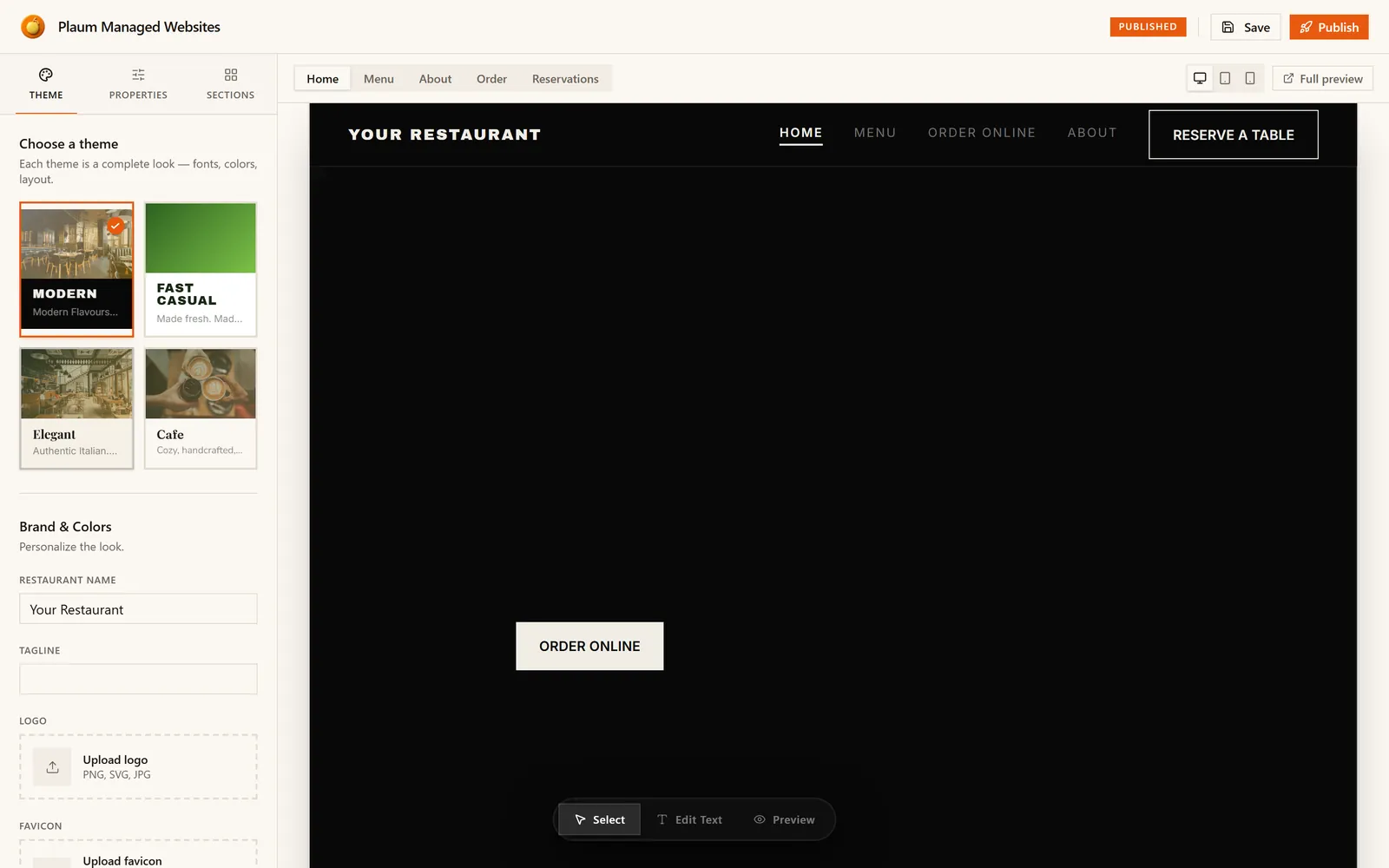
Three regions.
The header carries a Published badge showing the site's current state, plus Save and Publish.
The left panel has three tabs — Theme, Properties, Sections.
The canvas shows a live preview of your site. Across the top are your pages (Home, Menu, About, Order, Reservations), three device sizes, and Full preview.
Save versus Publish
The single most important thing to understand here:
| Button | What it does |
|---|---|
| Save | Stores your changes as a draft. Customers see nothing. |
| Publish | Pushes the saved draft to your live site. Customers see it. |
Work freely, save as you go, publish when you're happy. Nothing reaches customers until you press Publish.
Theme
Your site's overall look — fonts, colours, layout. Four to choose from: Modern, Fast Casual, Elegant and Cafe. Each is a complete design, not just a colour scheme; switching rethemes the whole site.
Below the themes, Brand & Colours:
- Restaurant name — the name shown on the site
- Tagline — a short line under it
- Logo — PNG, SVG or JPG
- Favicon — the small icon in the browser tab
- Colour pickers — for the primary and accent colours
Check the restaurant name before your first save. If the field still says "Your Restaurant", that is a real value and not a greyed-out hint — saving will put it on your live site, and it can also rewrite your web address. Type your actual restaurant name first.
Sections
Your site is built from sections stacked down the page: hero, menu, order, reviews, about, gallery, reservations, contact.
On this tab you can:
- Reorder — drag a section by its handle to move it up or down
- Hide — the eye icon takes a section off the site without deleting it
- Remove — the bin icon deletes it. Click twice to confirm.
Hiding is almost always better than removing. A hidden section keeps its content and comes back with one click.
Properties
Selecting a section on the canvas switches you here automatically. This is where you edit that particular section — its headline, body text, button labels, and which image it uses.
Editing on the canvas
A small toolbar floats at the bottom of the preview with three modes:
| Mode | What it does |
|---|---|
| Select | Click a section to select it and edit it in Properties |
| Edit Text | Click directly on text and type over it |
| Preview | Interact with the page as a customer would |
Checking your work
The three device buttons — desktop, tablet, phone — reflow the canvas. Check the phone view. Most restaurant sites are read on phones, usually by someone standing outside deciding whether to come in.
Full preview opens your site in a new tab exactly as a customer sees it.
Publishing
- Save.
- Look over the canvas on all three device sizes.
- Publish.
- Open your live address to confirm.
Gotchas
- Saving can rewrite your web address. The subdomain can be regenerated from the restaurant name in Brand & Colours. If your address changes after a save, set it back on the Website screen.
- Opening the Studio can populate empty content with theme defaults. If your site has never been edited here, the builder fills in the theme's starter copy — and saving makes that copy yours. Read what's in the fields before saving.
- Save does not publish. People make an edit, see the live site unchanged, and assume it failed. Press Publish.
- Publish only affects builder content. Menu, hours and contact details flow through on their own; you don't publish for those.
- Removing a section deletes its content. Hide instead.