
Signing in
Everything that happens before you reach the dashboard: signing in, resetting a forgotten password, accepting a staff invitation, and the two screens that appear when you land somewhere you're not allowed.
Signing in
How to get here
Open your Plaum dashboard address in a browser. If you aren't signed in, you'll land on this screen automatically no matter which page you asked for.
The screen
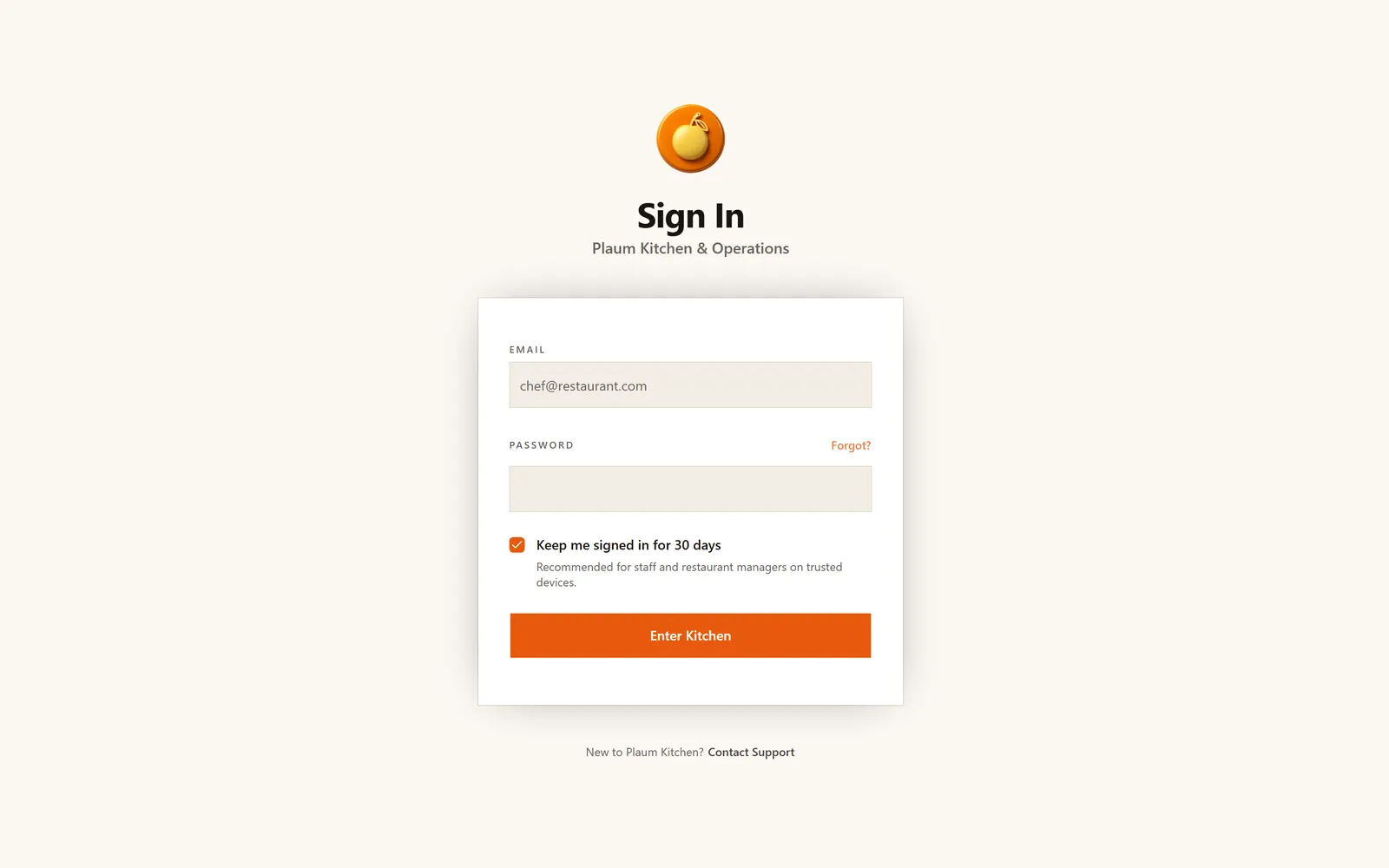
The heading reads Sign In — Plaum Kitchen & Operations, which confirms you're on the restaurant dashboard rather than the customer app.
Signing in
- Type the email address your restaurant account was created with.
- Type your password.
- Decide whether to leave Keep me signed in for 30 days ticked. It's ticked by default and is recommended for kitchen tablets and manager laptops — it saves the whole team retyping a password mid-service. Untick it on a shared or public computer.
- Click Enter Kitchen.
You'll land on the Orders board, not the Overview screen. That's deliberate: during service the kitchen board is what most people need first. Click Overview in the sidebar if you want the home screen.
If you've forgotten your password
Click Forgot? next to the password label.
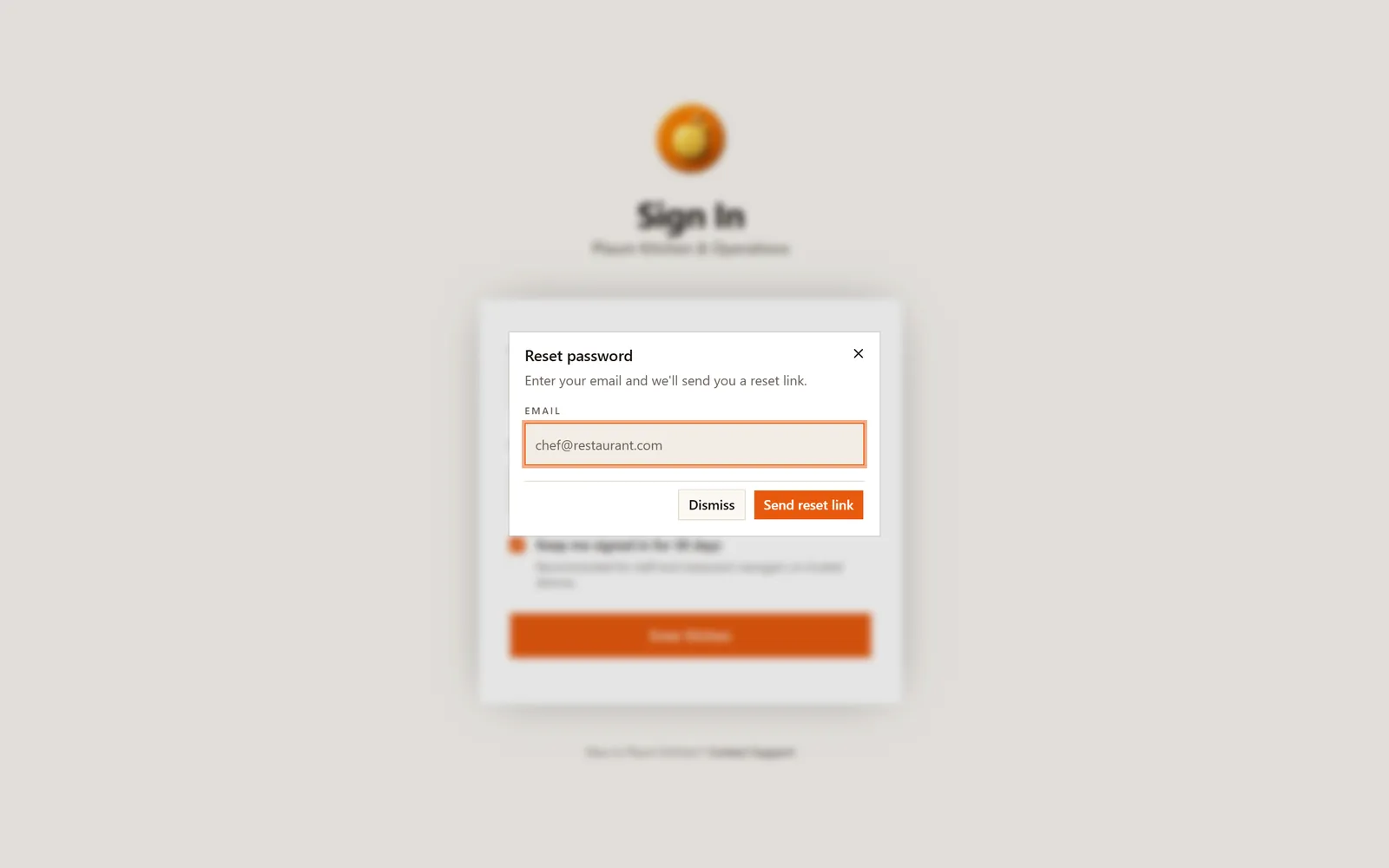
Enter your email address and click Send reset link. A reset link is emailed to you. If nothing arrives within a few minutes, check your spam folder before raising it with support — the link comes from an automated sender.
Messages you might see above the form
| Message | What happened | What to do |
|---|---|---|
| Session expired | You were signed in, but your session timed out | Sign in again |
| Account suspended | Your access has been paused by Plaum | Contact support |
| Account banned | Your access has been permanently withdrawn | Contact support |
Don't have an account?
There's no self-service signup for restaurant staff. The link at the bottom reads New to Plaum Kitchen? Contact Support. Accounts are created either by Plaum when your restaurant is onboarded, or by an admin at your restaurant inviting you — see below.
Accepting a staff invitation
How to get here
Your restaurant's admin invites you from Settings → Staff Accounts. You'll receive an email with a personal invitation link. Open that link.
What you'll see
The invitation page asks for your first name, last name, username, email and a password, then creates your staff account and signs you in.
If you open the invitation page without a valid link — for example by typing the address by hand, or by using a link that has already been used or has expired — you'll see this instead:
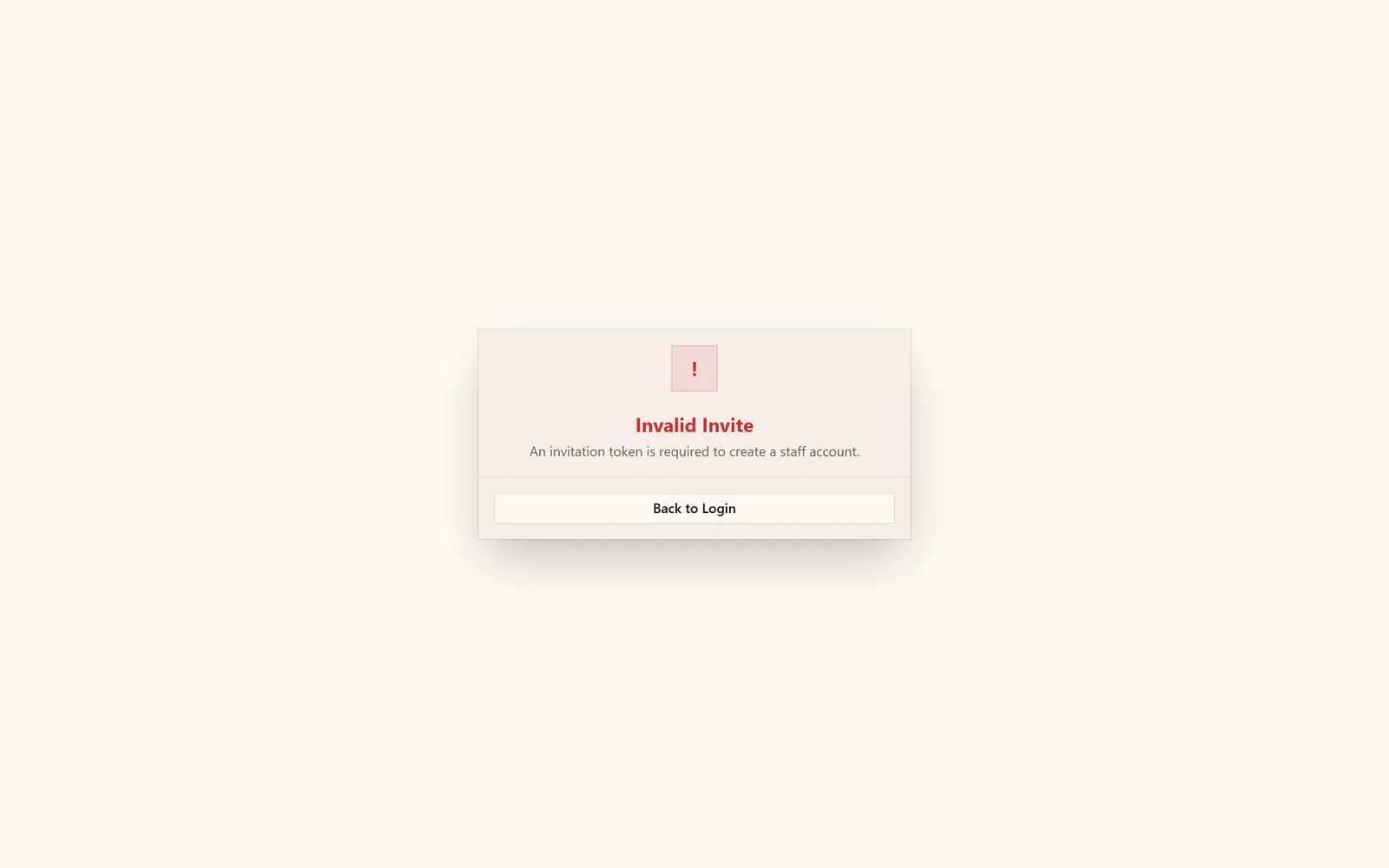
Invalid Invite — An invitation token is required to create a staff account.
If that happens, ask your admin to send you a fresh invitation. Clicking Back to Login returns you to the sign-in screen, but you won't be able to sign in until your account actually exists.
Before your restaurant is set up
Restaurant owner accounts are created in the Plaum mobile app, not here — you sign up, connect your point of sale, and either claim an existing listing or create a new one. The web dashboard is where you manage things afterward.
If you sign into the dashboard before that process has finished, you'll land on one of these screens instead of the normal dashboard. Nothing is broken — the app is telling you what's left to do.
Your claim is being reviewed
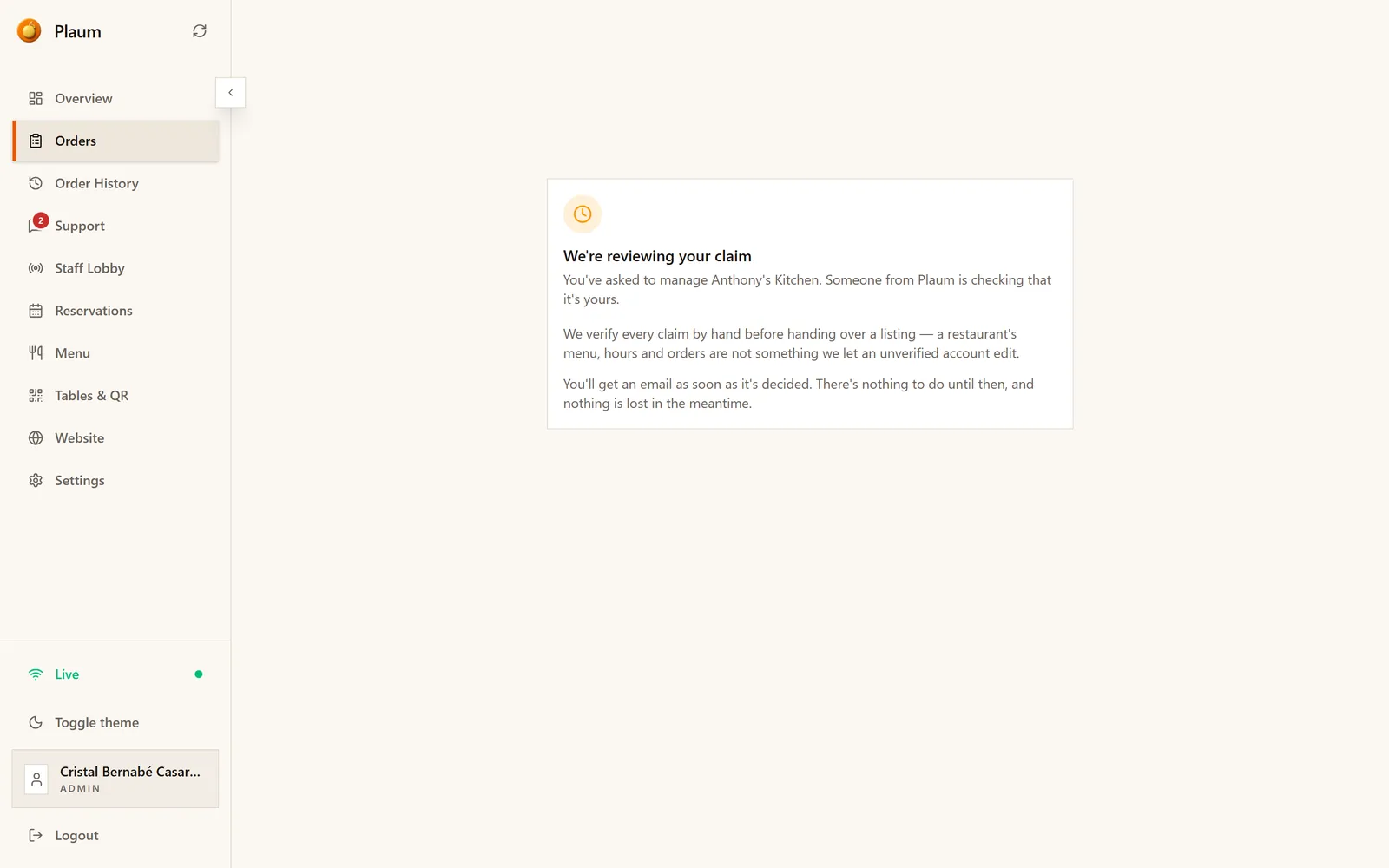
If you told the mobile app "yes, that's my restaurant" for an existing listing, Plaum checks by hand that it's really yours before handing over the menu, hours and orders. You can't do anything with the restaurant until that's done — there's nothing to set up here, just wait for the email.
Most claims are reviewed quickly. If it's been a few days with nothing, contact support.
Set up your restaurant
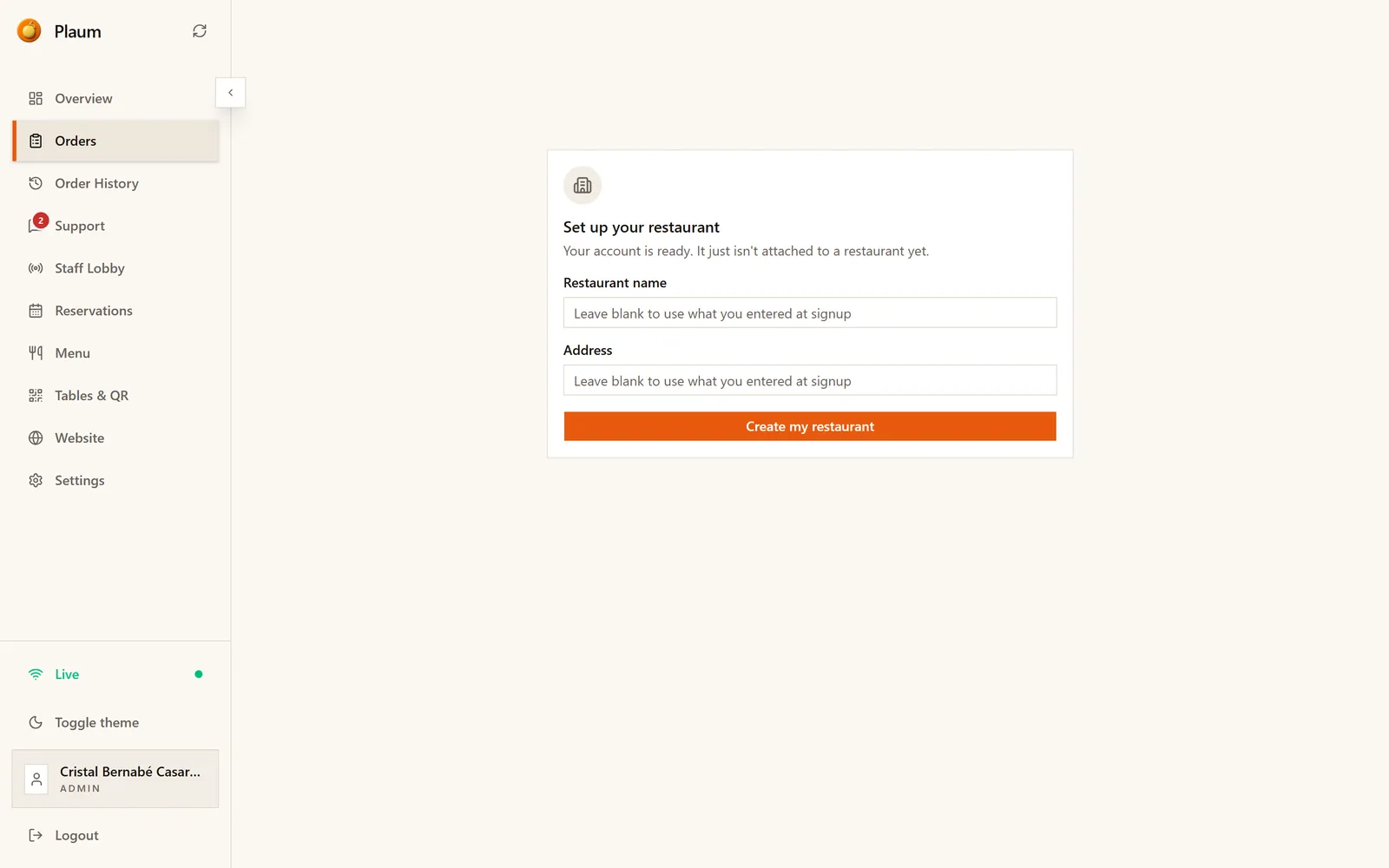
Your account exists, but it isn't attached to a restaurant yet — usually because you told the mobile app none of the suggested listings were yours. Fill in a name and address, or leave both blank to use what you already entered on your phone, and click Create my restaurant.
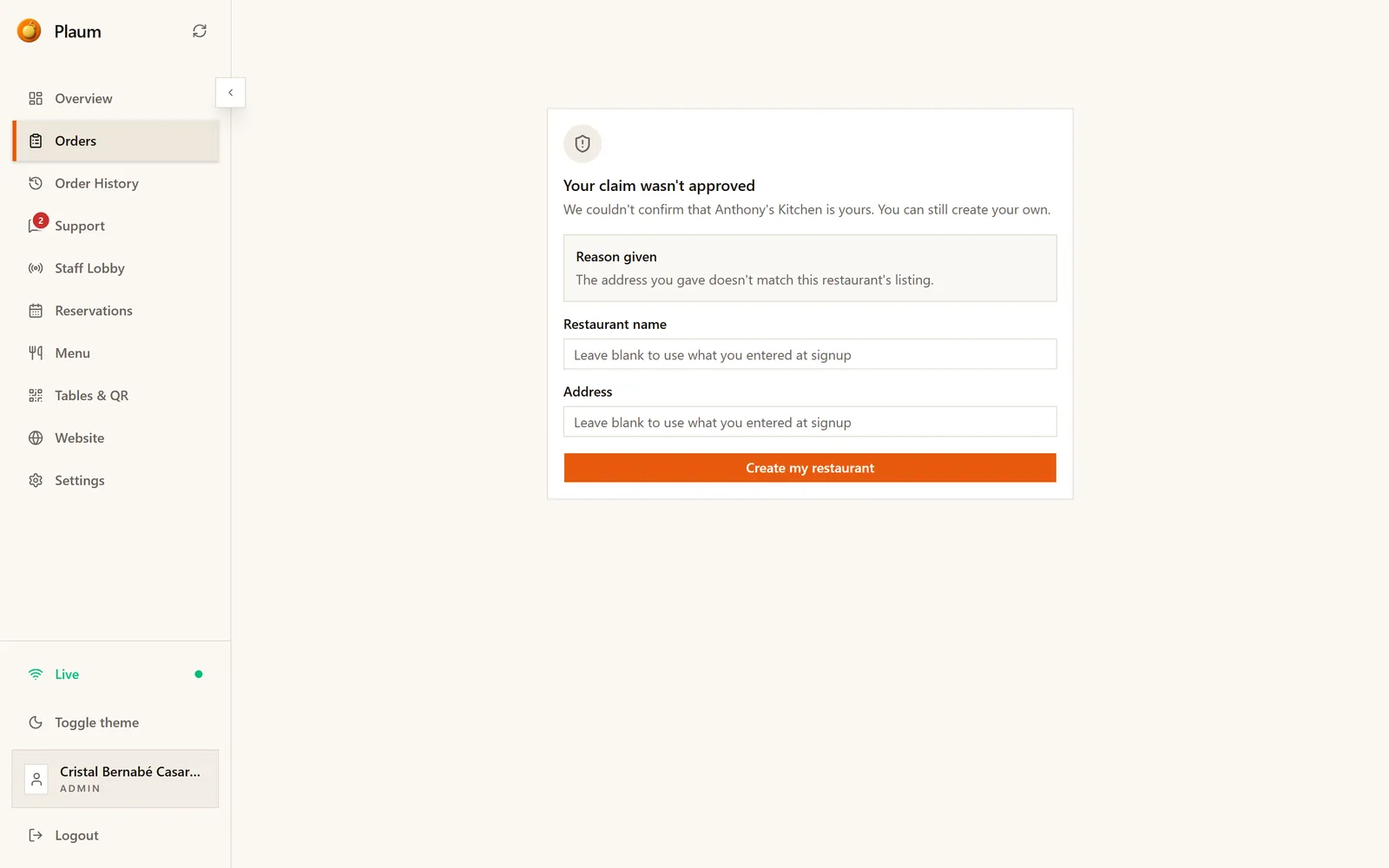
If a claim you made was turned down instead, you'll see the reason here, and you can still create your own listing the same way:
When you can't go somewhere
Two more screens appear when you reach a page your account isn't entitled to.
No access to this page
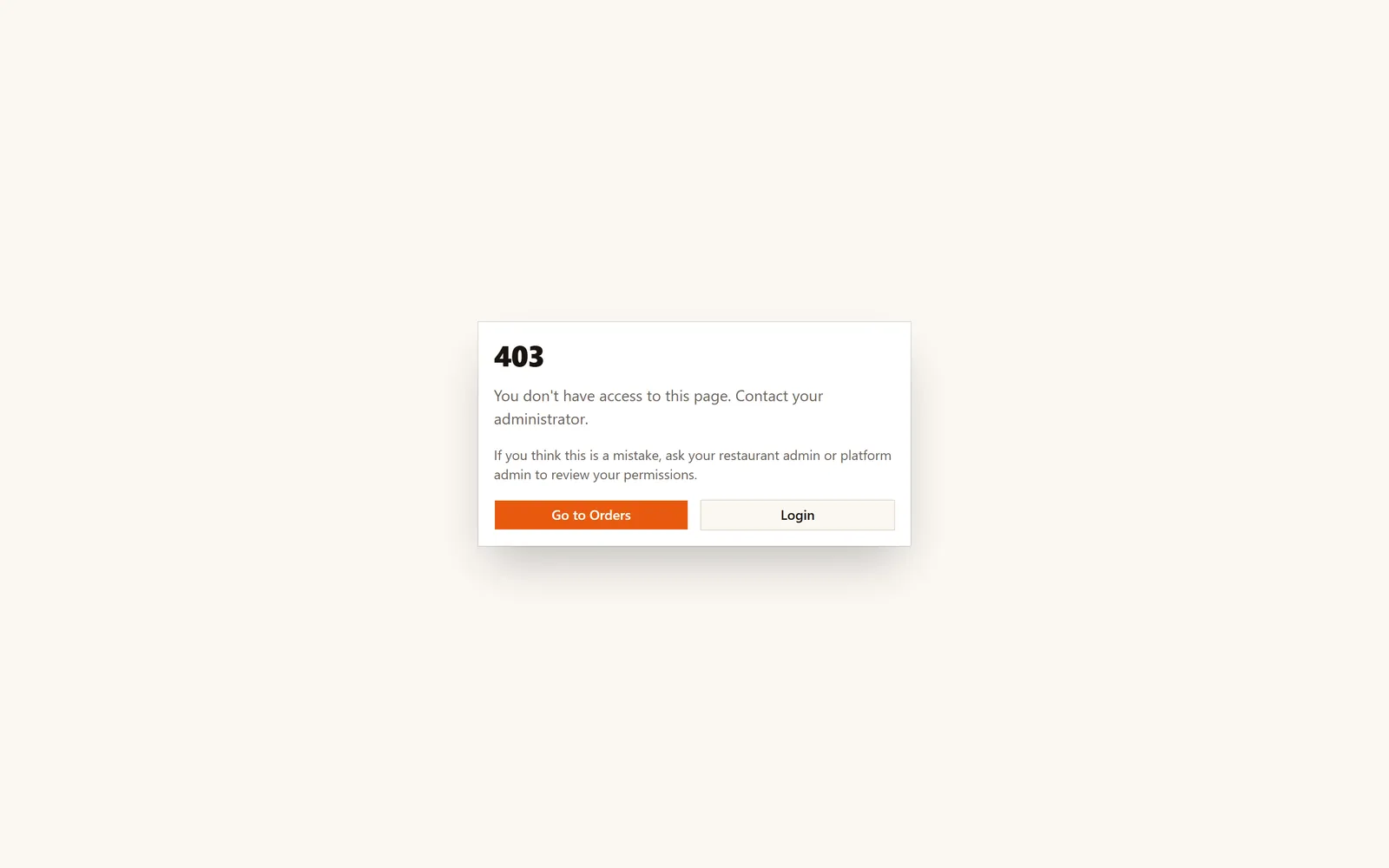
A large 403, followed by "You don't have access to this page. Contact your administrator."
You're signed in, but this page isn't available to your role. The usual cause is a staff member following a link to an admin-only screen such as Menu, Tables & QR or Settings. Ask an admin to either do the task for you or change your role.
Two buttons get you out: Go to Orders returns you to the kitchen board, and Login takes you back to the sign-in screen if you want to switch accounts.
This screen needs a bigger device
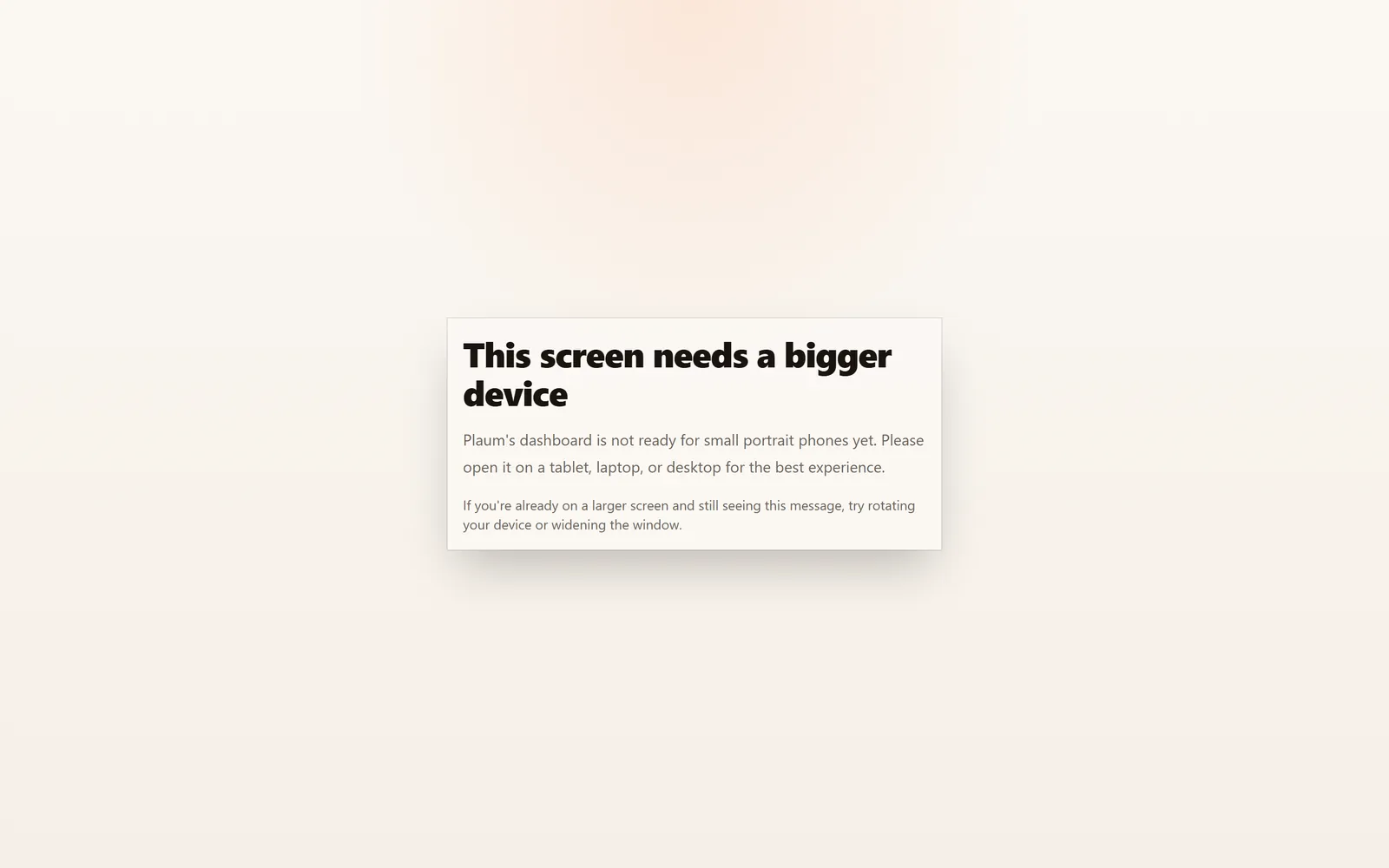
This one is not an error. It appears when a screen needs more room than the current window or device gives it — most often when someone opens an admin screen on a phone.
Rotate the device to landscape, or widen the browser window, and the screen loads normally. If you're on a phone and it still won't fit, use a tablet or a computer for that task.
Signing out
Click Logout at the very bottom of the sidebar. If you ticked Keep me signed in, logging out clears that too — the next person on this device will have to sign in properly.
Gotchas
- Signing in always lands you on Orders, never on the last page you were using. That surprises people who expect a browser to return them where they left off.
- The sign-in page is the restaurant dashboard only. Customers use a separate Plaum app, and Plaum's own staff use a different portal. If your credentials don't work here, check you're not trying to use a customer account.
- A used invitation link can't be reused. Each one works once.