
Orders — the kitchen board
The screen your kitchen lives in during service. Every order that comes in lands here, moves left to right as it's cooked, and drops off when it's handed over.
How to get here
Click Orders in the sidebar. You also land here automatically every time you sign in.
Who can see it
Everyone — admins and staff. It requires the Online Ordering add-on. Without it, this screen is replaced by an upgrade prompt (see Upgrade).
The screen at a glance
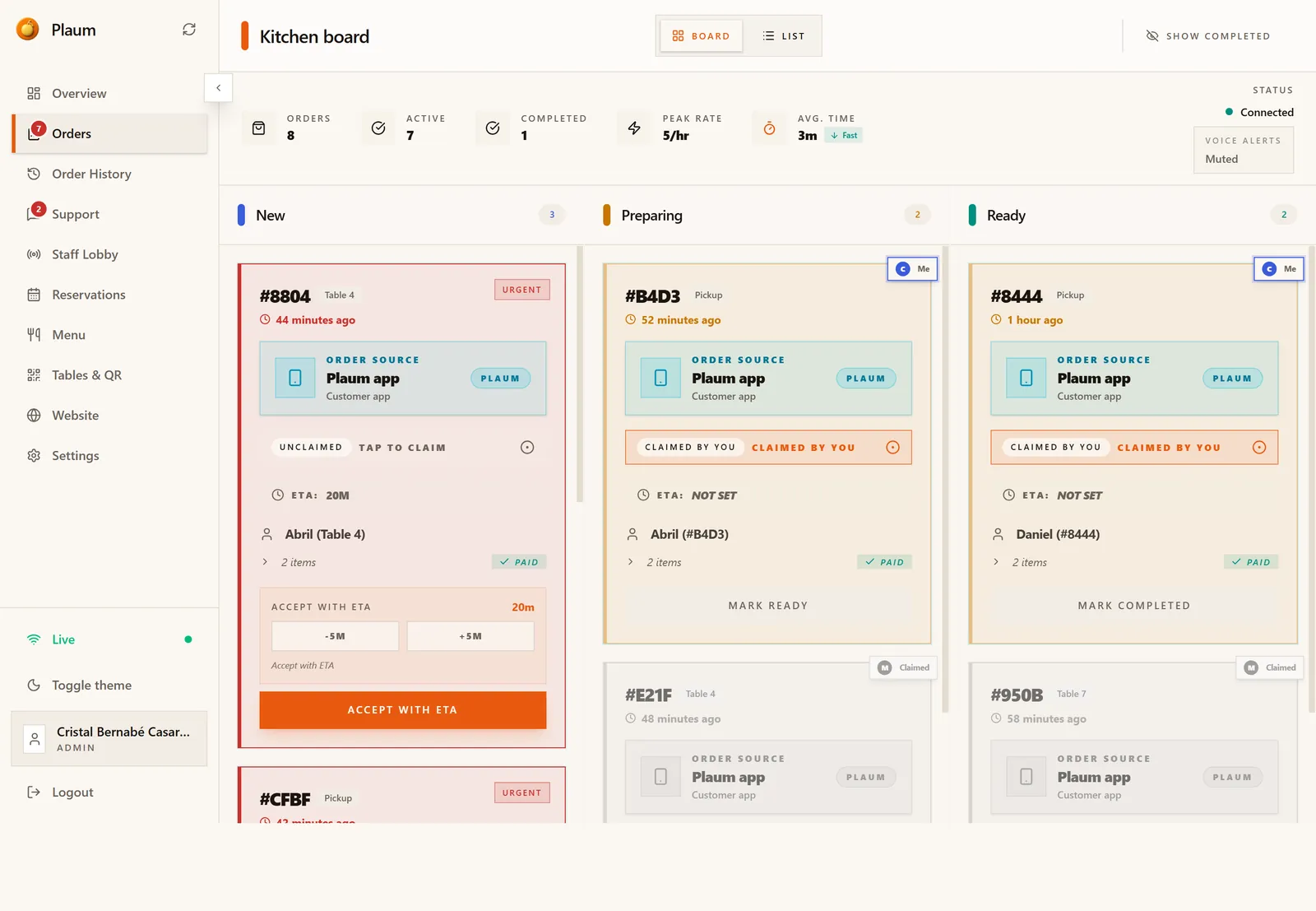
Three bands, top to bottom.
The header
- Kitchen board — the title.
- Board / List — how orders are laid out. Board is the default.
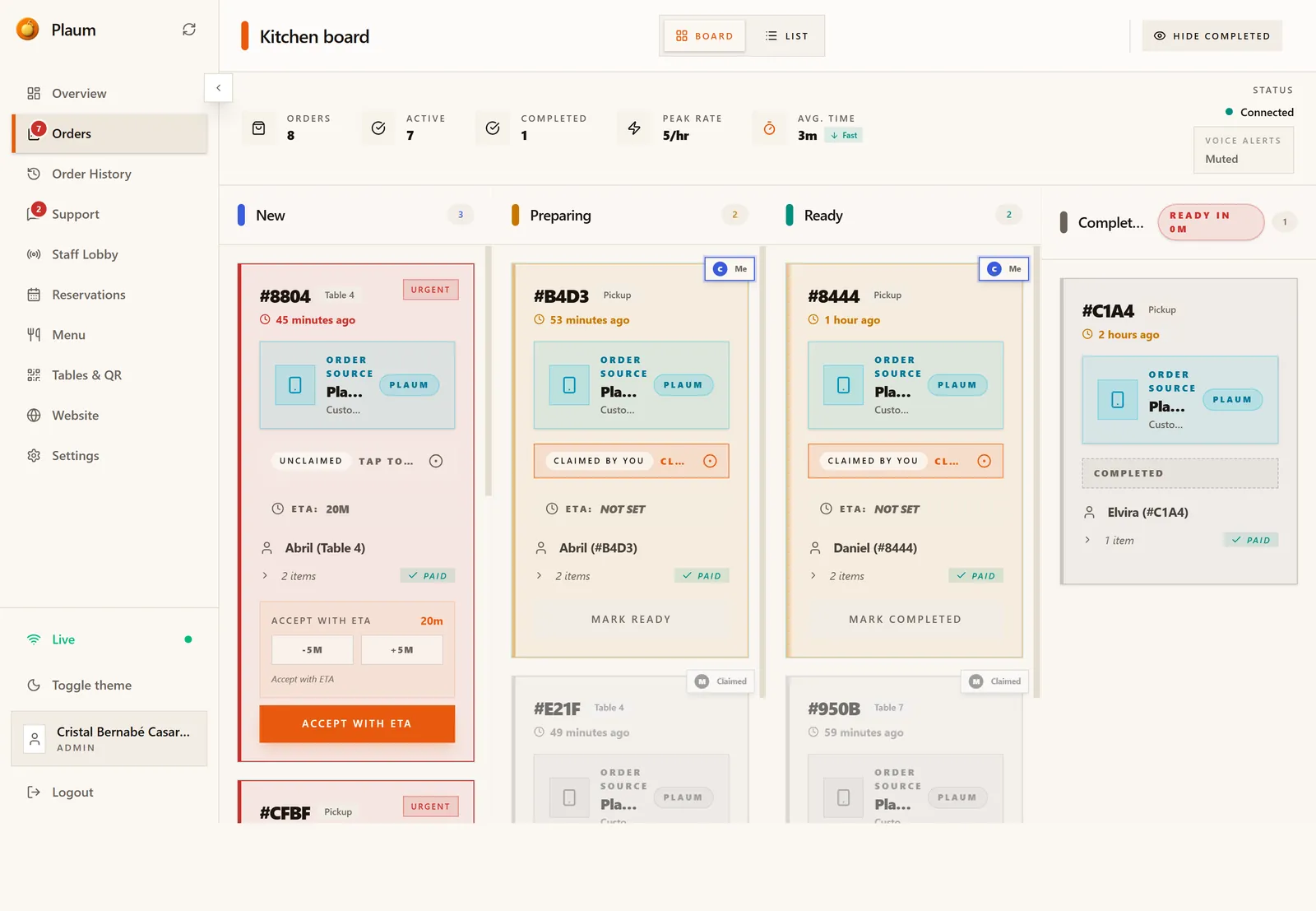
- Show completed / Hide completed — adds or removes a fourth column of finished orders.
The metrics bar
Live service figures, refreshed as orders move:
| Figure | Means |
|---|---|
| Orders | Total orders today |
| Active | Orders not yet finished — what's still on your plate |
| Completed | Orders finished today |
| Peak rate | Busiest throughput, in orders per hour |
| Avg. time | Average time from accepting an order to completing it, tagged Fast or Slow against your usual pace |
The Orders item in the sidebar also carries a badge with your active count, so you can see work waiting from any screen.
On the right:
- Status — Connected with a green dot means new orders will appear on their own, without refreshing. If this isn't connected, you are not seeing live orders.
- Voice alerts — whether Plaum reads new orders aloud. Change it in Settings → Kitchen Mode.
The columns
| Column | What's in it |
|---|---|
| New | Just arrived. Nobody has accepted them yet. |
| Preparing | Accepted and being cooked. |
| Ready | Cooked and waiting for pickup or a runner. |
| Completed | Handed over. Hidden unless you turn on Show completed. |
An empty column reads Station Clear.
Reading an order card
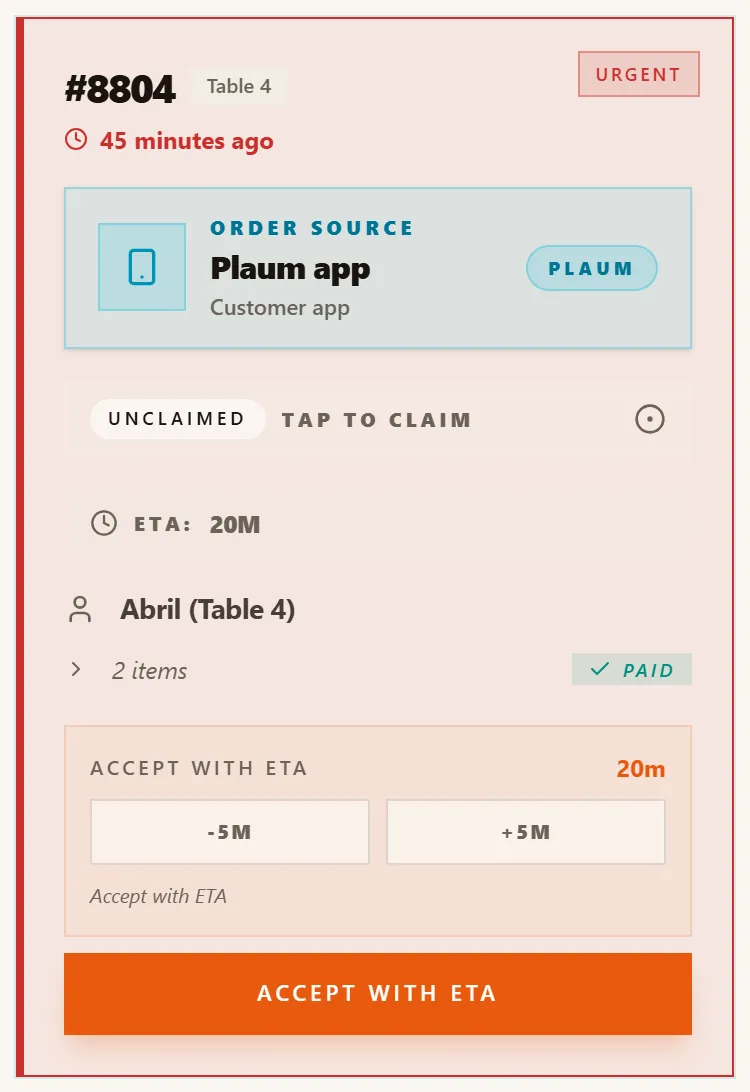
Top to bottom:
- Reference and type —
#8804with a Table 4 or Pickup badge - How long ago it arrived, counting up
- Order source — a panel naming where the order came from
- Claim strip — who's cooking it
- ETA — the promised ready time, or Not set
- Customer — their name, plus the table or the order reference
- Item count — click the arrow to expand the actual items
- Payment — Paid, or pending if they pay at the counter
- The action button — what to do next with this order
Two badges appear when they apply: Urgent, when an order has been waiting too long, and New message, when the customer has written about their order.
Where the order came from
Every order names its source, so you know which channel you're serving:
| Source | Means |
|---|---|
| Plaum app | Ordered in the customer app |
| Online ordering | Ordered from your restaurant website |
| QR order | Scanned a table code |
| POS | Entered manually at the register |
Claiming — who's cooking what
Each order can be claimed by one staff member, so two people don't cook the same ticket. The strip across each card tells you where it stands:
| Strip says | Means |
|---|---|
| Unclaimed — tap to claim | Nobody has taken it. Tap the strip to take it. |
| Claimed by you | It's yours. A Me badge sits in the card's top corner. |
| Name is on it | Another staff member took it |
An order claimed by someone else is greyed out, with their initial in the corner badge, so your own work stands out on a busy board:
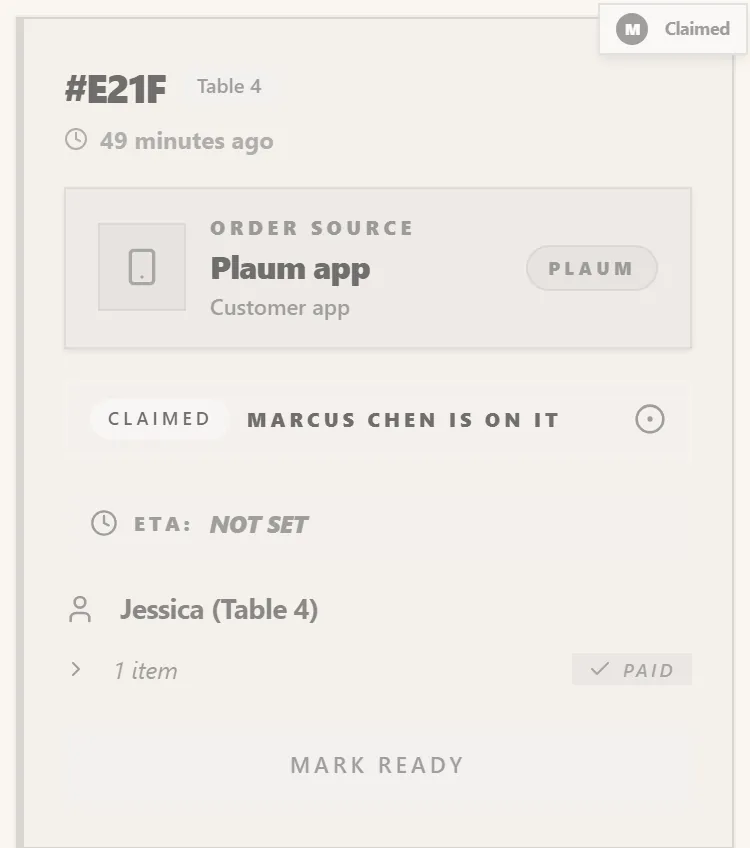
Claiming is advisory, not a lock — but if you try to act on an order someone else has claimed, Plaum warns you with "Claimed by another staff member".
Moving an order through service
The main button on each card changes with the order's status. Work left to right:
- New → Accept with ETA. The card gives you an estimate with −5M and +5M buttons to adjust it. Set a realistic number, then press Accept with ETA — the customer sees that estimate. For orders scheduled for later, the button reads Accept order: no ETA needed, the time is already agreed.
- Preparing → Mark ready. The food is done. The customer is told it's ready.
- Ready → Mark completed. Handed over. The card leaves the board.
You can also open any order for the full picture — click the card body (not a button) to open the detail panel on the right.
In the detail panel
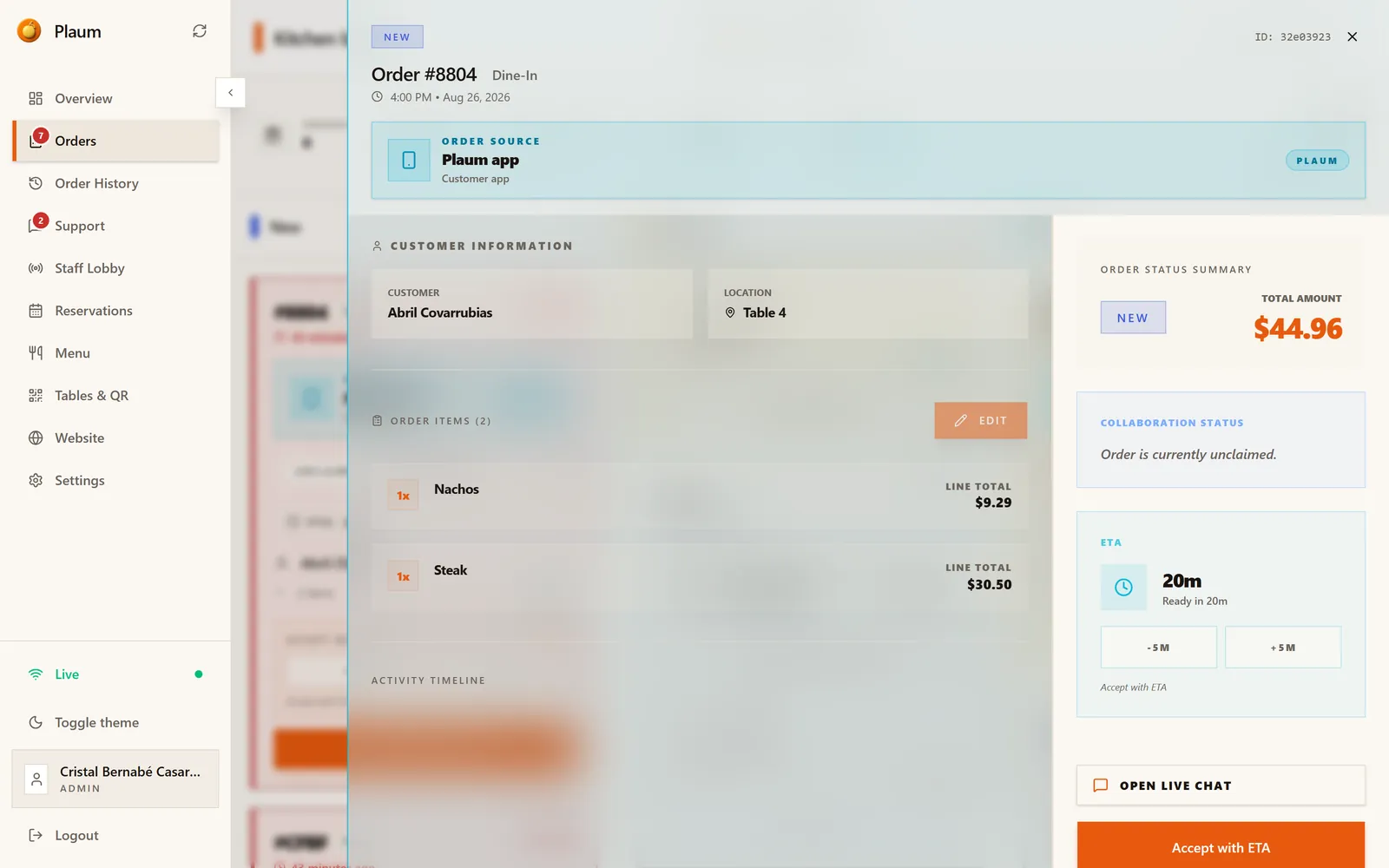
The panel splits in two.
On the left:
- The order's status, reference, type and time
- Order source
- Customer information — their name, and either the table or the collection method
- Order items — every line with its quantity and total, plus an Edit button to change what was ordered
- Activity timeline — who did what, and when
On the right:
- Order status summary — current status and total amount
- Collaboration status — who claimed it, or "Order is currently unclaimed"
- ETA — the promised ready time with −5M / +5M to adjust it. There's a short lock after setting one, so it can't be changed repeatedly.
- Open live chat — message the customer about their order
- The same action button as the card, so you can advance the order from here
Cancelling an order
- Open the order's detail panel.
- Click Cancel order.
- Give a reason in the dialog and confirm.
Only orders still in progress can be cancelled — once an order is completed or already cancelled, the option disappears. Cancelled orders keep a record of who cancelled them and why, visible in the detail panel.
When a customer changes their order
If a customer requests a change after ordering, the card shows Edit pending with a countdown. Until you respond, that order is locked — trying to advance it shows "Order locked pending edit".
Approve or reject the change in the detail panel. The card then reads Edit approved or Edit rejected, and the order unlocks.
Board or list?
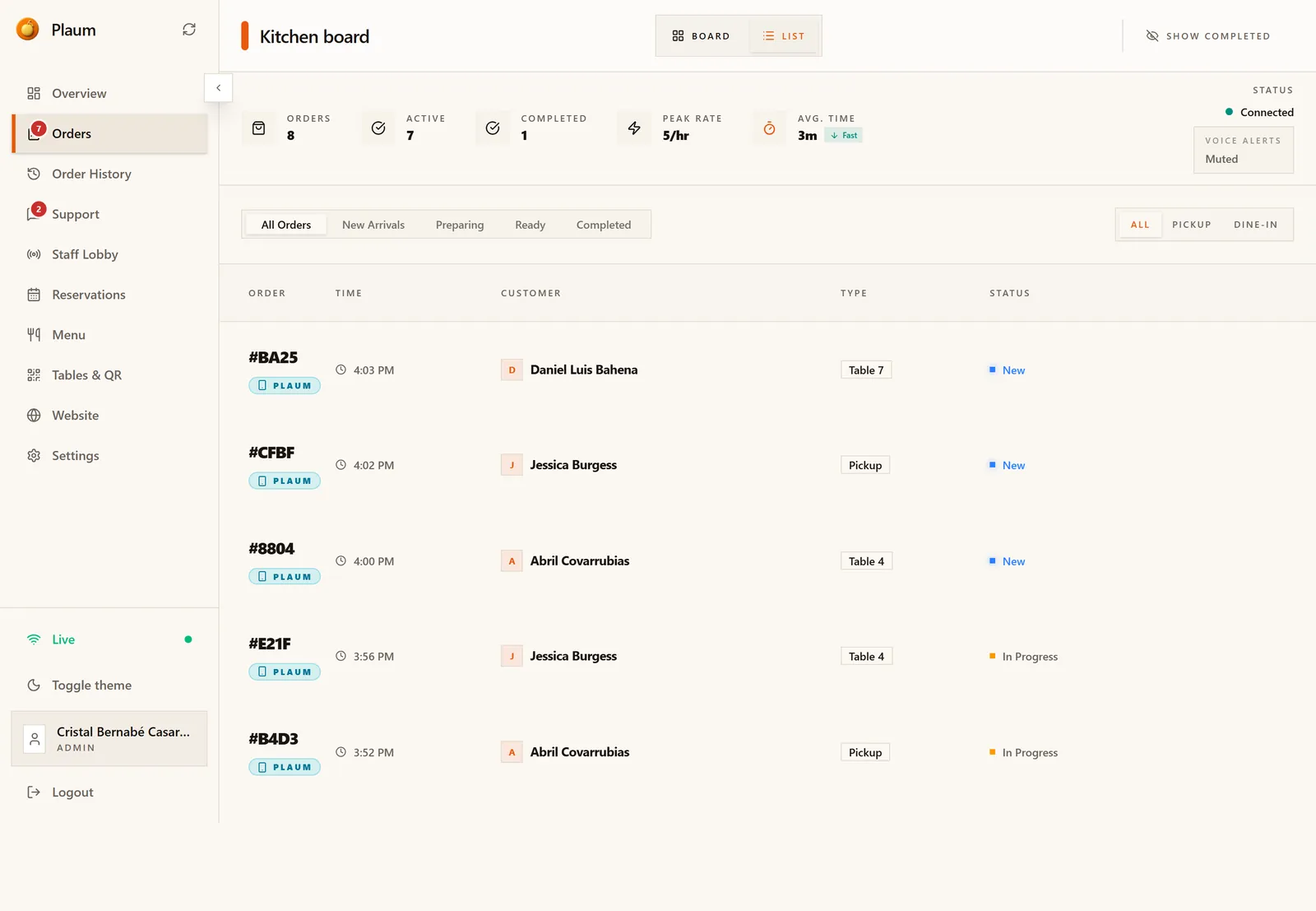
Board suits a busy kitchen — columns map to physical stages, and you can see your whole service at once.
List suits quieter periods, a narrow screen, or scanning many orders in time order. It shows one row per order — reference, source, time, customer, type and status — and adds filters the board doesn't have:
- All Orders / New Arrivals / Preparing / Ready / Completed — narrow to one stage
- All / Pickup / Dine-In — narrow to one kind of service
That combination is the fastest way to answer questions like "what dine-in orders are still preparing?" Click any row to open the same detail panel.
Your choice sticks per device, so a kitchen tablet can sit on Board while an office laptop sits on List.
Gotchas
- The board only shows today. Yesterday's orders are not here even with Show completed on — use Order History.
- If the status isn't Connected, you're looking at a stale board. New orders won't appear. Check the Live indicator at the bottom of the sidebar; if it's paused, resume it.
- Accepting sets a promise. The ETA you enter is shown to the customer, so a hopeful number becomes a complaint later.
- Claiming doesn't stop anyone else acting. It's coordination, not a lock.
- Completing is final — there's no undo. The order moves to history.