
Order History
Every order your restaurant has completed, going back as far as your records run. The kitchen board only shows today; this is where you look for anything older.
How to get here
Click Order History in the sidebar. There's also a Back to board button in the header to return to Orders when you're done.
Who can see it
Everyone — admins and staff.
The screen at a glance
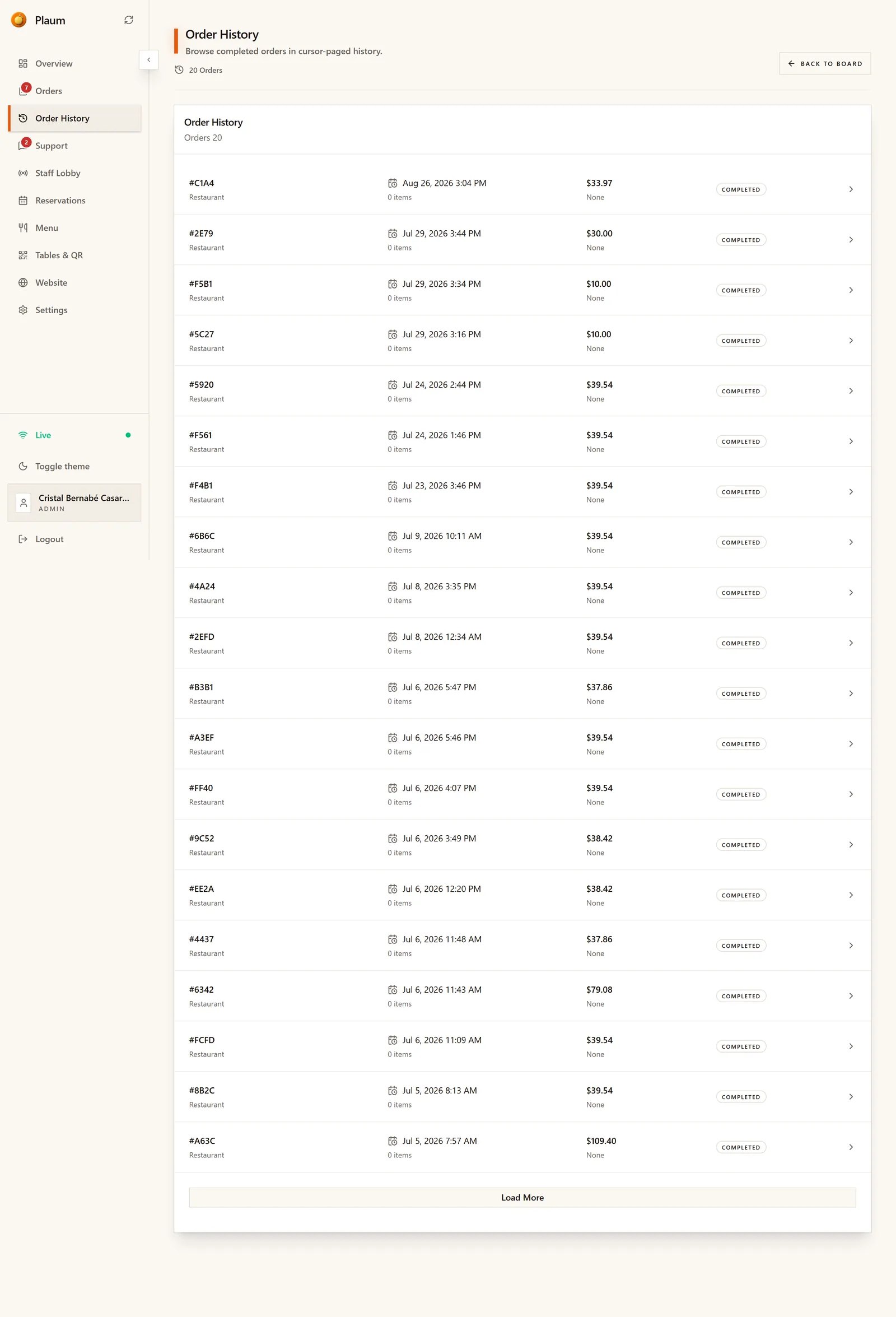
A single list, newest first. The count at the top ("20 Orders") is how many are currently loaded, not your lifetime total.
Each row shows:
| Column | Means |
|---|---|
| Reference | The order's short code, e.g. #2E79 — the same code the kitchen and the customer see |
| Source | Where the order came from |
| Date and time | When it was placed |
| Items | How many items were on it |
| Total | What it came to |
| Payment | How it was paid, or None if no online payment was taken |
| Status | Almost always Completed; cancelled orders appear here too |
The arrow at the end of each row opens the order.
Orders load in pages. Load More at the bottom fetches the next batch — keep clicking to go further back.
Opening an order
Click any row to open the full record.
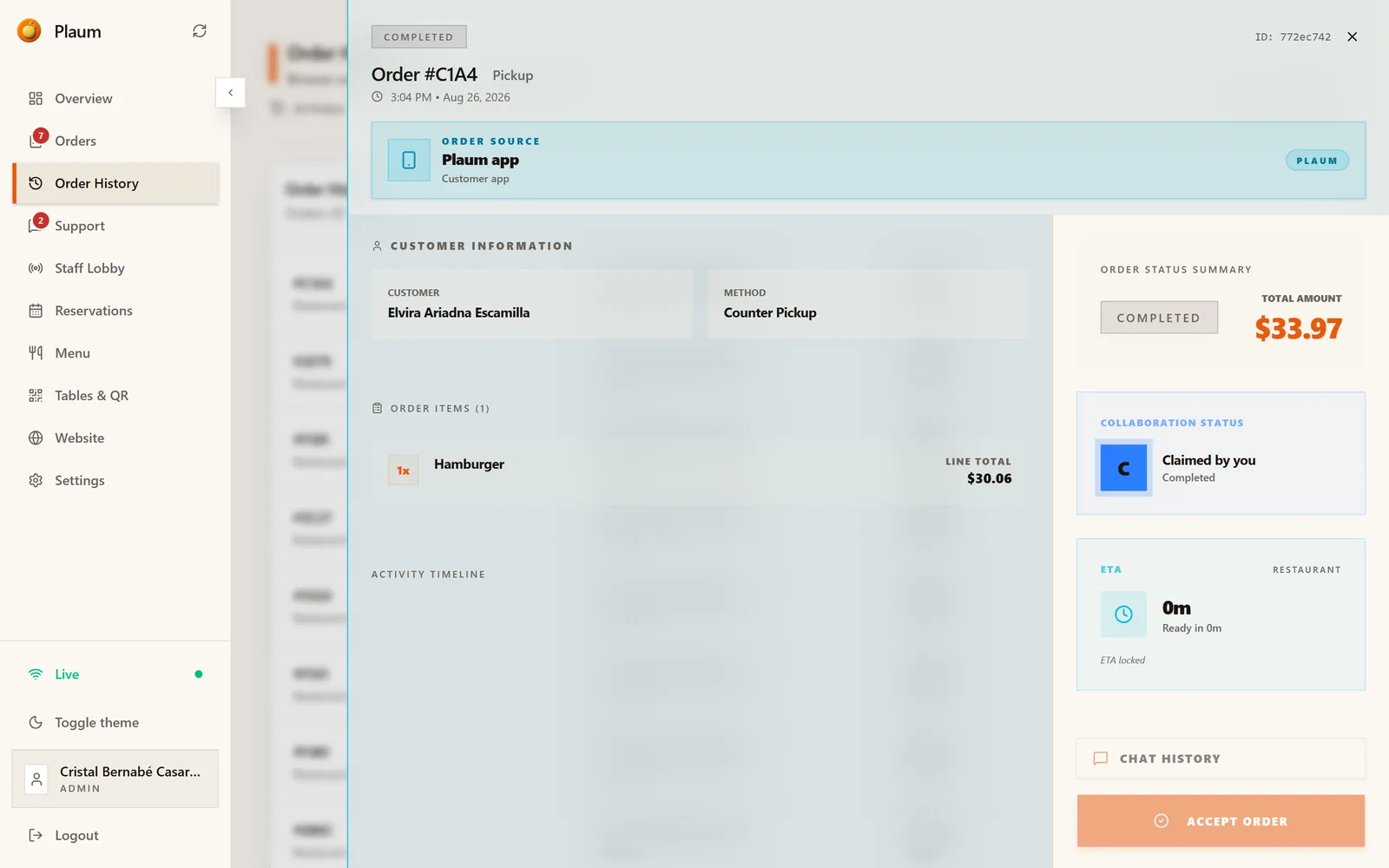
The left side gives you the order itself:
- Order source — Plaum app, online ordering, QR order or POS
- Customer information — who ordered, and how they collected it
- Order items — every line, its quantity, and its line total
- Activity timeline — the order's history
The right rail summarises it:
- Order status summary — final status and total amount
- Collaboration status — which staff member claimed it and what they did
- ETA — what was promised and whether it was met
- Chat history — any messages exchanged with the customer
Common tasks
Look up an order a customer is asking about
Ask the customer for the reference from their receipt — the four-character code
like 2E79. Scan the reference column for it, using Load More if the order is
older than the loaded page. Open it to see exactly what was ordered, what was
paid, and when it was handed over.
Check what a customer actually received
Open the order and read Order items. Quantities, modifiers and special instructions are all recorded, which settles most "that's not what I asked for" conversations.
Reconcile a day's takings
Order History gives you the individual orders. For totals across a period, use the financial summary on Overview instead — it's built for that and can export a PDF.
Gotchas
- Only finished orders appear here. Anything still being cooked is on the Orders board.
- The list loads in pages. If an order seems missing, it's probably below the current page — click Load More before concluding it doesn't exist.
- There's no search or date filter. You scroll and load. For anything analytical, use the date range on Overview.
- Payment reading None means no online payment was recorded against the order — typically a pay-at-counter or POS order. It doesn't mean the customer didn't pay.