Online ordering
How a customer places a pickup order through your website, and what has to be true for that to be possible.
Before anything else: the kitchen gate
Your website offers online ordering only while your kitchen is open in Plaum.
A device has to be signed in and showing the Orders board. When one is, ordering appears. When none is, customers get this instead:
Online ordering is not available right now. Please call us to place your order: your number
This is deliberate — orders shouldn't arrive when nobody is watching for them. But it means an unattended tablet is the difference between taking orders and not.
If customers say they can't order online, check this first. Ahead of payments, menu or website settings, confirm a device has the Orders screen open.
Two other things must also be true:
- Online Ordering must be active — see Upgrade
- Online payments must be set up in Settings → Payments
Choosing how to order
Order Online in the navigation starts the order.
If Plaum pickup is the only channel you offer, customers go straight to the item list. If you also list delivery partners, they first choose a channel — order directly with you, or hand off to UberEats or DoorDash.
Delivery is always via those partners. Plaum handles pickup; it never manages delivery drivers, and partner orders don't appear on your Plaum board.
Browsing and adding items
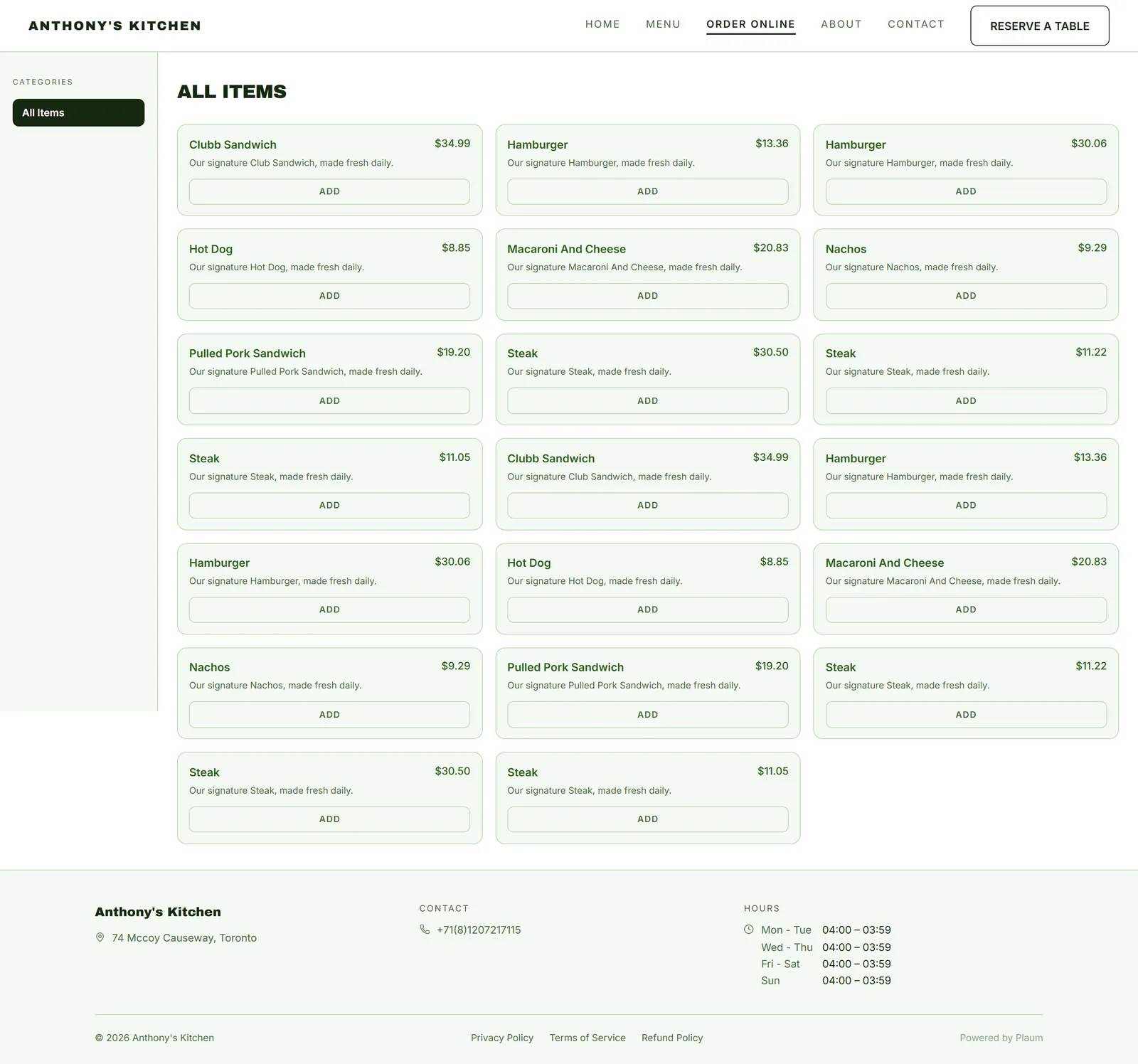
Categories run down the left, dishes fill the page. Each card shows the name, price, description and an Add button.
Adding an item turns its button into a quantity stepper — −, the count, + — so quantities are adjusted in place. A bar appears along the bottom reading View cart — $39.54, and a count sits at the top right.
The cart
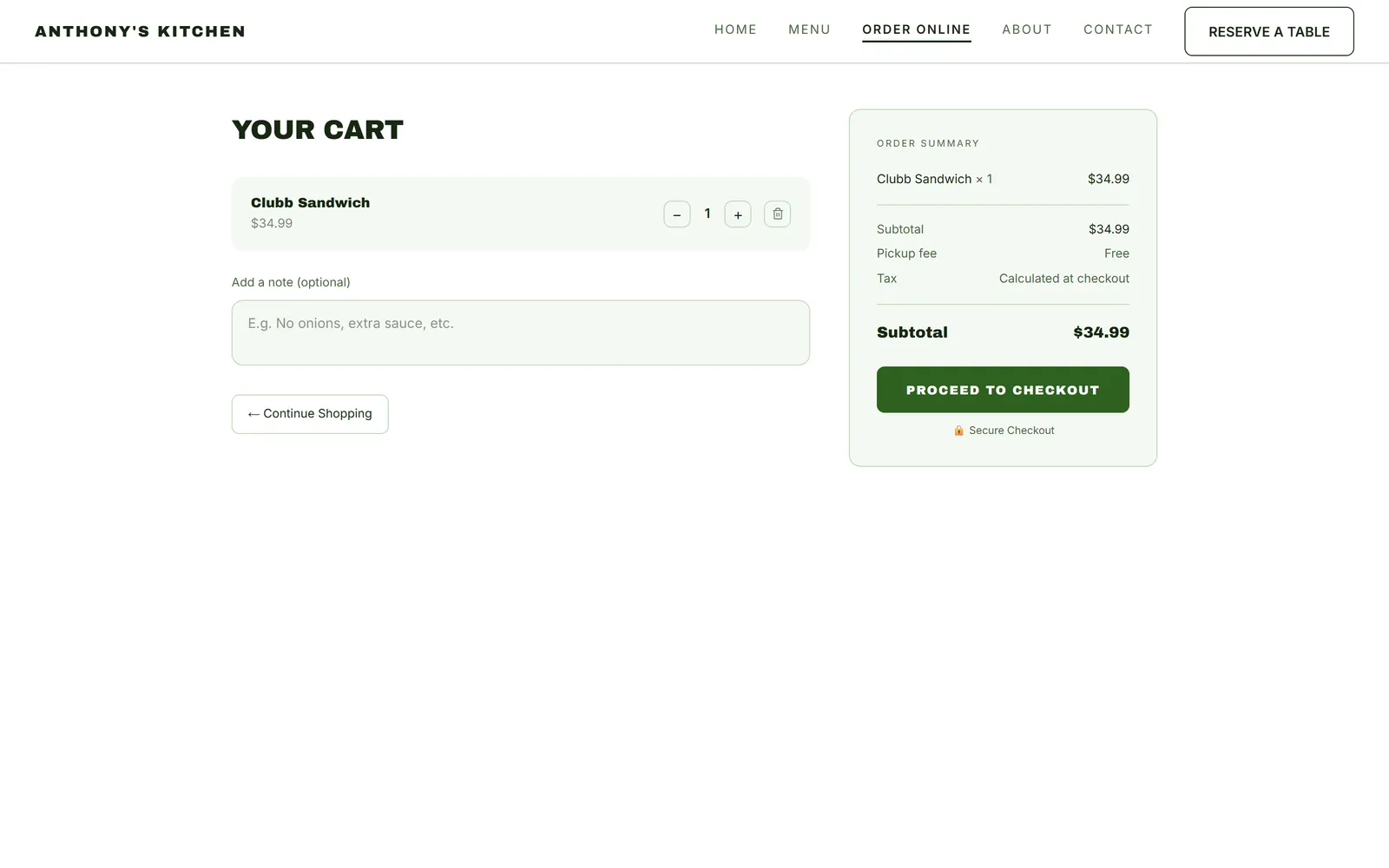
Clicking the bar opens the cart:
- Every item with a quantity stepper
- A box for special instructions — "No onions, extra sauce, etc."
- ← Continue Shopping to add more
- Proceed to Checkout to move on
Special instructions arrive with the order on your kitchen board, so they're worth reading before you start cooking.
Checkout
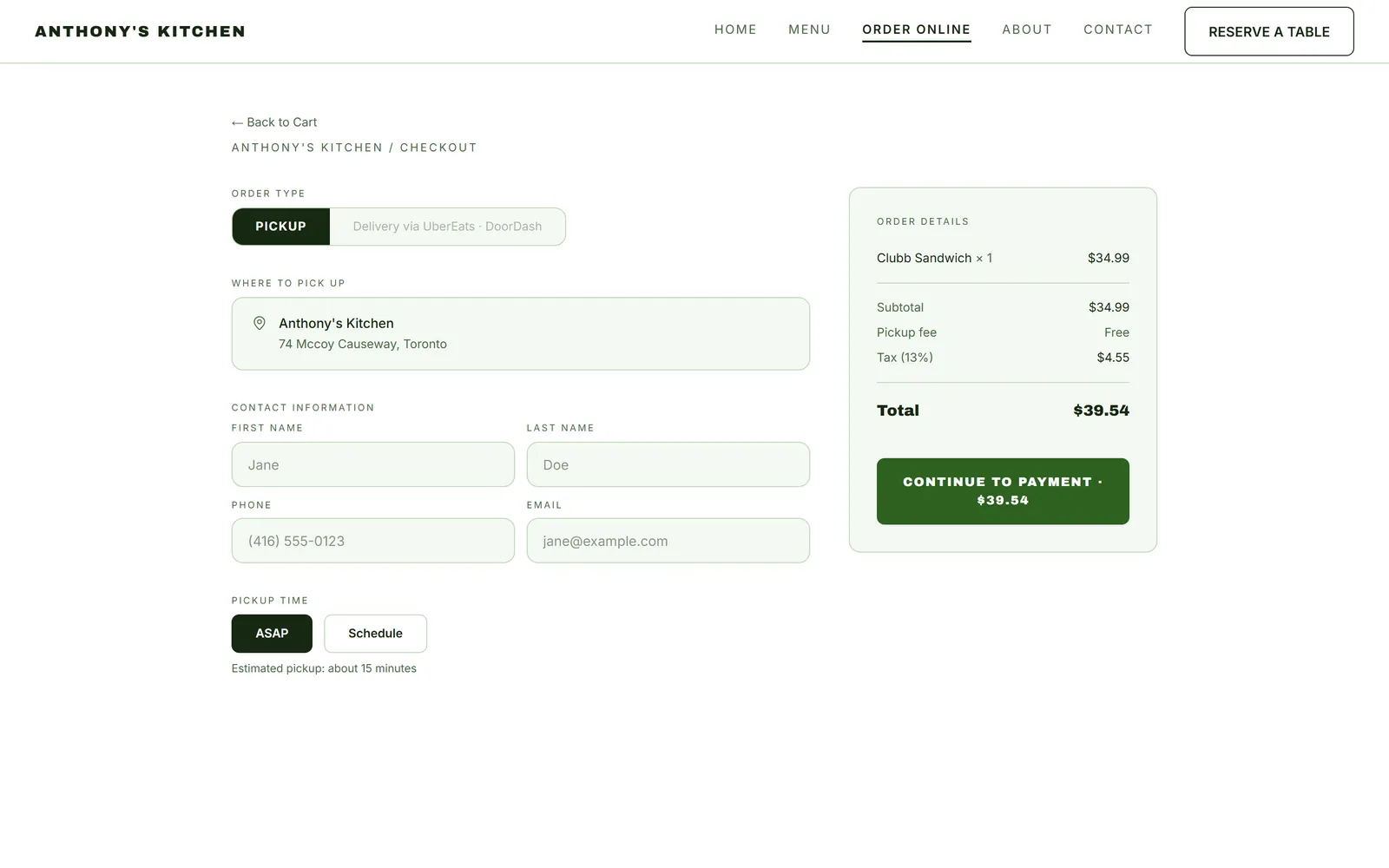
Checkout is the third step of the same page, not a separate one. It collects:
- Order type — pickup, with any delivery partners listed alongside
- Where to pick up — your address
- Contact information — first name, last name, phone, email
- Pickup time — ASAP, or scheduled to a later slot
- Payment
Confirmation
Checkout collects the customer's name, email and phone, then takes payment. Once placed, the customer gets a confirmation page with their order reference and an estimated pickup time, and the order appears on your kitchen board in New, tagged as coming from your website.
From there it's an ordinary order — accept it with an ETA, cook it, mark it ready. See Orders.
What you should check yourself
The checkout and confirmation pages are the two steps this guide can't show you, so walk them yourself once before relying on them:
- Open the Orders board on a device.
- On your own phone, go to your website and order something cheap.
- Confirm it reaches the board, then cancel it.
Do this after any change to payments, and after connecting a custom domain. Ten minutes now beats discovering a broken checkout from a customer.
Gotchas
- No kitchen open, no ordering. The single most common cause of "customers can't order".
- Delivery is not yours to manage. Those buttons hand off to partners; those orders don't appear on your Plaum board.
- Pickup only through Plaum. Plaum's own flow is pickup; there's no Plaum delivery.
- Unavailable dishes can't be added, though they still show on the menu page.
- Special instructions are free text. Customers will write allergies there. Read them.