
Tables & QR
Your floor plan in Plaum. Every table you set up here gets a printable QR code, and scanning it lets a guest order from that table without waiting for anyone.
How to get here
Click Tables & QR in the sidebar.
Who can see it
Admins only. It also needs the QR Dine-In add-on. Without it, this screen is replaced by an upgrade prompt (see Upgrade).
The screen at a glance
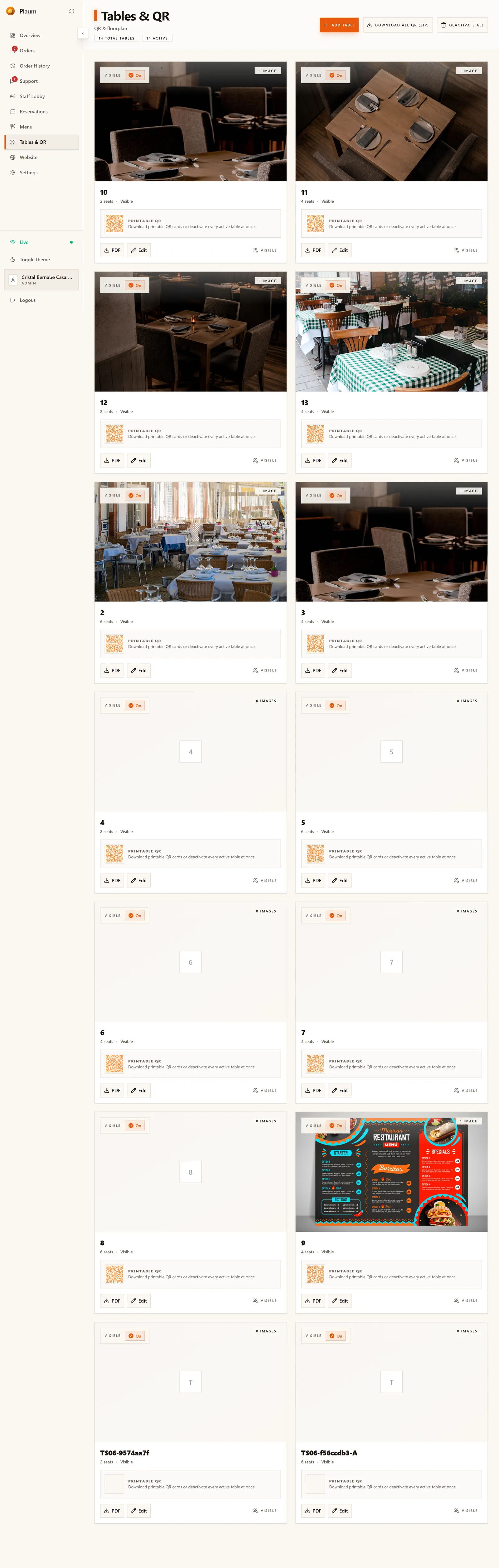
The header shows two counts — total tables and active — and three buttons:
- Add table — create a new one
- Download all QR (ZIP) — every QR code in one download, for a print run
- Deactivate all — take the whole floor out of service at once
Below, one card per table.
Reading a table card
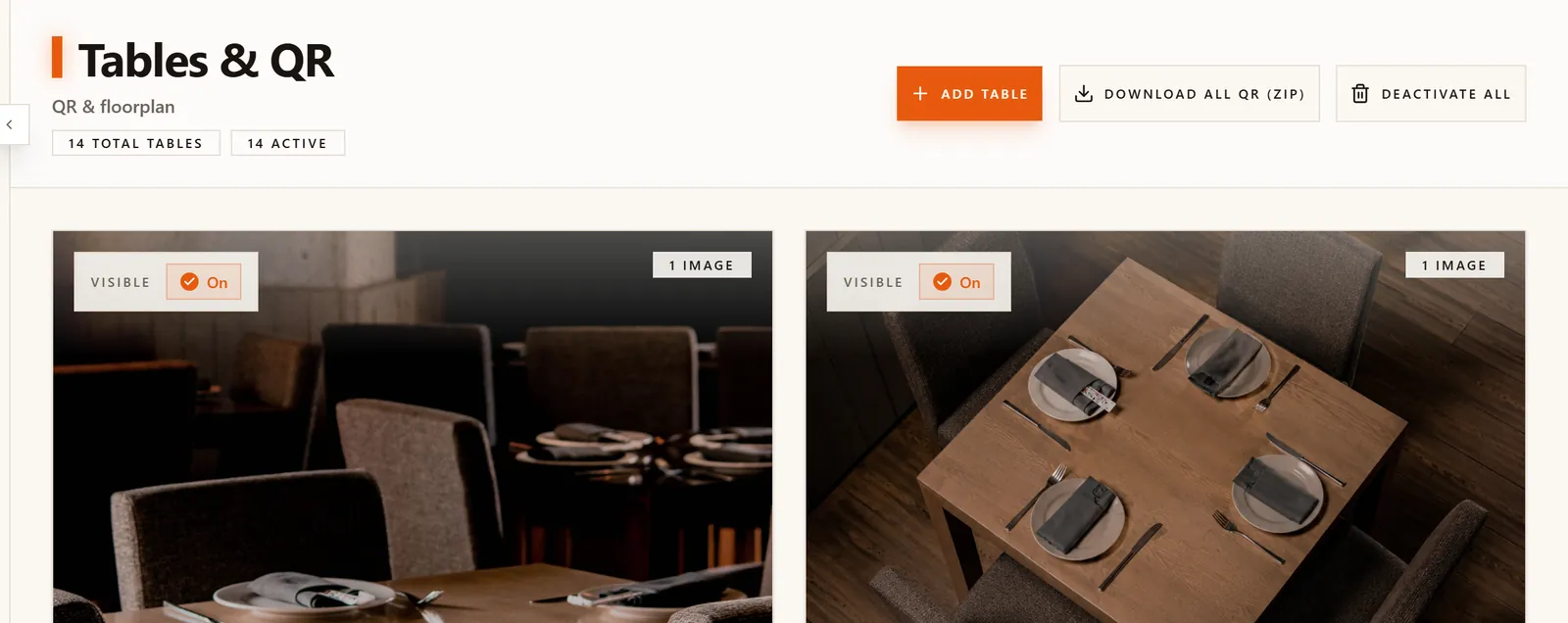
| Element | Means |
|---|---|
| Photo | A picture of the table. Tables without one show their number on a plain tile. |
| Image count | How many photos are attached |
| Visible / On | Whether the table is active |
| Label and seats | e.g. 12 — 2 seats — Visible |
| Printable QR | A preview of the code, with a note that you can download it or deactivate every active table at once |
| Download this table's QR as a printable card | |
| Edit | Change the table's details |
Adding a table
Click Add table. A panel slides in from the right.
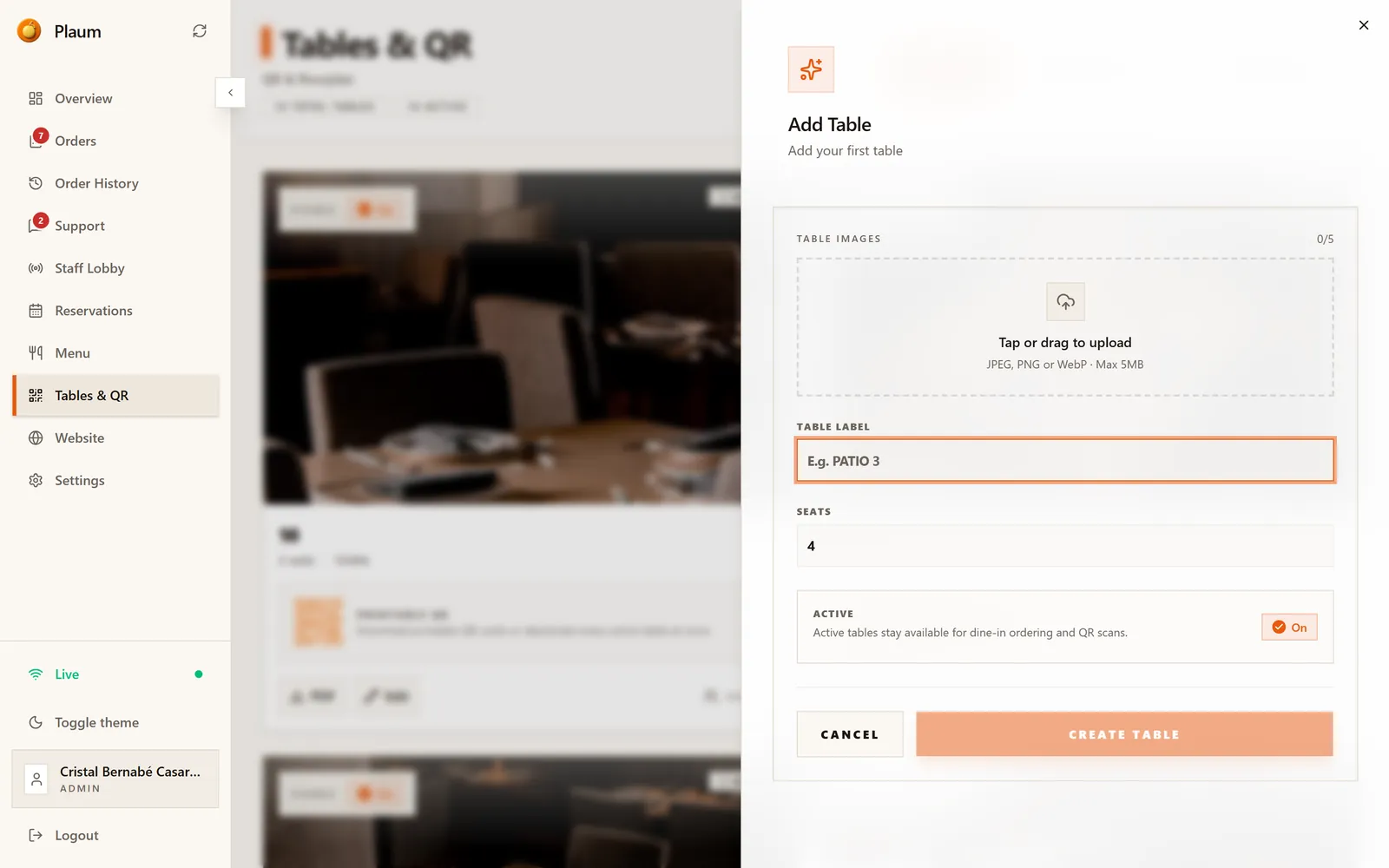
Create table stays greyed out until you've given the table a label.
- Table images — optional. Up to 5, JPEG, PNG or WebP, max 5MB each. Helpful for staff identifying a table from a booking.
- Table label — required. Whatever your team calls it:
12,PATIO 3,BAR 2. Use the same names your staff already say out loud. - Seats — how many people it takes. Defaults to 4. Reservations uses this to match party sizes.
- Active — leave On so the table accepts dine-in ordering and QR scans.
- Click Create table.
The card appears with a QR code generated automatically.
Editing a table
Click Edit on the table's card.
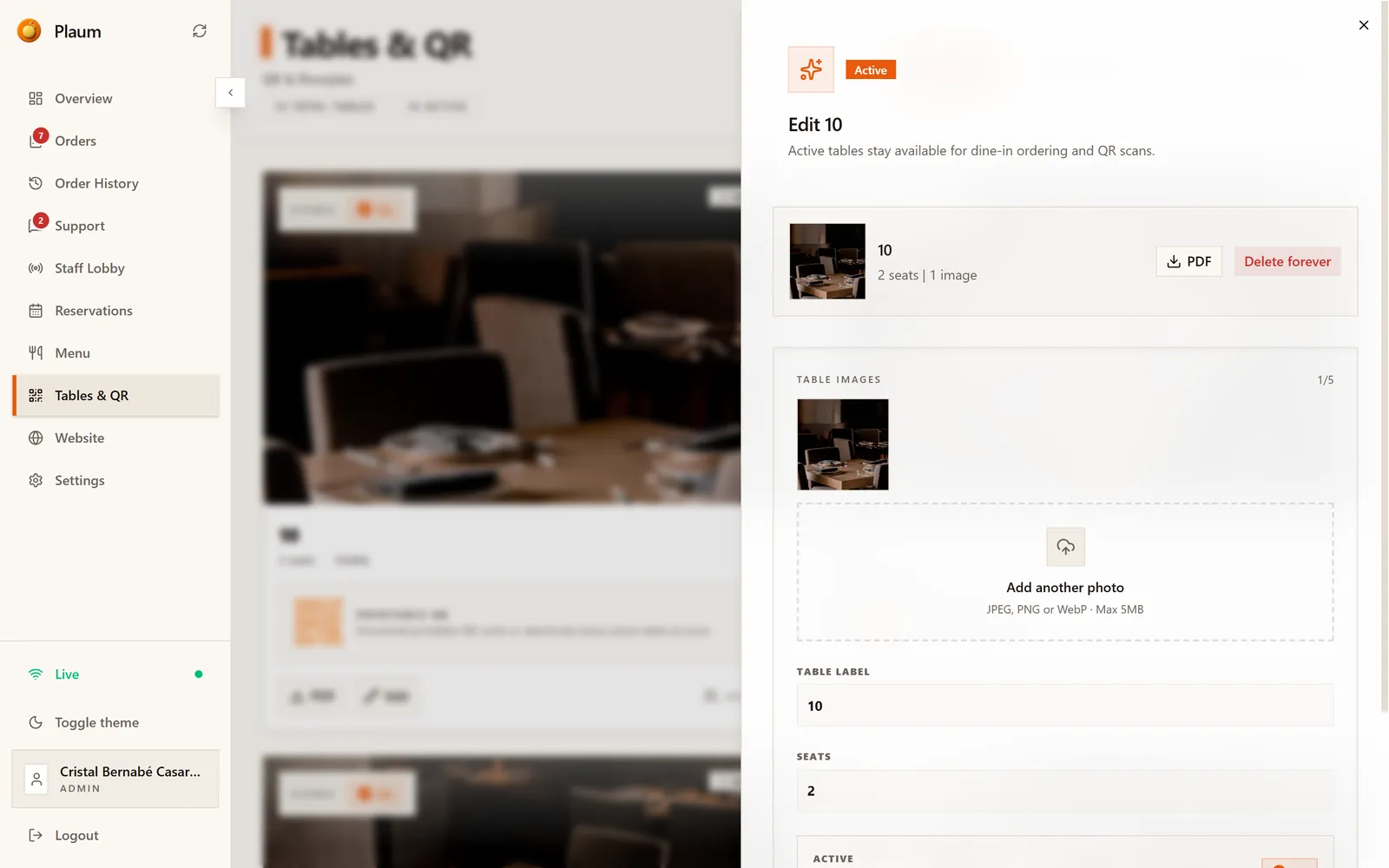
Same fields as adding. Change the label, seat count, photos or active state, then save.
Changing the label does not invalidate the printed QR code — the code points
at the table, not its name. You can rename 12 to WINDOW 2 and the printed
cards on that table keep working.
Printing QR codes
For one table: click PDF on its card. You get a printable card sized for a table tent or a sticker.
For everything: click Download all QR (ZIP) in the header. One download containing every table's code — the right choice when opening, or after a refurbishment.
Print on something that survives a wipe-down. A code that won't scan because it's smeared is worse than no code at all.
Taking tables out of service
One table — click Edit and switch Active to Off. Scans on that table stop working; the card stays so you can bring it back.
Everything — click Deactivate all in the header. Use it when you close for a private event or stop table-side ordering for the night. Each table has to be switched back on individually afterwards, so use it deliberately.
What the guest sees
When someone scans a table code, they land here:
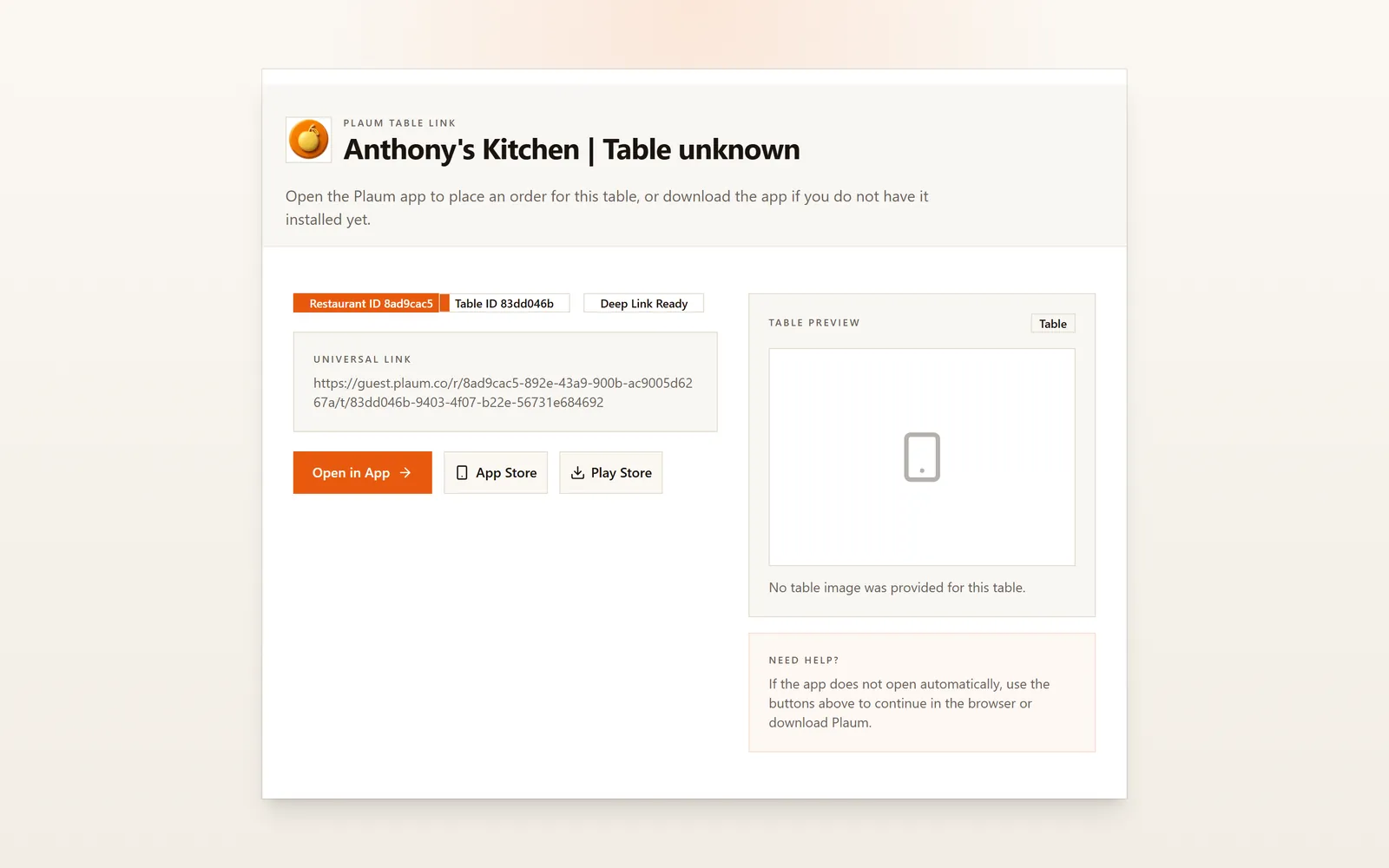
It shows your restaurant name and the table, then offers:
- Open in App — opens the Plaum app straight to that table's menu
- App Store / Play Store — for guests who don't have it yet
- A table preview photo, if you added one
- A Need help? note explaining what to do if the app doesn't open by itself
This page is a signpost, not the ordering screen — the order itself happens in the Plaum app. Orders placed this way arrive on your Orders board tagged QR order with the table number attached.
Common tasks
Set up a new dining room
- Click Add table once per table, giving each the label your staff use.
- Set the seat count on each — reservations depends on it.
- Click Download all QR (ZIP).
- Print and place them.
- Scan one yourself with a phone to confirm it resolves to the right table.
Close the terrace for winter
- Click Edit on each terrace table.
- Switch Active to Off and save.
The cards stay, with their codes, ready for spring.
Gotchas
- Deactivate all is floor-wide and has no matching "activate all". Turning everything back on is a table-at-a-time job.
- Seats feed reservations. A wrong seat count means bookings get matched to tables that can't hold the party.
- Renaming is safe; deleting isn't. A renamed table keeps its QR code; a deleted one takes its code with it, and anything already printed is dead paper.
- Two tables can share a label. Nothing stops you creating two tables both
called
12, and staff won't be able to tell them apart on an order ticket. - If the landing page says "Table unknown", the table's details didn't load. The code still identifies the table, but check the table still exists and is active.