
Reservations
Table bookings: the requests coming in, your decisions on them, and the policy that governs how they work — party sizes, slot lengths, cancellation windows and deposits.
How to get here
Click Reservations in the sidebar. If your restaurant doesn't have reservations access, the item isn't there at all.
Who can see it
Everyone can see the screen. Only admins can change the policy — staff work the booking queue but can't edit the settings.
Reservations is a separate module from your other add-ons. Having the Kitchen Dashboard or QR Dine-In doesn't give you reservations.
The screen at a glance
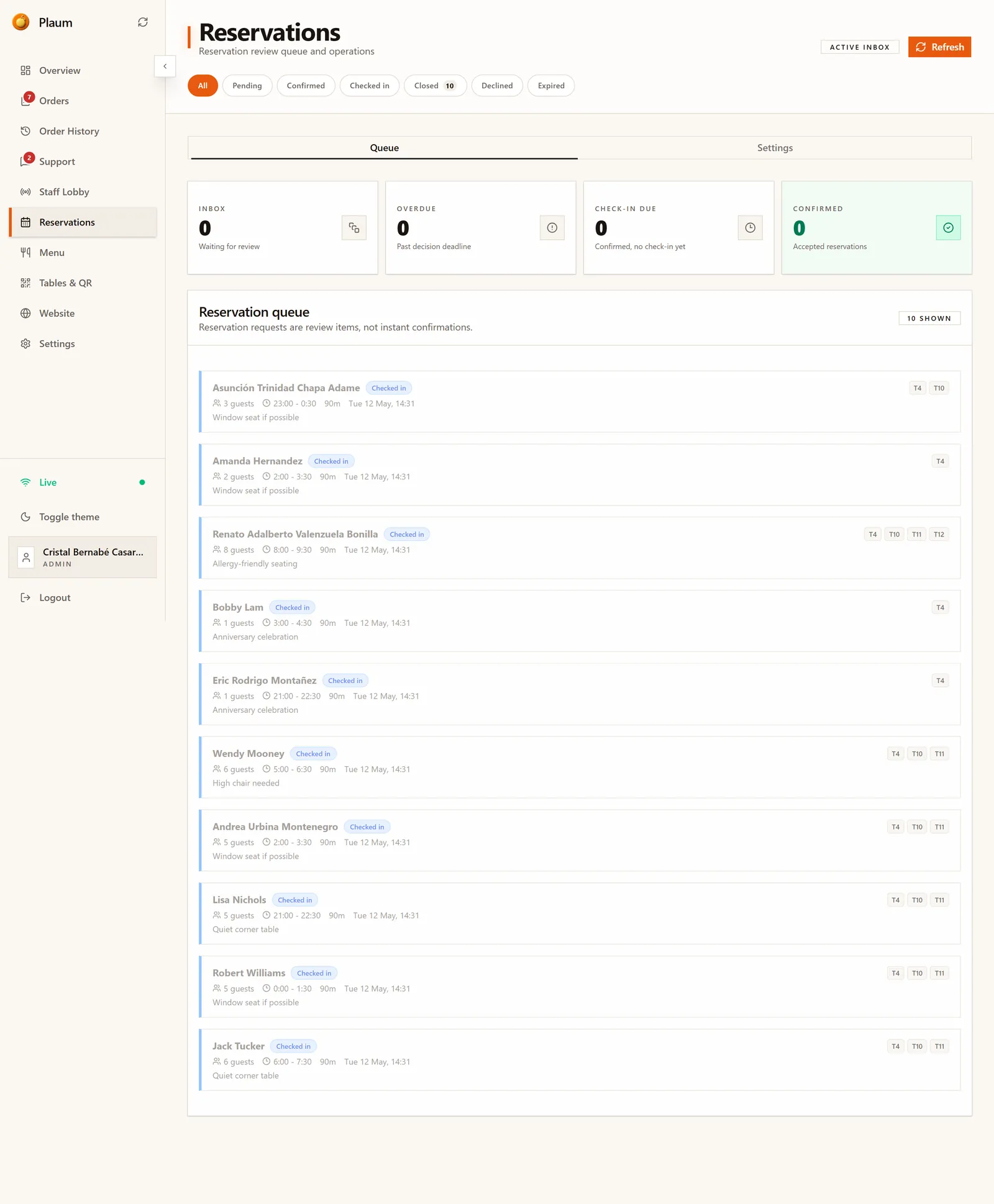
Three bands, then two tabs.
Filter pills across the top narrow the queue by status. Each carries a count:
| Filter | Shows |
|---|---|
| All | Every booking |
| Pending | Requests waiting on your decision — your action list |
| Confirmed | Accepted, guest expected |
| Checked in | Guest has arrived |
| Closed | Finished bookings |
| Declined | Requests you turned down |
| Expired | Requests that timed out before anyone decided |
Queue and Settings tabs switch between working the bookings and setting the policy.
Refresh pulls the latest requests, and the Active inbox badge confirms you're looking at the live queue.
The Queue tab
Your four numbers
| Card | Means |
|---|---|
| Inbox | Waiting for review — the number you're meant to act on |
| Overdue | Past their decision deadline. Chase these first. |
| Check-in due | Confirmed, but the guest hasn't been checked in yet |
| Confirmed | Accepted reservations |
The queue itself
Under the heading sits a reminder worth taking seriously: "Reservation requests are review items, not instant confirmations." Nothing is booked until you accept it.
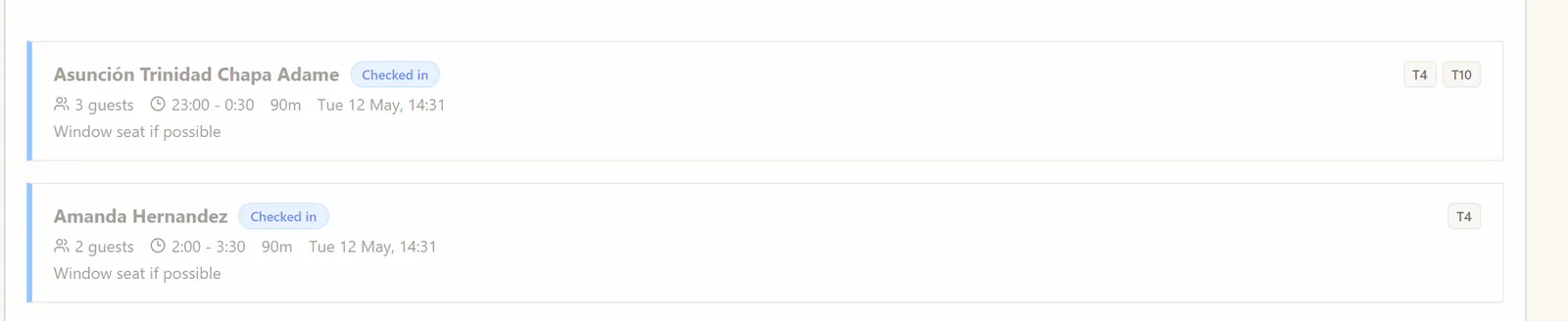
Each row gives you what you need to make the call:
- Guest name and a status badge
- Party size — e.g. 3 guests
- Time range and duration — e.g. 23:00 – 0:30, 90m
- When it was requested
- Special requests — "Window seat if possible", "Allergy-friendly seating", "High chair needed", "Anniversary celebration"
- Table chips on the right — which tables are assigned, e.g. T4, T10, T11
Special requests are the part people skip. They're where the anniversary and the allergy live.
What you can do with a booking
| Action | When to use it |
|---|---|
| Accept | You can seat them. The guest is confirmed. |
| Decline | You can't. The guest is told. |
| Assign a table | Tie the booking to specific tables from Tables & QR |
| Check in | The guest has arrived |
| Confirm no-show | They never came. Triggers the no-show penalty, if set. |
| Waive fee | Cancel a no-show fee — for a guest who called ahead, or a genuine mistake |
The Settings tab
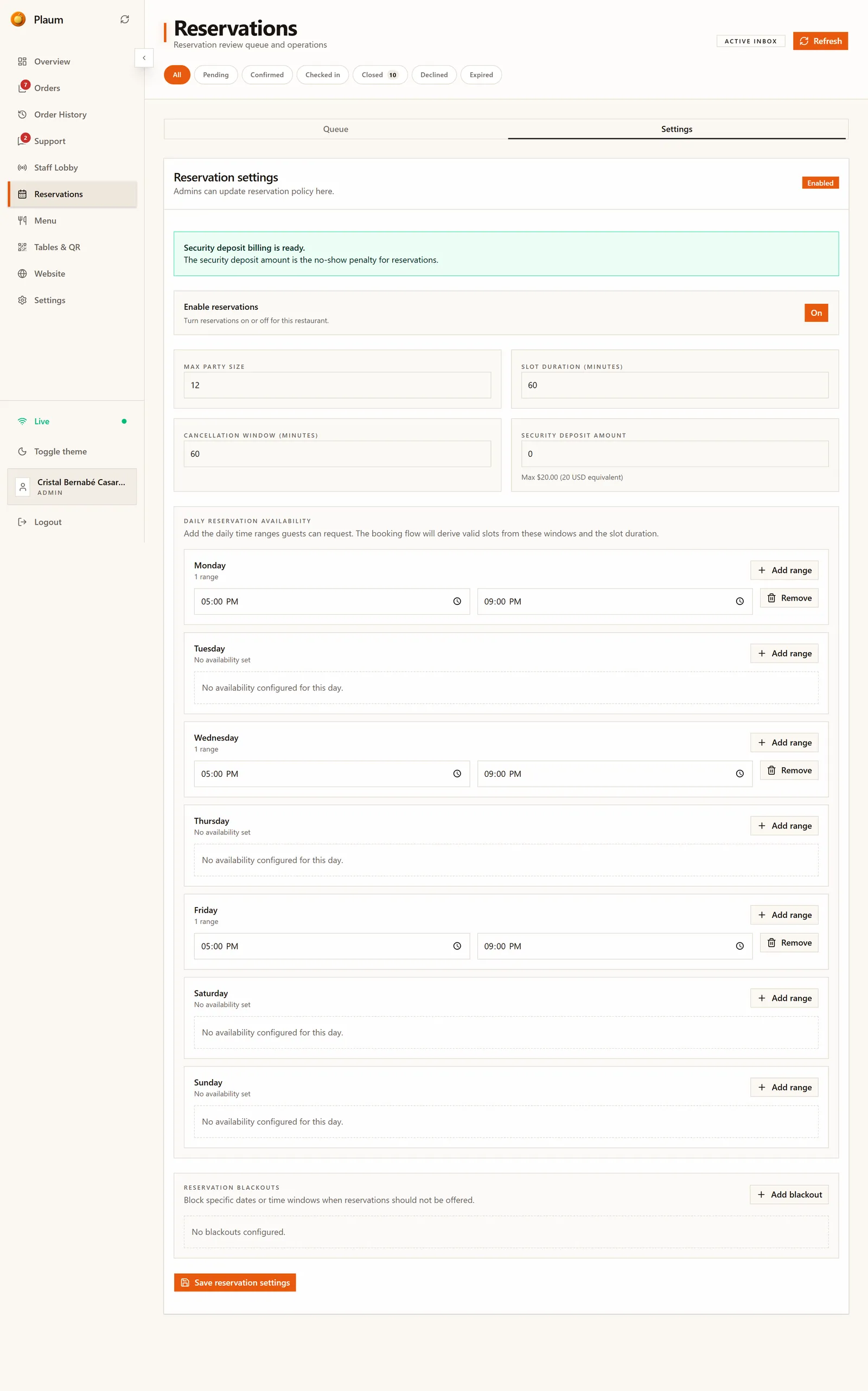
Admin only. An Enabled badge in the corner confirms bookings are open.
| Setting | What it controls |
|---|---|
| Enable reservations | The master switch. Off means guests can't book at all. |
| Max party size | The largest group that can book online. Bigger groups have to call. |
| Slot duration (minutes) | How long you allow per booking. Combined with your availability windows, this generates the bookable times guests see. |
| Cancellation window (minutes) | How long before the booking a guest can still cancel free of charge |
| Security deposit amount | The no-show penalty. Capped at the equivalent of 20 USD. |
A banner at the top tells you whether deposits can actually be charged. "Security deposit billing is ready" in green means yes. If it instead warns that billing setup is missing, click Manage billing and finish setup — until then the deposit field accepts a number but nothing can be collected.
Daily reservation availability
Set the hours you accept bookings, day by day. Click Add range on a day and give a start and end time — for example 05:00 PM to 09:00 PM. Each range has a Remove button, and a day can hold more than one (a lunch window and a dinner window).
Plaum divides each range into bookable slots using your slot duration. A day with no range shows "No availability configured for this day" and takes no bookings at all.
Check this whenever bookings dry up unexpectedly — a day quietly left empty looks identical to a quiet day.
Reservation blackouts
Block specific dates or time windows — a private hire, a holiday closure, a refurbishment week. Click Add blackout and set the period. Blackouts override your normal availability.
Click Save reservation settings when you're done. Nothing takes effect until you do.
Turning reservations on for the first time
If reservations have never been switched on, the screen says "Reservations are not enabled for this restaurant" with an Activate reservations button. It's two steps, and it's easy to do only the first:
- Click Activate reservations. This enables the module on your account.
- Open the Settings tab, turn Enable reservations to On, and click Save reservation settings.
Step 1 buys you the feature. Step 2 opens the booking inbox. Do only step 1 and the screen will still say reservations aren't enabled.
Then add availability — without it you're enabled but unbookable.
Common tasks
Open for bookings
- Activate and enable, as above.
- On the Settings tab set Max party size, Slot duration and Cancellation window.
- Add an availability range for every day you want bookings.
- Click Save reservation settings.
- Check the Pending filter over the next day to see requests arriving.
Work the morning queue
- Open the Queue tab and read the Overdue number first.
- Filter to Pending and accept or decline each one.
- Assign tables to anything confirmed for today.
Close a specific date
- On the Settings tab, scroll to Reservation blackouts.
- Click Add blackout and set the date or window.
- Click Save reservation settings.
Handle a no-show
- Filter to Confirmed and find the booking.
- Click Confirm no-show.
- If you decide not to charge them, click Waive fee.
Gotchas
- Activating is not the same as enabling. Two separate steps, and the first alone leaves you closed for bookings.
- No availability means no bookings. The module can be fully enabled and take nothing because every day is empty.
- Settings only save on click. Changing a field does nothing until you press Save reservation settings.
- Slot times are derived, not listed. You set the window and the slot length; Plaum works out the times guests see.
- Deposits need billing setup, and the deposit amount doubles as your no-show penalty.
- Nothing is booked until you accept it. Requests are review items — a guest who submitted a request does not have a table.