
Setting up your website
The Website screen is the control panel for your public site: whether it's live, what address it sits on, and the way into the builder.
How to get here
Click Website in the sidebar.
Who can see it
Admins only. Staff don't see this item.
The screen at a glance
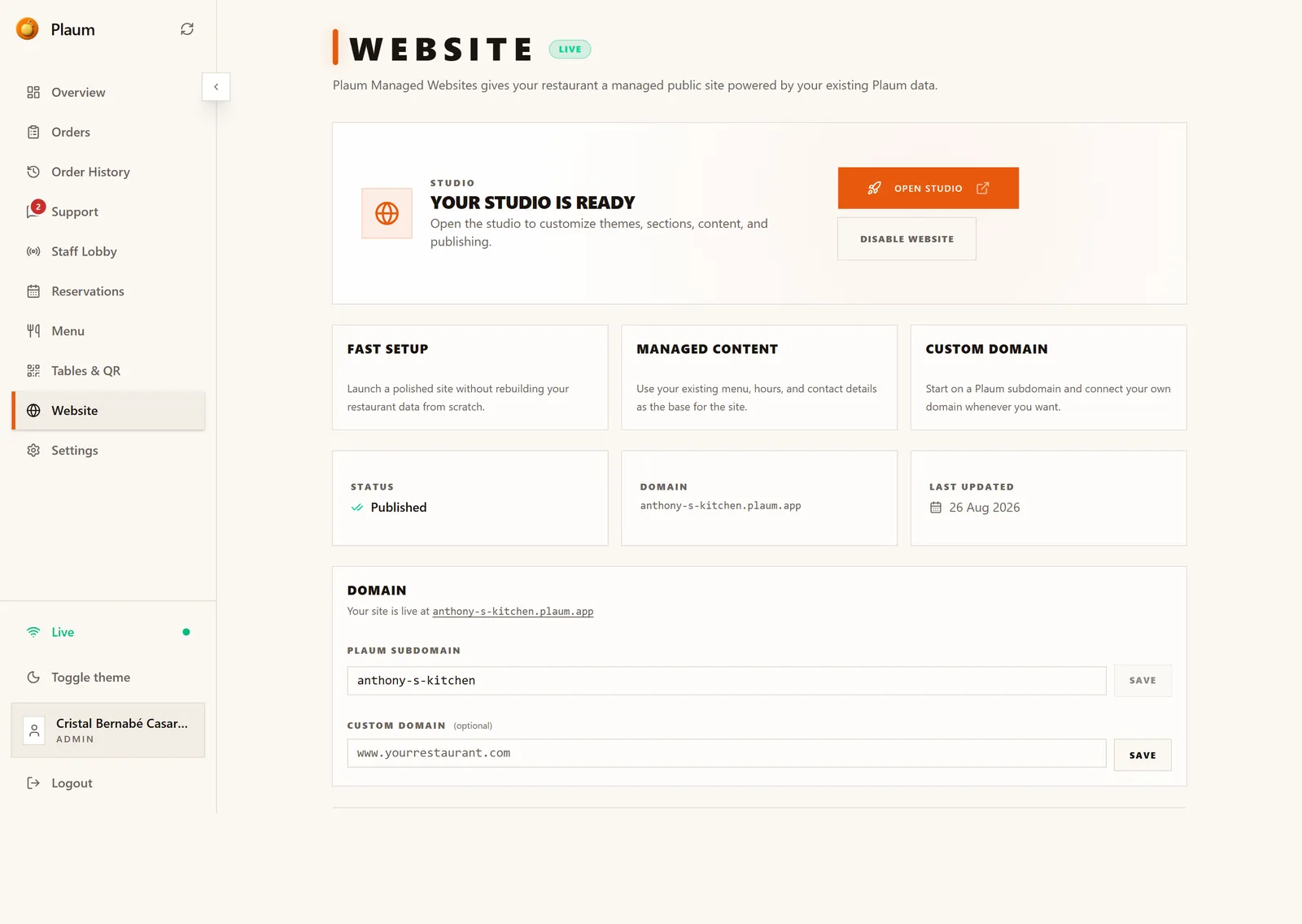
A Live badge sits beside the title when your site is published.
Studio
Your studio is ready — with Open Studio to start editing, and Disable website to take the whole site down. Disabling is not the same as unpublishing: it switches the product off, rather than hiding the current version.
What you get
Three cards explaining the offer:
- Fast setup — launch without rebuilding your restaurant data from scratch
- Managed content — your existing menu, hours and contact details are the base
- Custom domain — start on a Plaum subdomain, connect your own whenever you want
Status strip
| Field | Means |
|---|---|
| Status | Published (live), Draft (not yet visible), or Offline |
| Domain | The address your site is currently served on |
| Last updated | When it was last published |
Domain
Where you set your web address. Two fields, each with its own Save:
- Plaum subdomain — the name in front of
.plaum.app. Free, works immediately. - Custom domain (optional) — your own address, e.g.
www.yourrestaurant.com
Choosing your subdomain
Your site starts on something.plaum.app. Pick a subdomain that matches how
people search for you — usually just your restaurant name.
- Type the name you want in Plaum subdomain.
- Click Save beside that field.
- The link above the field updates to the new address.
Change this as rarely as possible. The subdomain is your web address. Change it and every existing link breaks: printed menus, business cards, Google results, social profiles, anything a customer bookmarked. There is no automatic redirect from the old address.
Worth knowing: the subdomain can also be regenerated from your restaurant's display name when you save in the Studio. If your address changes unexpectedly after editing your site, this field is where you set it back.
Connecting your own domain
If you own a domain and want your Plaum site on it:
- Enter it in Custom domain, e.g.
www.yourrestaurant.com. - Click Save.
- Plaum gives you a DNS record to add at your domain registrar — the company you bought the domain from.
- Add that record with your registrar, then come back and verify.
DNS changes can take a few hours to travel the internet. If verification fails immediately after you've added the record, wait and try again before assuming something's wrong.
Your Plaum subdomain keeps working after you connect a custom domain, so links already in the wild don't break.
Taking your site down
Disable website switches the product off entirely. Use it if you're closing, rebranding, or moving to a site built elsewhere.
To hide the site temporarily while you rework it, unpublish from the Studio instead — that keeps your configuration intact.
Gotchas
- Disabling is not unpublishing. Disable turns the product off; unpublish just hides the current version.
- Changing the subdomain breaks every existing link. Decide early, then leave it alone.
- A custom domain needs a change at your registrar, not in Plaum. Plaum tells you what to add; you add it where you bought the domain.
- "Published" only means your site is live. It doesn't mean ordering or bookings are switched on — those are separate.