
First launch — the onboarding slides
How you get here: the very first launch after install, before you have an account. Requires an account? No — this runs before sign-up.
What this is
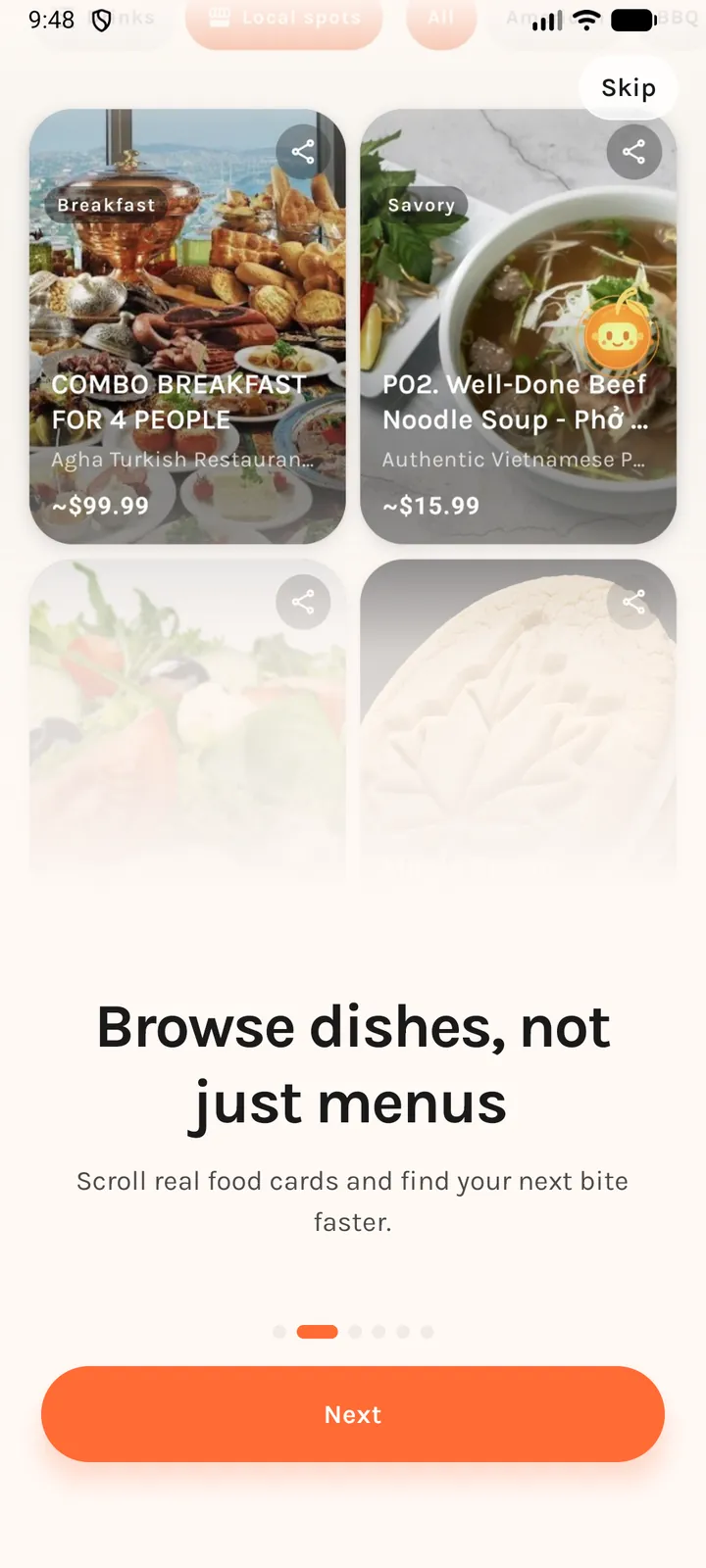
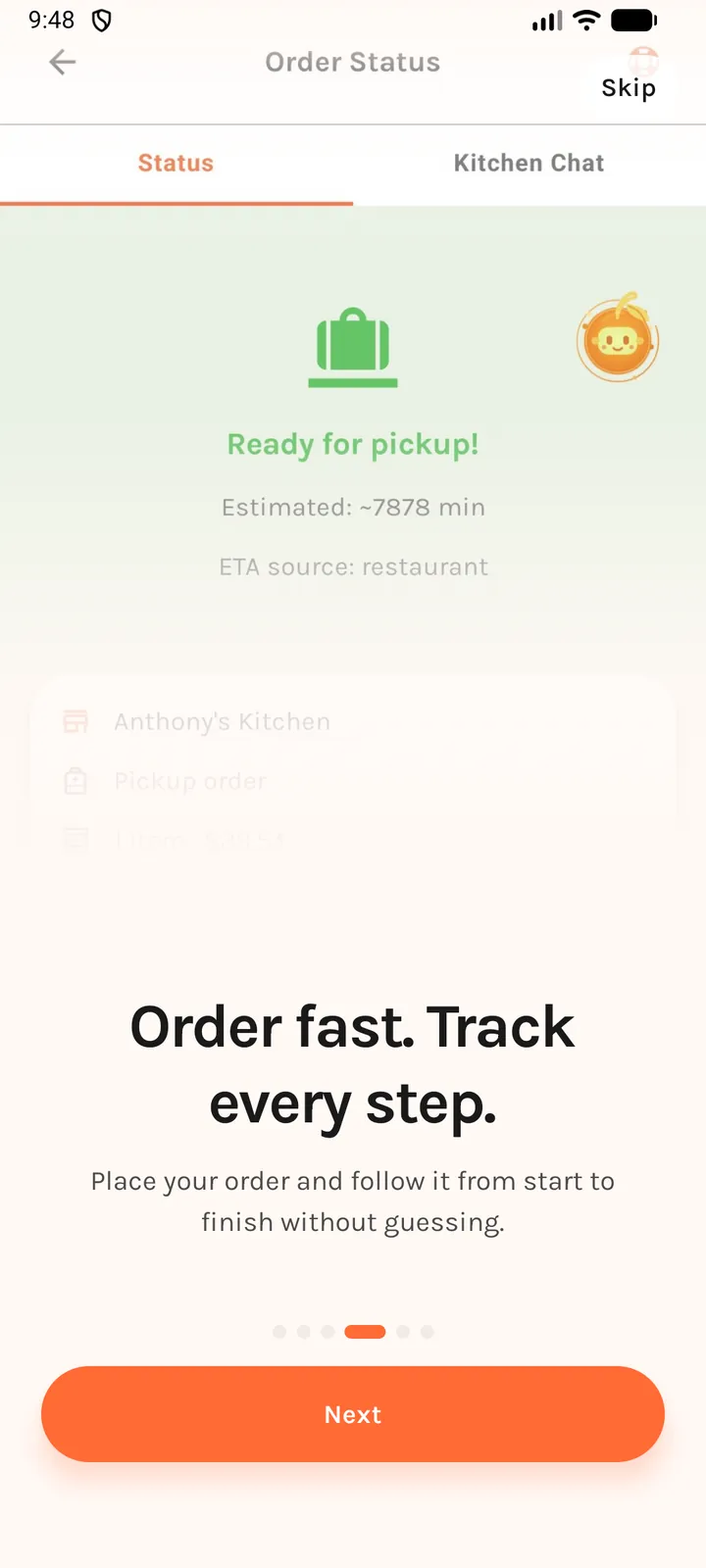
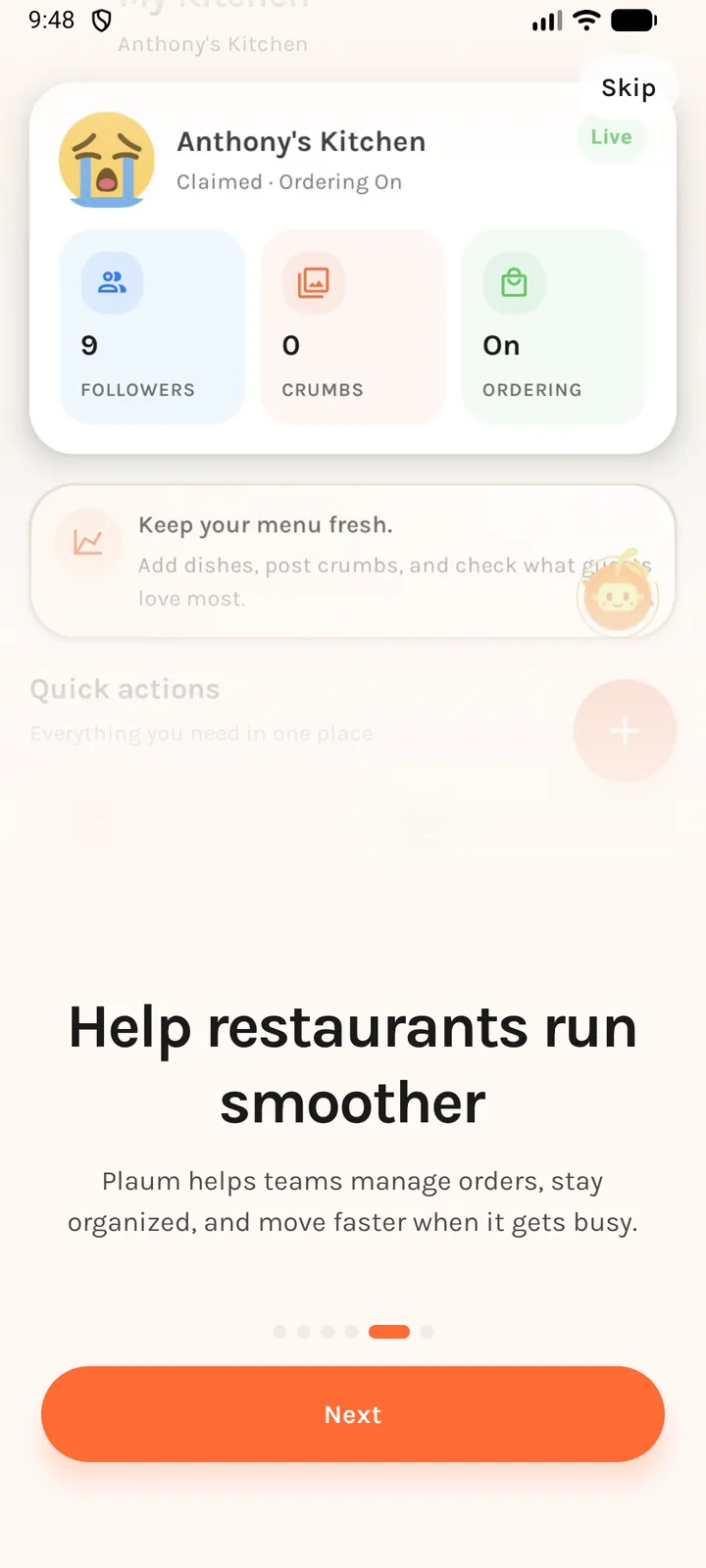
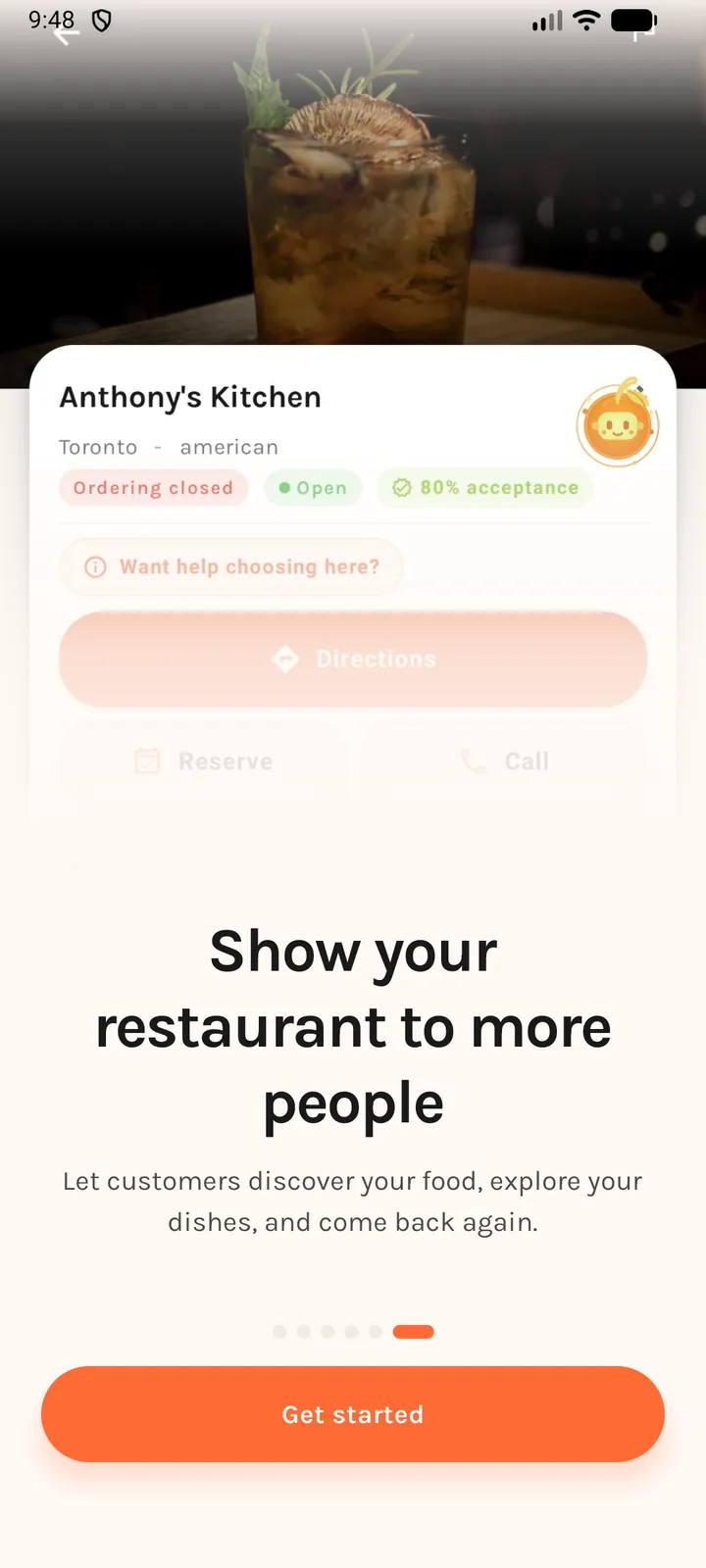
Six full-bleed slides that introduce what Plaum does. Each slide is a real screenshot of the app behind a soft colour wash, with a headline, a line of body copy, six page dots, and a primary button.
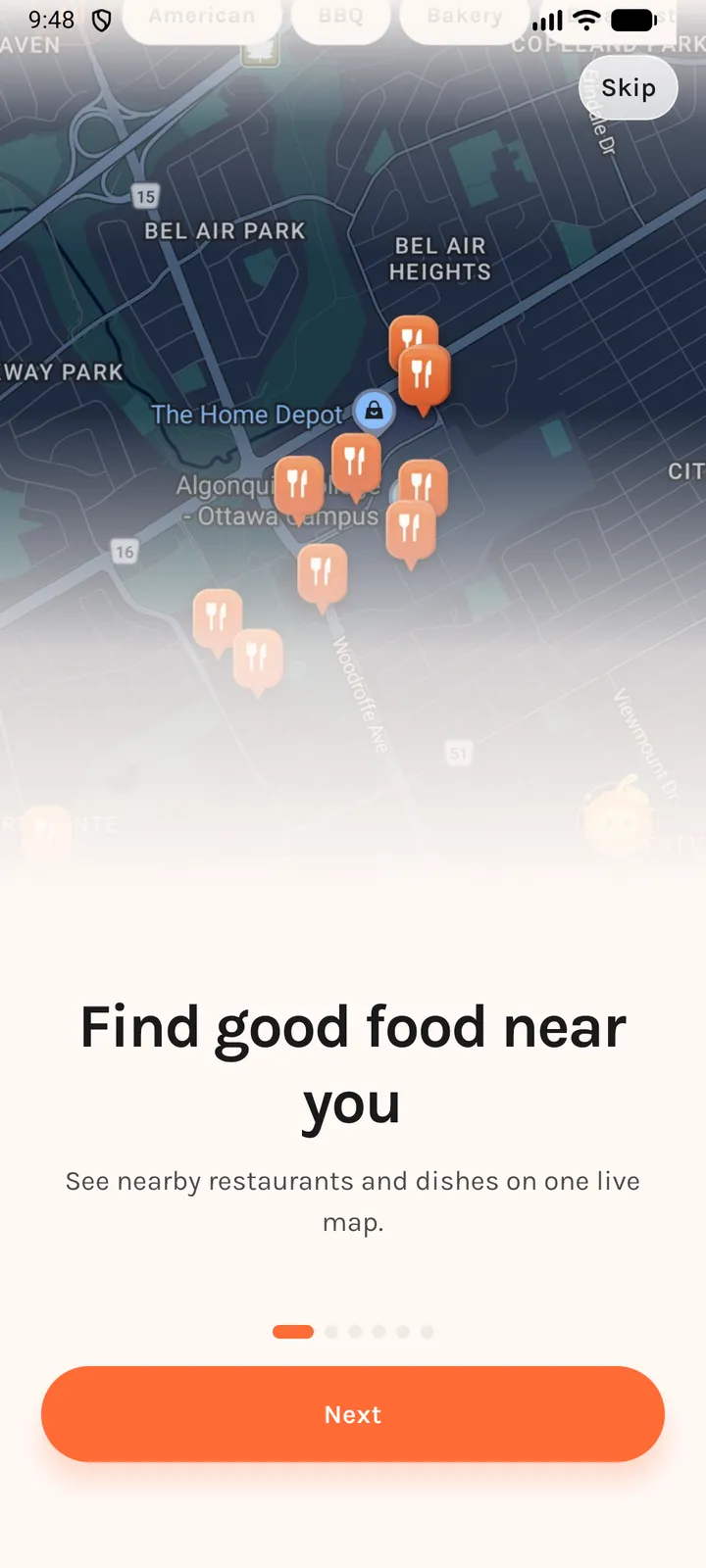
You are not signed in yet. Nothing here creates an account — the slides just set expectations before you reach sign-up.
The six slides, in order
| # | Headline | Body |
|---|---|---|
| 1 | Find good food near you | See nearby restaurants and dishes on one live map. |
| 2 | Browse dishes, not just menus | Scroll real food cards and find your next bite faster. |
| 3 | Not sure what to eat? Ask Plaum AI | Plaum AI knows what you like, so you can ask things like, "I want to eat out tonight. Where should I go?" |
| 4 | Order fast. Track every step. | Place your order and follow it from start to finish without guessing. |
| 5 | Help restaurants run smoother | Plaum helps teams manage orders, stay organized, and move faster when it gets busy. |
| 6 | Show your restaurant to more people | Let customers discover your food, explore your dishes, and come back again. |
Slides 1–4 are the diner story. Slides 5–6 are the restaurant story — everyone sees all six, because one app serves both sides.
 |
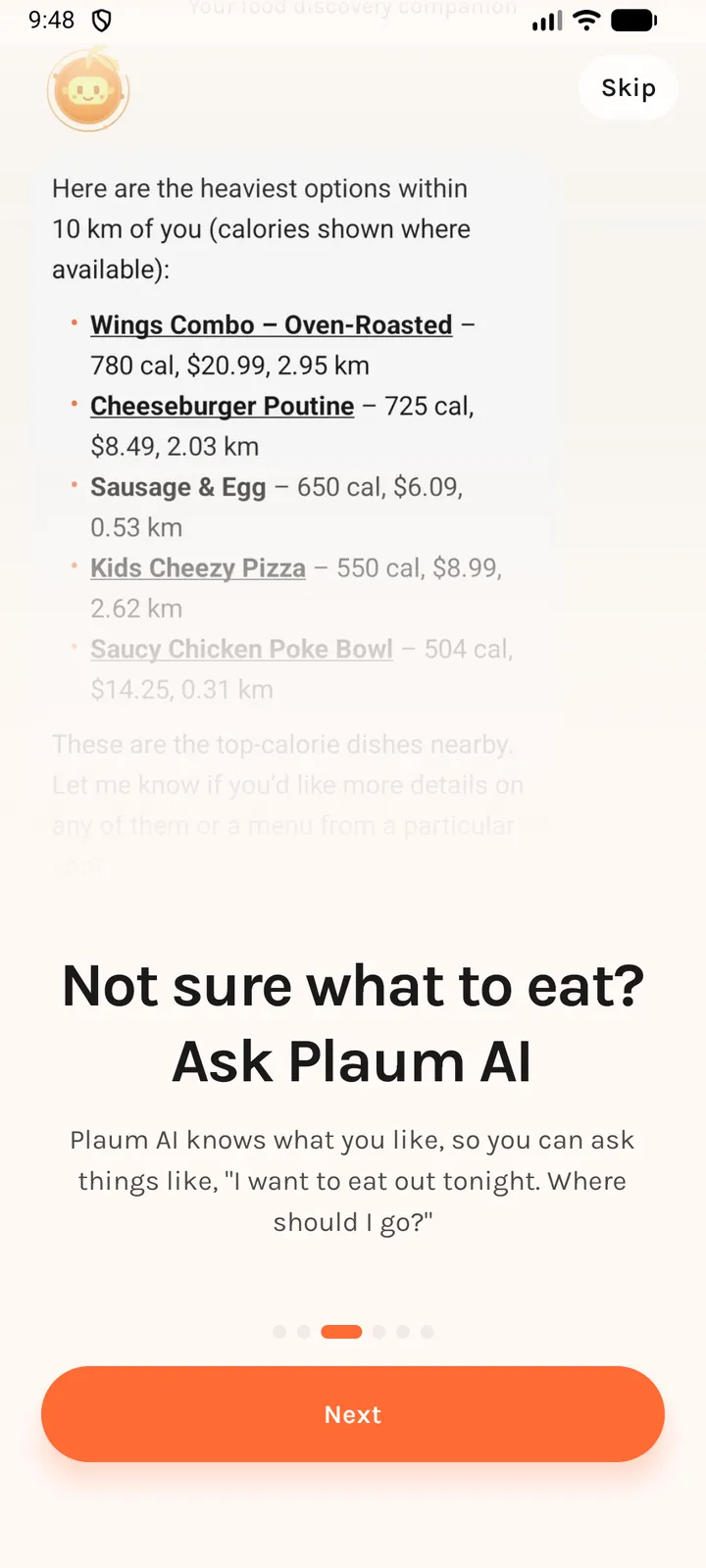 |
| 2 — Browse dishes, not just menus | 3 — Not sure what to eat? Ask Plaum AI |
 |
 |
| 4 — Order fast. Track every step. | 5 — Help restaurants run smoother |
 |
|
| 6 — Show your restaurant to more people |
Controls
| Control | Where | What it does |
|---|---|---|
| Skip | Top-right pill, slides 1–5 only | Ends onboarding immediately and drops you at the auth screen. |
| Next | Bottom primary button, slides 1–5 | Advances one slide. |
| Get started | Bottom primary button, slide 6 | Ends onboarding and sends you to Sign up. |
| Page dots | Above the button | Show which of the six you're on. Indicators only — not tappable. |
The Skip button is deliberately absent on the last slide: there is nothing left to skip, so the only forward action is Get started.
Do the slides come back?
No — skipping and finishing both mark onboarding as done, so you will not see these slides again unless the app's data is cleared. The difference is only where you land: Skip drops you at the sign-in screen, while Get started takes you to Sign up.
Good to know
- The whole sequence honours dark mode: the wash behind the artwork flips from
#FFF9F5to#0D0D0Dand the copy inverts with it. - Copy is fully localised — English and French ship today.
Where you go next
Both exits lead out of onboarding and into Sign up or Log in. If you would rather look around first, the login screen also offers guest browsing.