
Support
Your direct line to Plaum. Raise a ticket when something in the product isn't working, and track the replies.
This is for contacting Plaum, not your customers. To message a customer about their order, use the chat inside that order on the Orders board.
How to get here
Click Support in the sidebar. A red number badge on it means you have unread replies waiting.
Who can see it
Everyone — admins and staff.
The screen at a glance
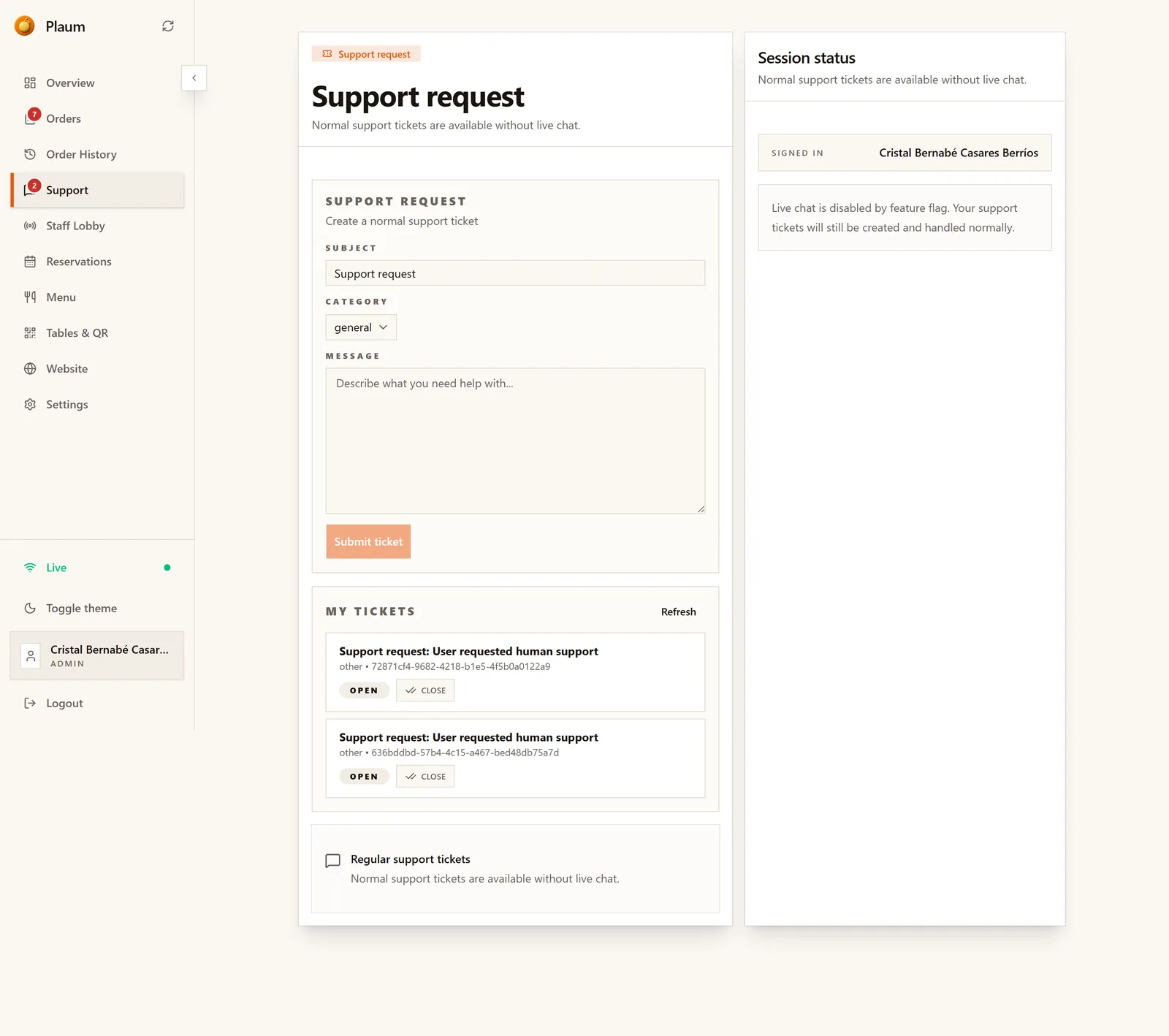
Three parts.
Support request form
Where you raise a new ticket:
- Subject — a short summary
- Category — a dropdown; general is the default
- Message — the detail
- Submit ticket
My tickets
Everything you've raised, each showing its subject, its category, and its reference. Two buttons per ticket:
- Open — view the conversation
- Close — mark it resolved when you no longer need help
Session status
A panel on the right confirming which account you're signed in as.
Raising a ticket
- Give it a subject that names the problem — "QR code for table 7 won't scan" beats "problem".
- Pick the closest category.
- In Message, include what you expected, what actually happened, and roughly
when. If it's about a specific order, include its reference (like
#2E79) from Order History. - Click Submit ticket.
The ticket appears in My tickets straight away.
Following up
Click Open on any ticket to read the thread and reply. When a Plaum agent responds, the Support item in your sidebar gets a red badge.
Click Close once your problem is solved. Closing is a courtesy that keeps your own list readable — it doesn't delete anything.
Gotchas
- This is not customer messaging. Nothing you write here reaches your diners.
- Tickets are per user account, not per restaurant. A ticket raised by one staff member won't appear in another's list — if a colleague needs to follow it up, they'll need the reference from you.
- The badge only clears when you open the ticket, not when you visit the screen.